Introducing Selora Vision: Cameras That Understand What They See
Selora Vision turns the Selora Hub into a local video recorder that detects people, vehicles and animals, recognizes the faces you know, and lets you search your footage in plain words. Powered by Frigate, built into Selora AI, and one switch away on every paid plan.
Most security cameras send their video to someone else’s cloud, then send you a notification that says “Motion detected” every time a tree moves. You pay a subscription per camera, and the footage of your front door lives on a server you will never see.
Selora Vision takes the other road. It turns your Selora Hub into a video recorder that watches your cameras, tells a person from a car from a cat, and knows the faces of the people who live there. By default, all of it happens inside the house. Selora Vision is included in every paid plan, and turning it on is one switch.
One switch, nothing to configure
Open your installation in your Selora Homes account , find the Selora Vision card on the Overview, and turn it on. That is the whole setup.

While it starts, the Hub does the work that usually takes a weekend of forum threads: it installs the video recorder, connects it to Home Assistant’s message broker (installing one if the home has none), adds the integration that brings cameras and detections into Home Assistant, and puts it in the Home Assistant sidebar. You do not edit a single configuration file.
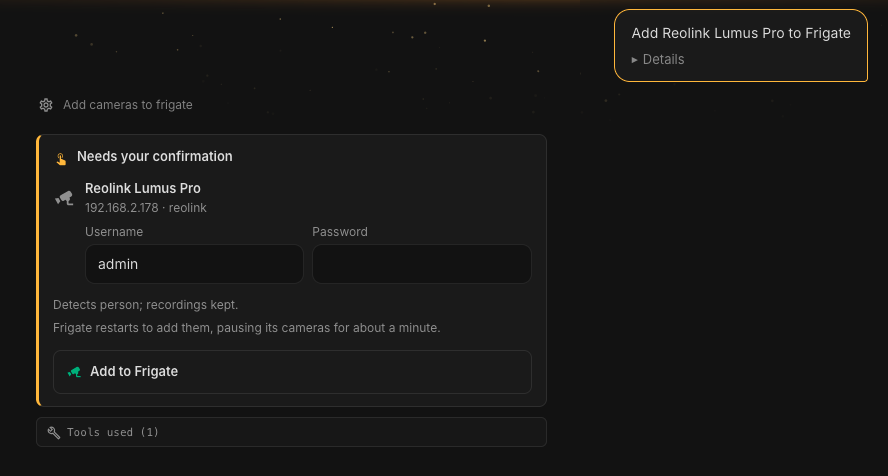
Then ask Selora AI to add your cameras. It finds the ones already in Home Assistant and the ones it can see on the home network, and shows them on a card. For a camera that needs a login, you type the username and password on the card itself: they go straight to the recorder, never to the AI.
Everything runs on the Hub
Object detection runs on the Hub, on its own graphics processor. So does face recognition. Recordings stay on the Hub’s disk. Nothing about a person walking up your driveway has to leave the house for Selora Vision to notice them, record them, or tell you who they are.
Face recognition is the one thing you turn on yourself, because it is a decision about the people in your home, not a technical setting. Selora AI explains what it does and asks first. Then you add each person with a name and a few photos, and from then on you can ask “When did Alex get home?”, or be notified only when someone you do not know comes to the door.
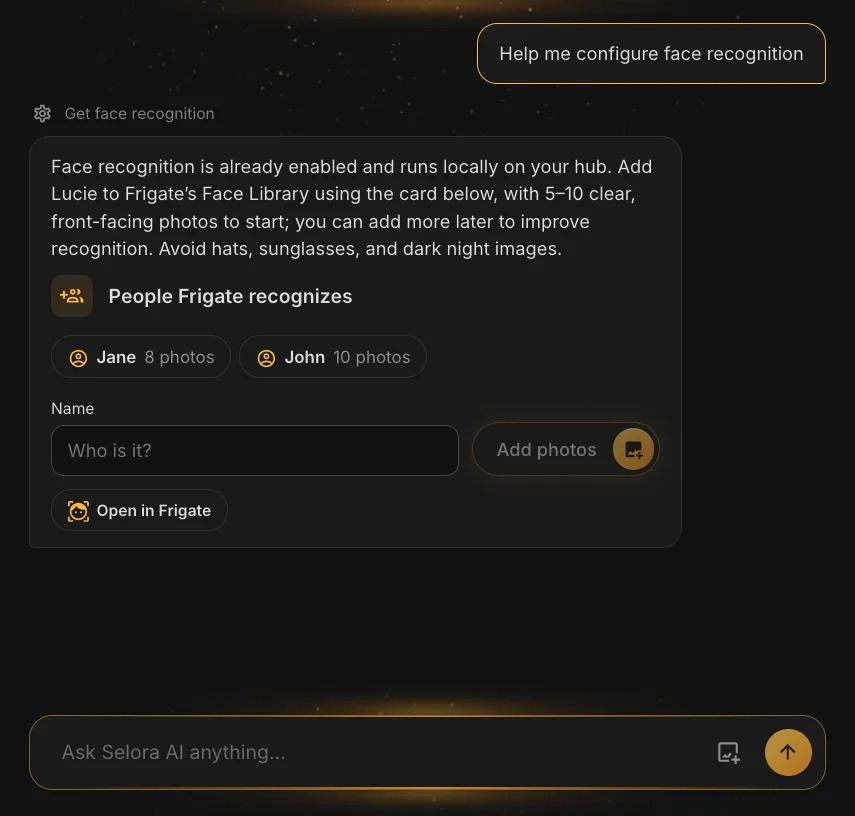
The photos go from the card to the Hub. They never pass through the AI or the conversation.
Built into Selora AI
Selora Vision is not a separate app with its own login. It is part of Selora AI, so you talk to your cameras the way you talk to the rest of your home:
- “Did anyone come to the front door this afternoon?” The answer shows each event with the picture the camera saved.
- “Turn on the porch light when someone walks up after dark.” Selora AI builds the automation from what the home already has, and shows it on the usual card for you to accept.
- Once your cameras are in, Selora AI suggests next steps on its home screen, one at a time: face recognition, automation ideas for each camera, and camera descriptions.
When “a car” is not enough: camera descriptions
The Hub tells you a car went by. Sometimes you want to know which one. For that, Selora Vision can send the clips of an alert to Selora AI Cloud, where a larger model describes what happened:
The Hub sees: Car
Selora AI describes: A white FedEx cargo van parked on the driveway.
Each description is saved automatically. Weeks later, ask “Any FedEx truck this month?” or “Show me a man with a white dog in the street”, and semantic search finds the matching clips, even when you do not use the same words the description did.
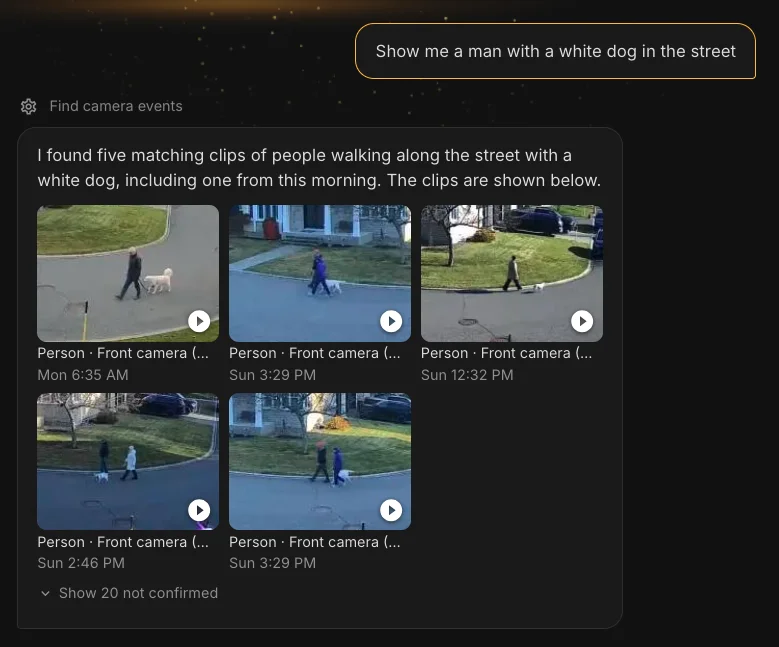
This is the one feature that sends pictures out of the house, so it is off for every camera until you turn it on, one camera at a time. Keep it for cameras that face the driveway or the street, never for indoor ones. Descriptions use your Selora AI credits, and the assistant always comes first: descriptions pause once 60% of the period’s credits are used, so there is always room left to talk to your home.
Backups where you want them
A recorder that loses its footage the day the Hub is stolen is not much of a security system. Selora Vision backs up to two places, and you choose which.
Your own NAS. Point Selora Vision at a share on your network storage (SMB or NFS) and the Hub copies its recordings, clips and exports there every hour, plus a daily copy of its settings, the newest seven kept. The copy only adds: what the Hub deletes to make room stays on the NAS. If the share runs low, the Hub removes its own oldest days there, never today’s.
Selora’s cloud. Alert clips upload while the alert is still happening, so the footage survives the Hub disappearing with the burglar. Clips are encrypted on the Hub before they leave, kept for 30 days, and share your plan’s backup storage with your Home Assistant backups: you decide the split. The recorder’s settings are backed up too, and your face library only with your explicit consent. To watch a clip again, restore it to the Hub, which decrypts it.
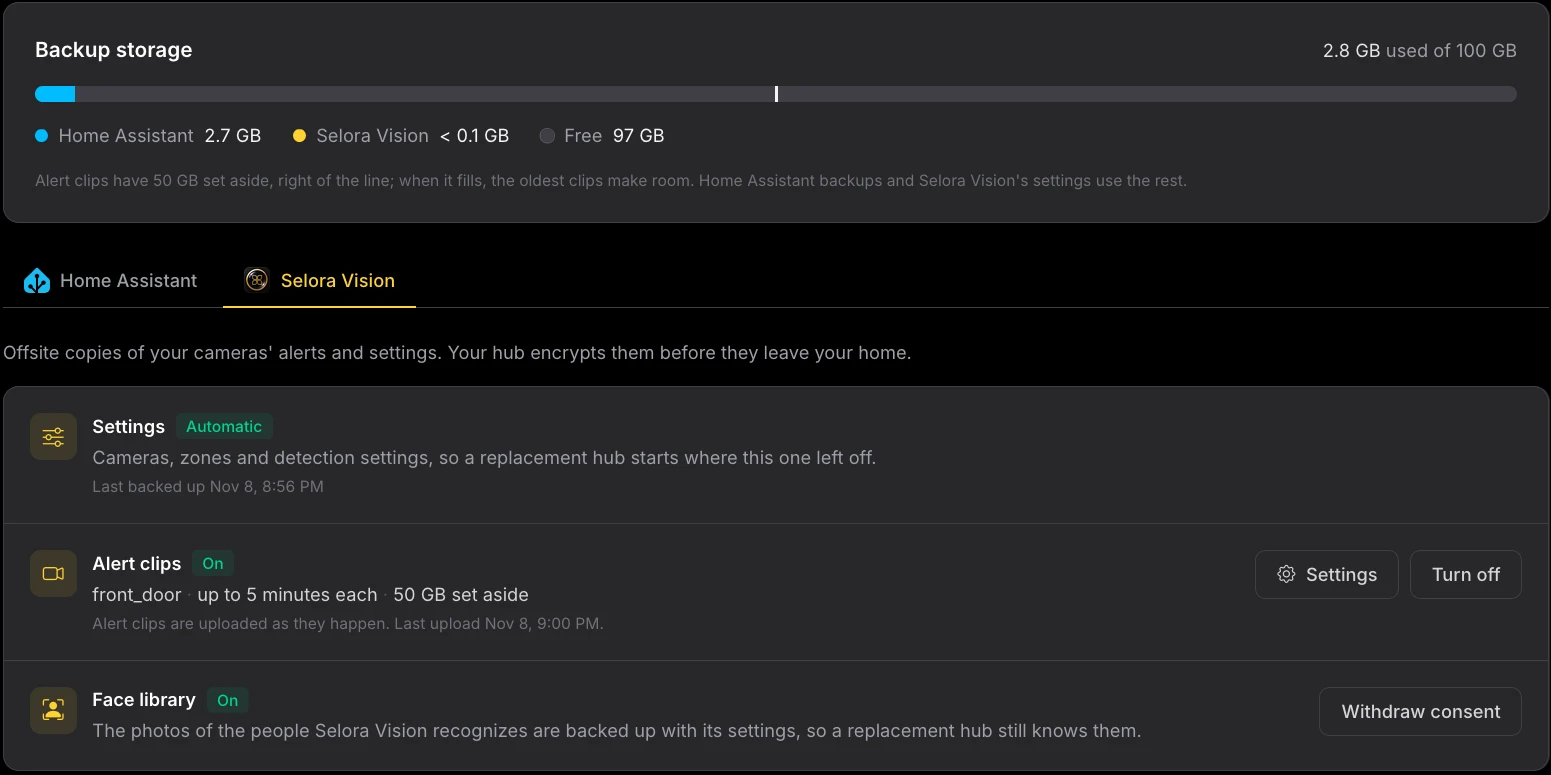
Both are set up from the Selora Vision card in your Selora Homes account, and both are off until the homeowner turns them on.
Already have a recorder? Bring your own
Plenty of homes already record their cameras to a dedicated recorder, such as UniFi Protect. Running a second recorder next to it makes no sense: two copies of the same footage, twice the storage, nothing gained.
So Selora Vision can also run without recording. Your recorder keeps all the footage, and Selora Vision adds what it does not do on top:
- detection of people, vehicles, animals and packages, with a snapshot of each;
- face recognition and license plate recognition;
- notifications and automations on those detections;
- camera descriptions, and searching past detections in plain words.
All the recorder has to do is share each camera’s streams, a high and a low resolution one, over RTSP. With UniFi Protect, that is the RTSPS switch on each camera’s channels. Then ask Selora AI to add the cameras without recording them. Selora Vision analyzes the low resolution stream, so the recorder is not loaded down, and you keep watching footage in the recorder’s own app. The Selora Vision guide walks through the setup.
Powered by Frigate
Under the hood, Selora Vision runs Frigate , the free and open source video recorder that has become the reference for local camera AI. Frigate is fast, private by design, and integrates with Home Assistant better than anything else: each camera comes back to Home Assistant with its own entities for what it detects, ready for automations and dashboards.
What Frigate does not do on its own is install itself, stay up to date, connect to Home Assistant, back itself up, or answer questions in plain words. That is the part Selora adds.
Get started
Selora Vision is included with every paid plan, and each one is sized for a typical number of cameras:
| Plan | Typically good for |
|---|---|
| Essentials | 4 cameras |
| Premium | 8 cameras |
| Estate | 16 cameras |
For more cameras than that, contact us about the Enterprise plan. A standard Hub runs either Selora Vision or Selora AI Local; Hubs with 32 GB of memory run both. Any IP camera with an RTSP stream should work, and we recommend a few .
Turn it on from the Selora Vision card in your Selora Homes account , then read the Selora Vision guide for camera tips, face recognition and descriptions.