
Selora AI 1.0: From Controlling Your Home to Setting It Up
Selora AI 1.0 is our biggest release yet. Risky changes ask first and edits can be undone, recipes update themselves, Selora AI Local gets faster and more reliable, and Guided Installations can program a home before installation day.
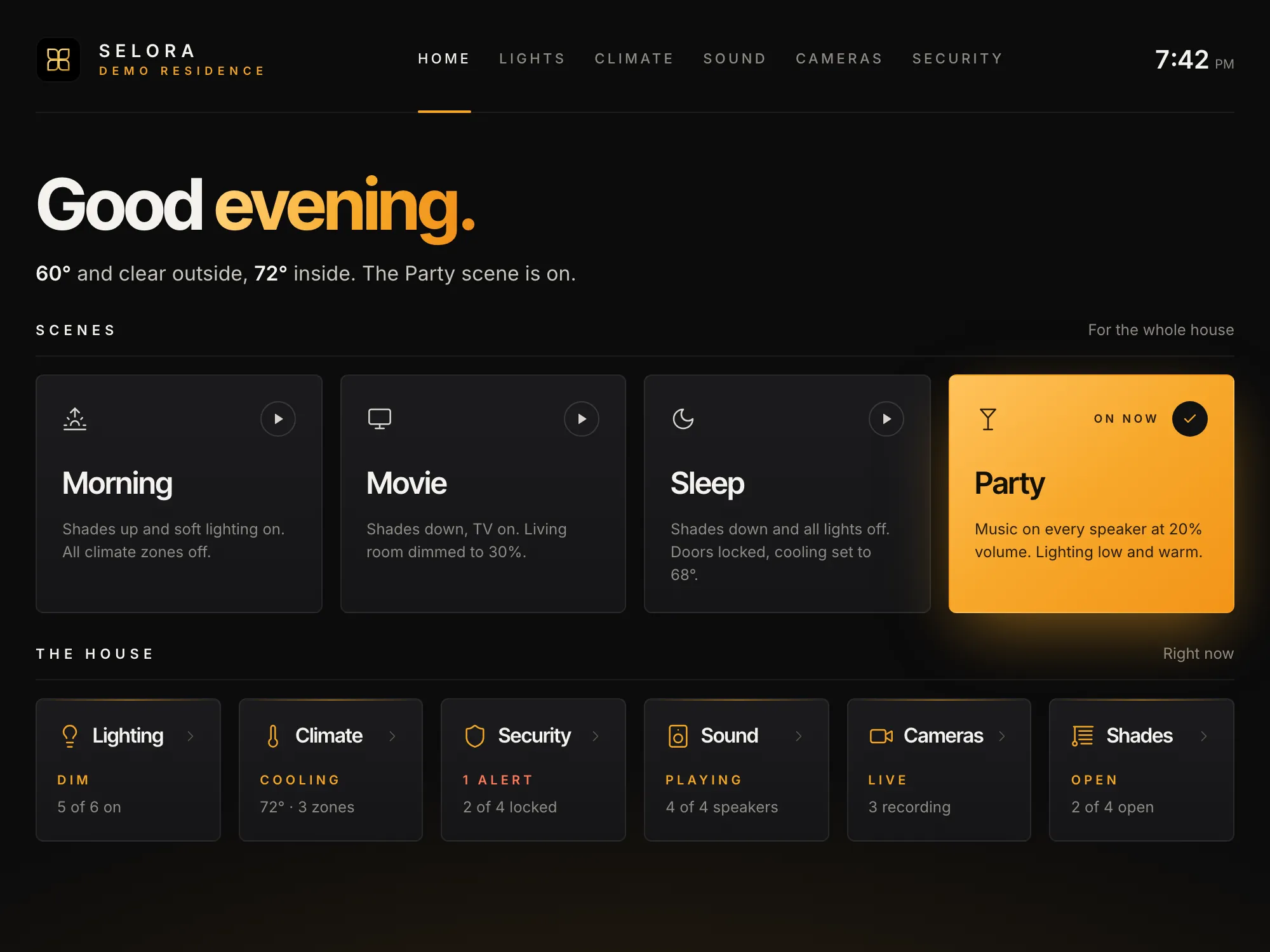
Selora AI 1.0 is here. We skipped straight from v0.17.0 to 1.0 because this release changes what Selora AI is for. Until now, it controlled your home. From today, it can set your home up.
Selora AI 1.0 covers almost everything you can change in Home Assistant’s settings: dashboards, helpers, automations, scripts, scenes, blueprints, devices, integrations, updates, backups and more. Ask in chat, or connect any assistant over MCP , and the work gets done instead of explained.
The dashboard at the top of this post was built entirely by an assistant over MCP: the scenes, a live summary of the house, and a page for each of lighting, climate, sound, cameras and security.
Chat does the work
Ask “create a new dashboard with all the cameras” and you get the dashboard, not a list of steps to follow. Selora AI finds the cameras, checks your existing dashboards, then shows you its plan before changing anything.
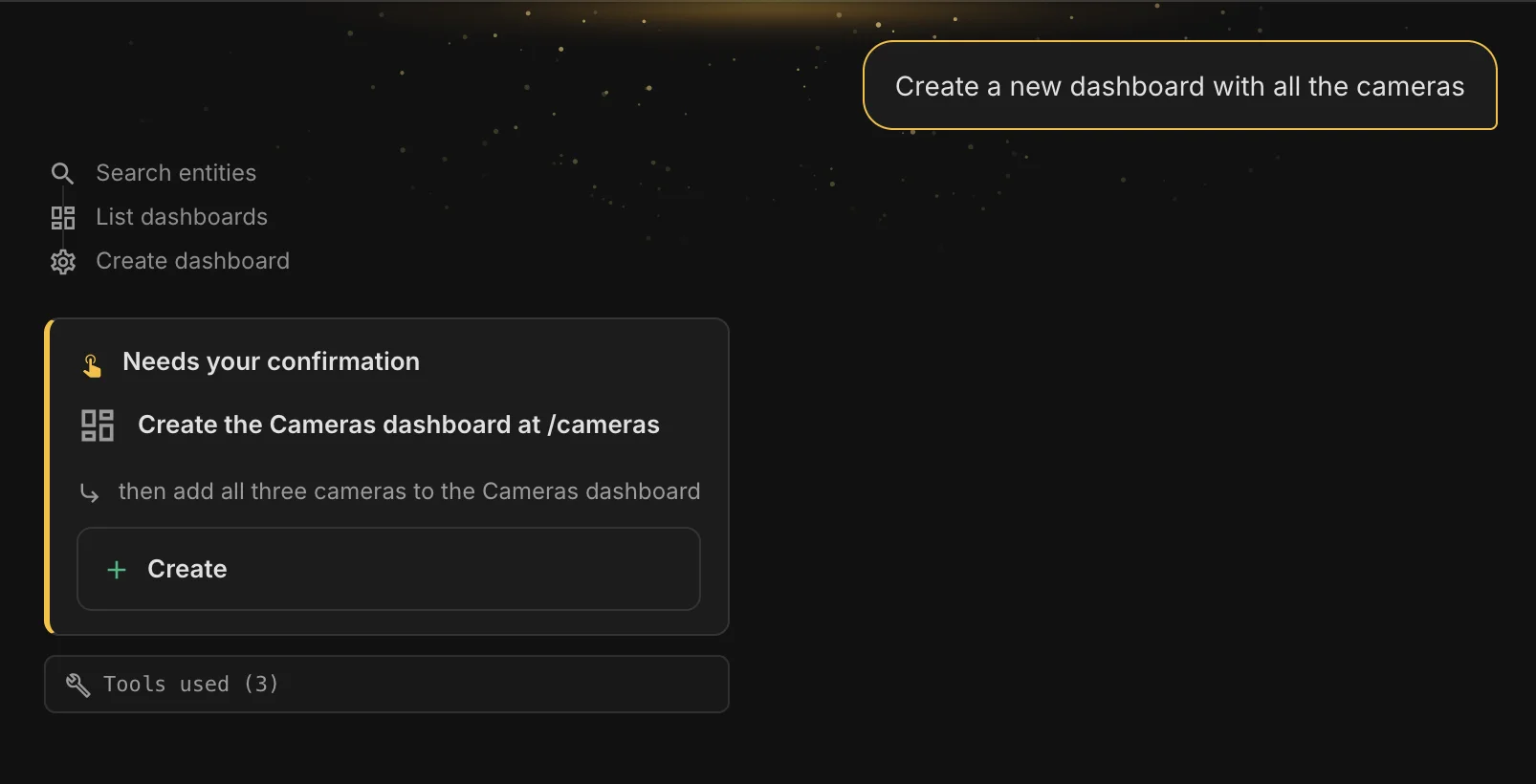
Confirm, and it builds the dashboard, adds the cameras to their own page, and links you straight to the result. The same goes for helpers, schedules, zones, scenes and automations.
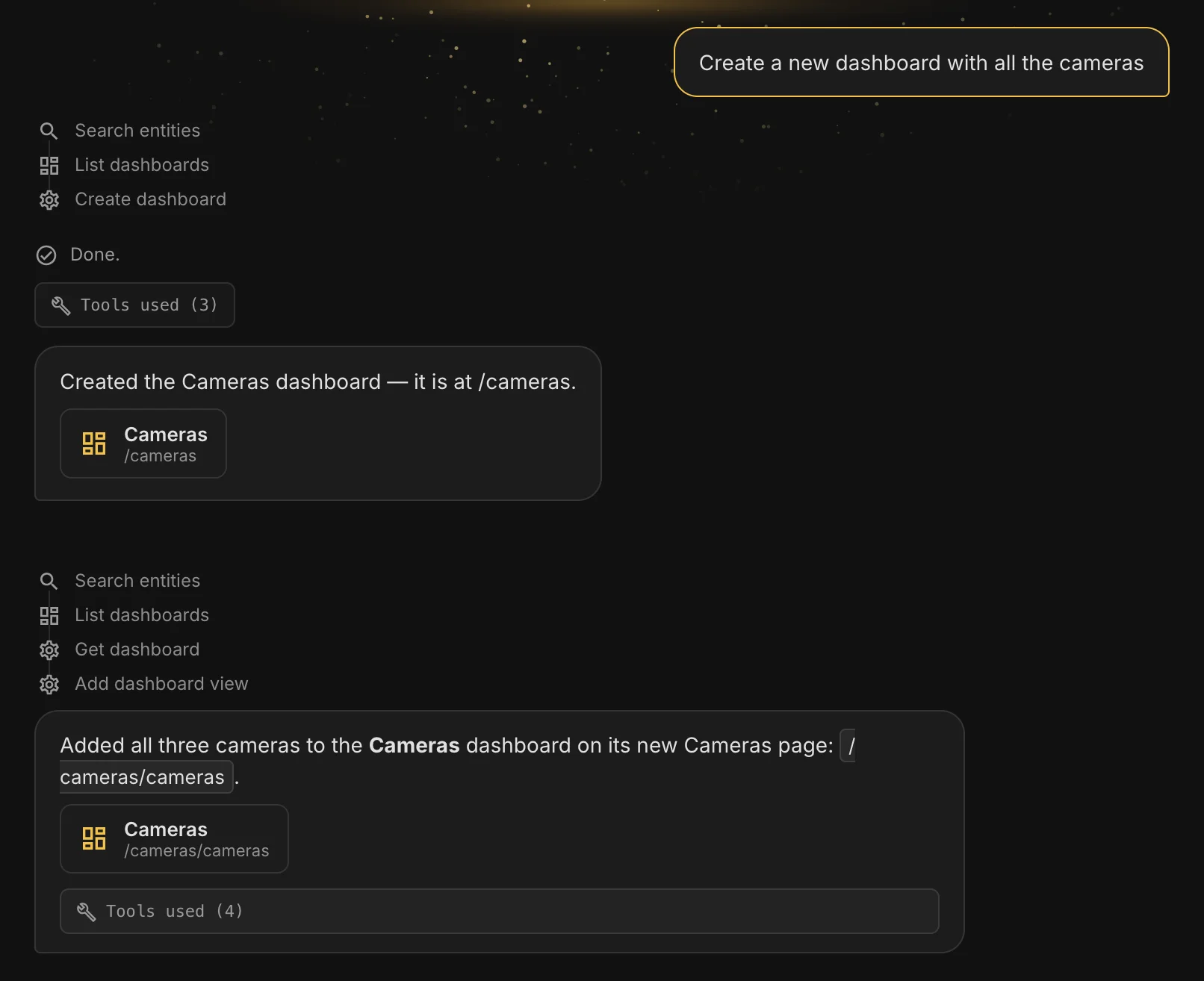
Chat also looks after the home for you:
- “What needs attention?” Selora AI checks repairs, updates and system health, then fixes or ignores each repair with you.
- Updates install from a card in the conversation.
- Removing things works: devices, entities, integrations and blueprints, with each part named before it goes.
- Refining an automation is guided step by step.
And when something looks wrong, Selora AI now reads the configuration before it diagnoses the problem, instead of guessing.
Safe by default, and every change can be undone
Giving an assistant this much reach only works if you stay in control.
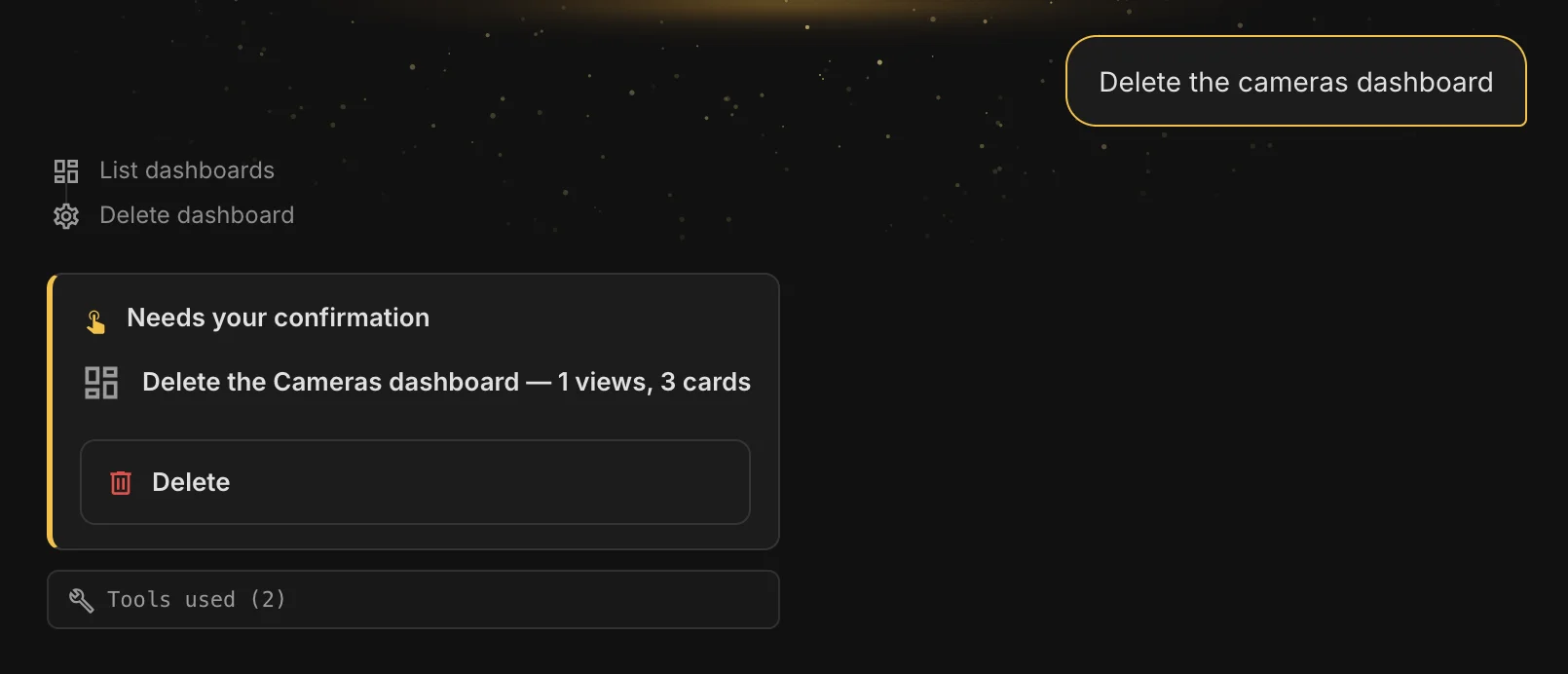
- Risky actions ask first. Every Home Assistant service call is checked by risk. Anything destructive needs your confirmation.
- Edits can be undone. Changing or deleting an automation, script, scene, helper, group or dashboard returns what it replaced, so the assistant can put it back.
- Deleted automations come back with their history. A deleted Selora automation keeps its version history for 30 days.
- Configuration backups can be restored, with the same preview and confirmation as an edit.
Watch automations take shape
New automation proposals now build up step by step in the panel: triggers, then conditions, then actions. Accept one and its Enabled badge and action chips pop in. If you prefer a calmer screen, Reduce motion turns the animation off.
See what changed, before and after you save
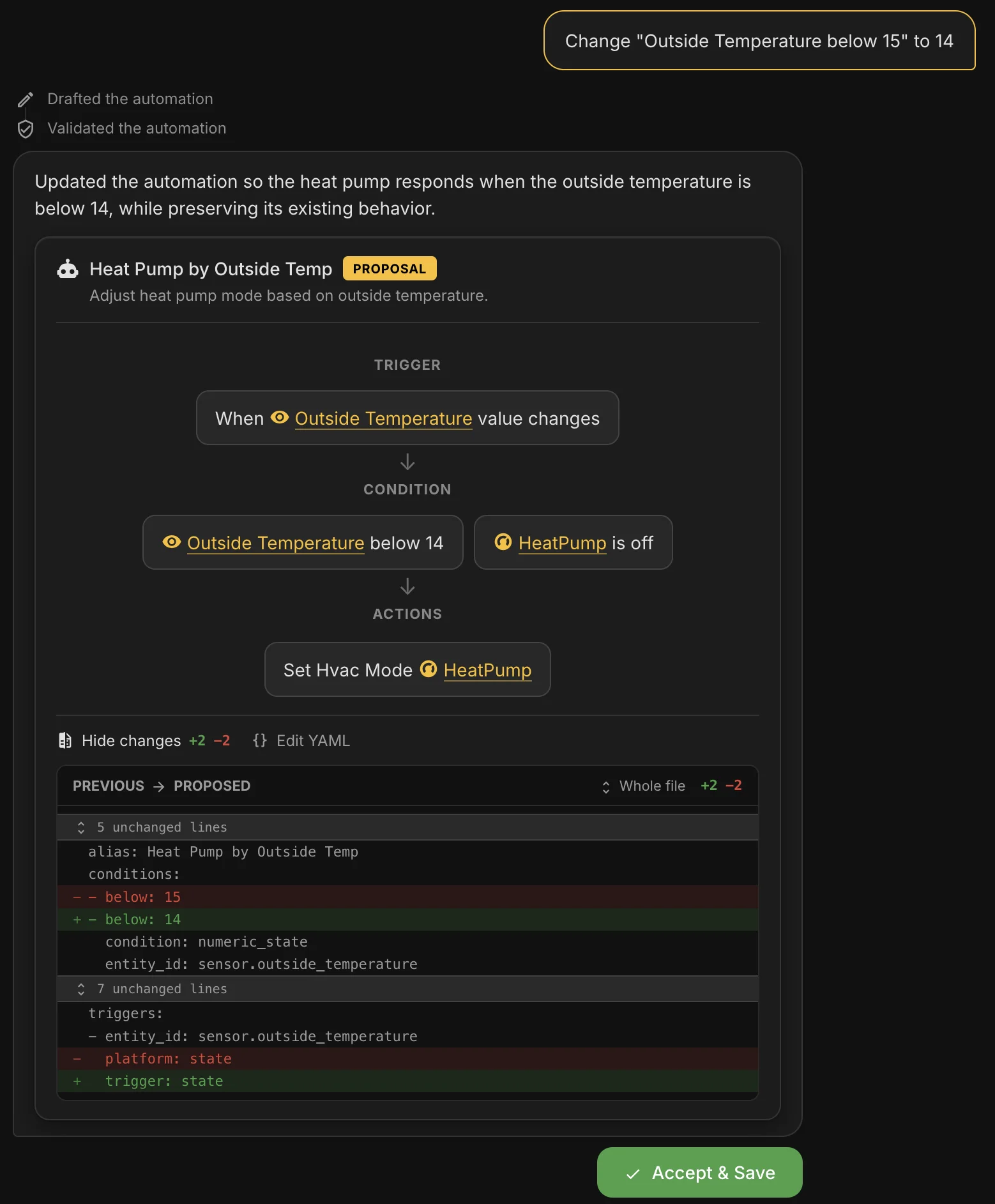
Refine an automation in chat and the proposal now shows you exactly what will change, as a diff against the version you have today. Review it, then accept and save.
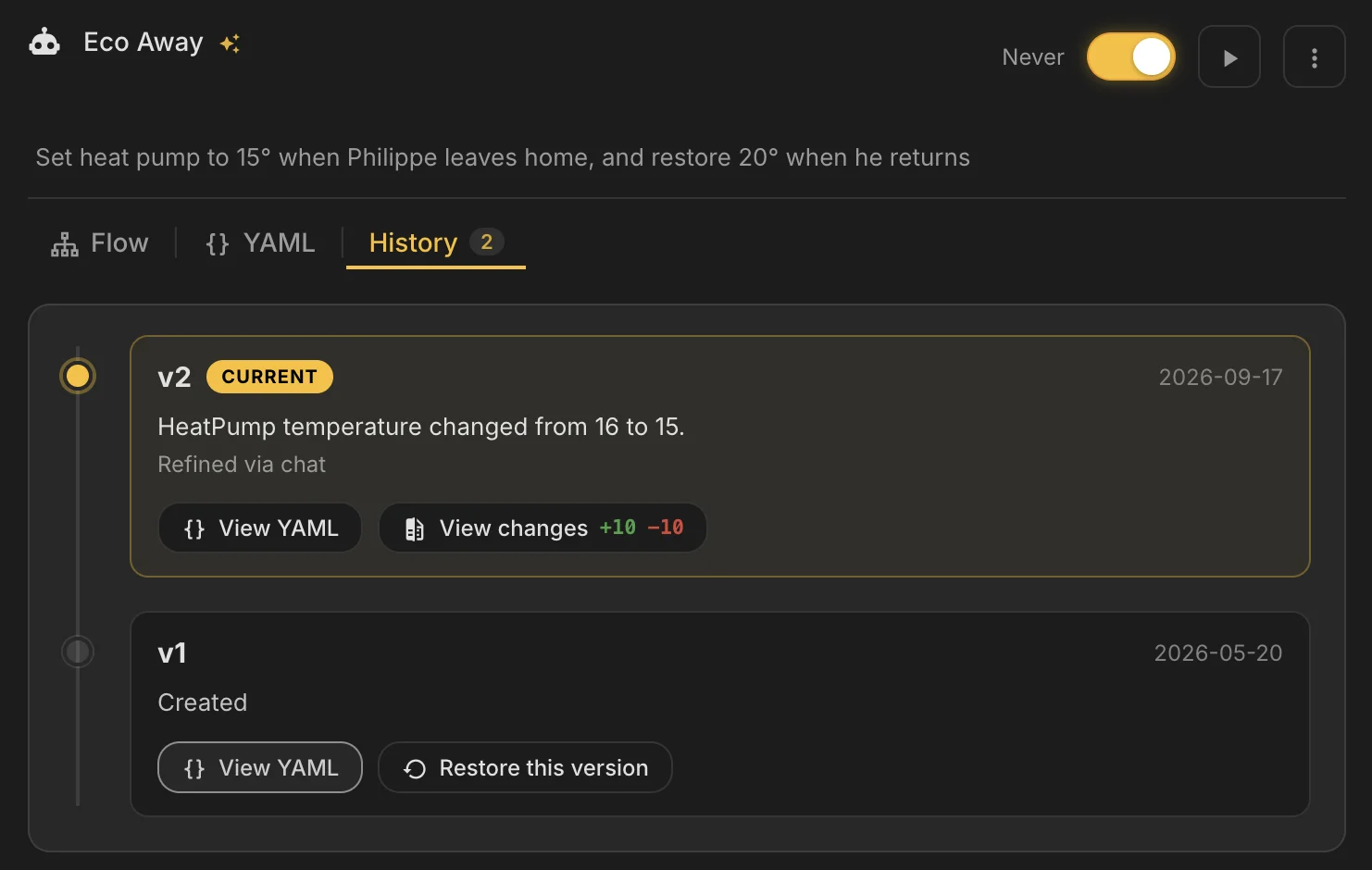
Once saved, the History tab of the automation sums up each version in a sentence, written by Selora AI, so you see what changed without reading YAML: “HeatPump temperature changed from 16 to 15.” The full diff is one click away, and any earlier version can be restored.
Simpler scenes
The scene editor now shows one tile per entity, set to the state the scene will apply. No more before and after: what you see is what the scene does. Brightness, fan speed, cover position and volume are adjusted right on the tile, grouped by room, and nothing touches your devices until you test or activate the scene.
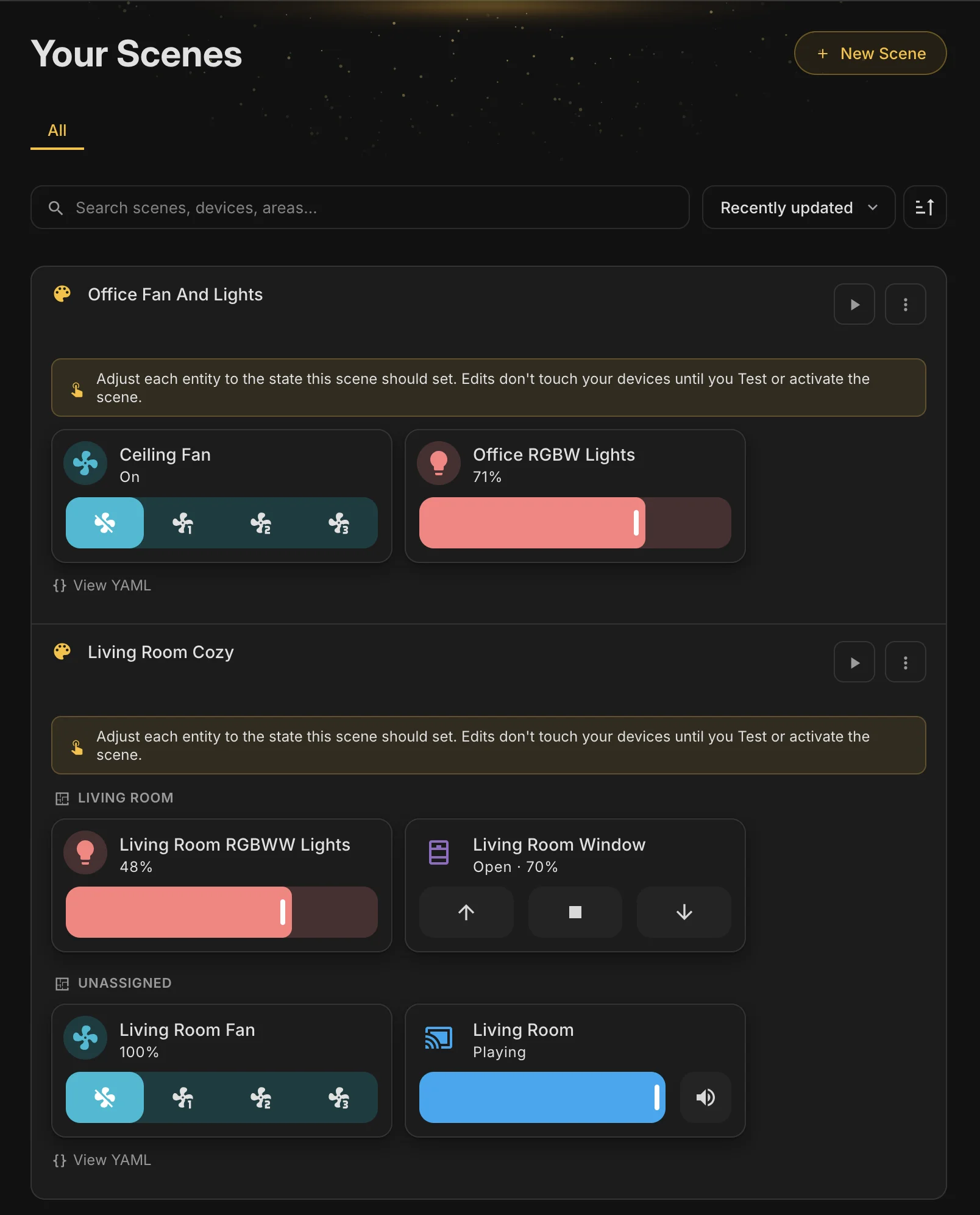
You can also rename any scene, including Home Assistant’s own, and refining a scene in chat shows a YAML diff, just like automations.
Recipes update like apps
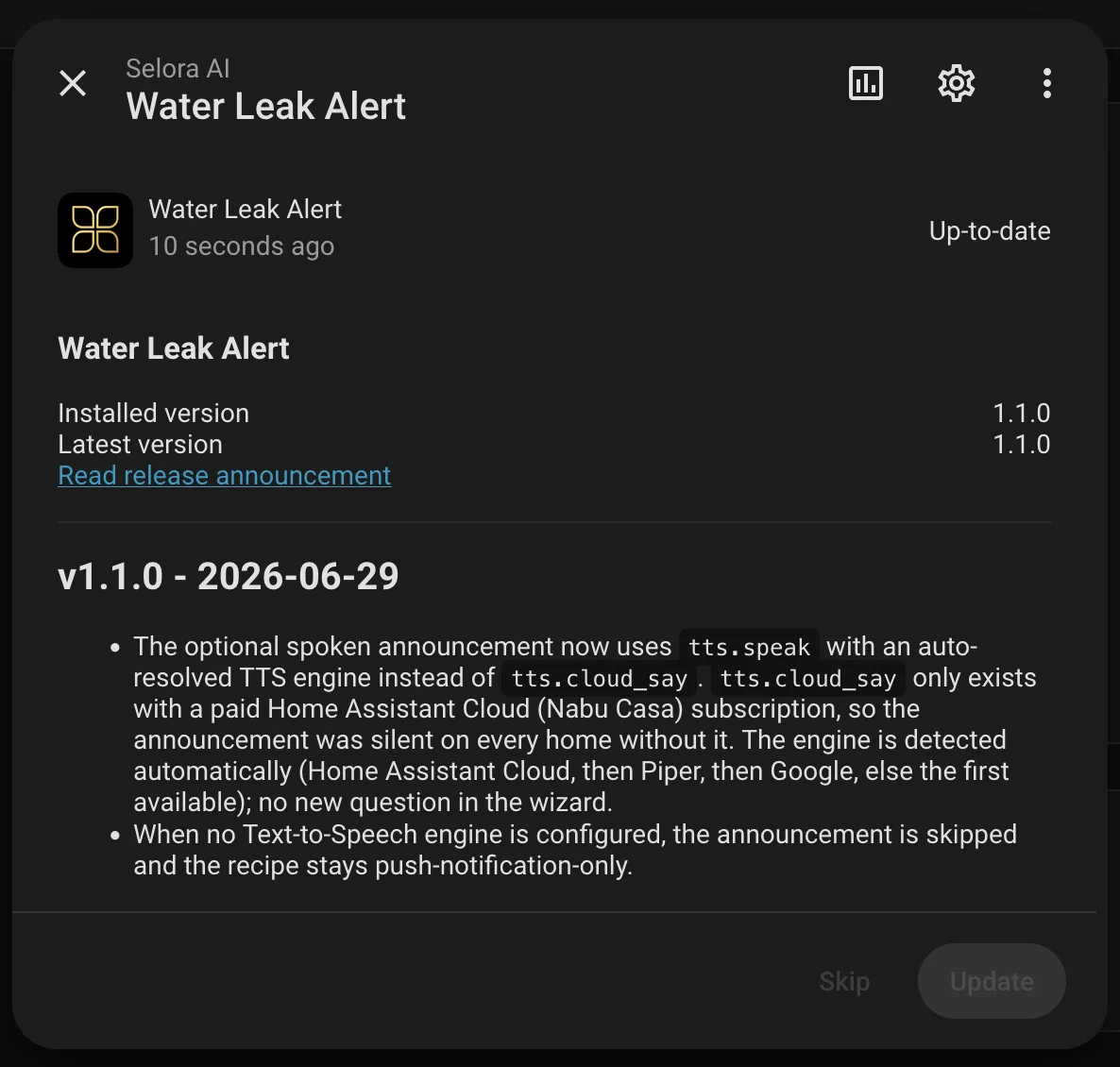
Installed recipes now update the same way your apps and integrations do. When a newer version is out, it appears in Settings → Updates, right next to Home Assistant’s own updates.
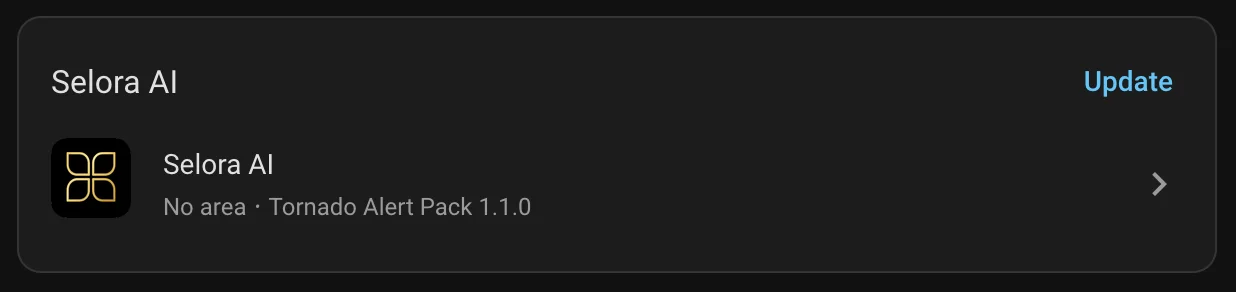
Open it to read what changed, then update in one click. The recipe is updated in place and keeps the devices and settings it was installed with. The release notes only show the versions the update brings, and the same update is also offered on the recipe’s page.
Built for Guided Installations
Last week we launched Guided Installations . Once the devices are paired, Selora builds the scenes, automations and dashboards planned in the installation manifest.
Selora AI 1.0 is what makes that possible. Floors, areas, helpers, dashboards, scenes and automations can all be created on the hub, against the home’s real entities. For installers, that means most of the programming is done before you get to it, and installation day goes to the work only a person on site can do.
Better on Selora AI Local and the new 0.5.0 model
Selora AI Local runs entirely on your own hardware. Selora AI 1.0 is tuned for our new Selora AI LLM 0.5.0 , a 1.7B model built from five small specialists: one each for commands, automations, answers, clarifying questions and troubleshooting.
On the integration side:
- Requests use the exact layout the models were trained on.
- Each request picks its own specialist, and never reuses memory cached by a different one.
- Startup warms up one specialist instead of five, so the first request no longer waits several minutes.
- Automation requests that mention a calendar are built as automations again.
On the model side, troubleshooting answers are now grounded in Home Assistant’s documentation. When a device you ask about is not in the home, the model says so instead of making something up, in all 15 of our test cases. Median answer time is 0.4 seconds.
Stable for anyone building on it
From 1.0, MCP tool names and arguments are stable. Renaming or removing one will only happen in a major release, so the agents and skills you build on Selora AI keep working across updates.
Fixes
- Works on Home Assistant 2026.10, and template helpers can be created again on 2026.9.
- “Turn off the lights” turns off every light, not just one.
- Cloud models answer simple commands themselves.
- A wrong entity in an automation is corrected instead of guessed.
- Blueprint automations are checked before saving, and refused with a reason when an input is unknown or an entity is missing.
- Scenes apply the brightness you asked for.
- Automation suggestions are back.
- The panel font now loads from Home Assistant, not Google.
On the security side, blueprint imports can’t write outside the blueprints folder, passwords are always hidden, and a busy sensor’s history can no longer stall Home Assistant.
What’s next
Next, Selora AI will predict the next step in a conversation and suggest it, so the follow-up you were about to type is already waiting for you.
Compatibility
The minimum Home Assistant version is unchanged at 2025.1.0, and Selora AI 1.0 is ready for Home Assistant 2026.10.
See the full release notes for every change.
Update via HACS, or if you already have Selora AI installed, the update will appear in your Home Assistant settings.