
Team Management Comes to Selora Connect
Your colleagues can now join your Selora Connect company with their own login. Four roles, email invitations, and a roster grouped by the branch each person works from. This is a first iteration, and we want your feedback on it.
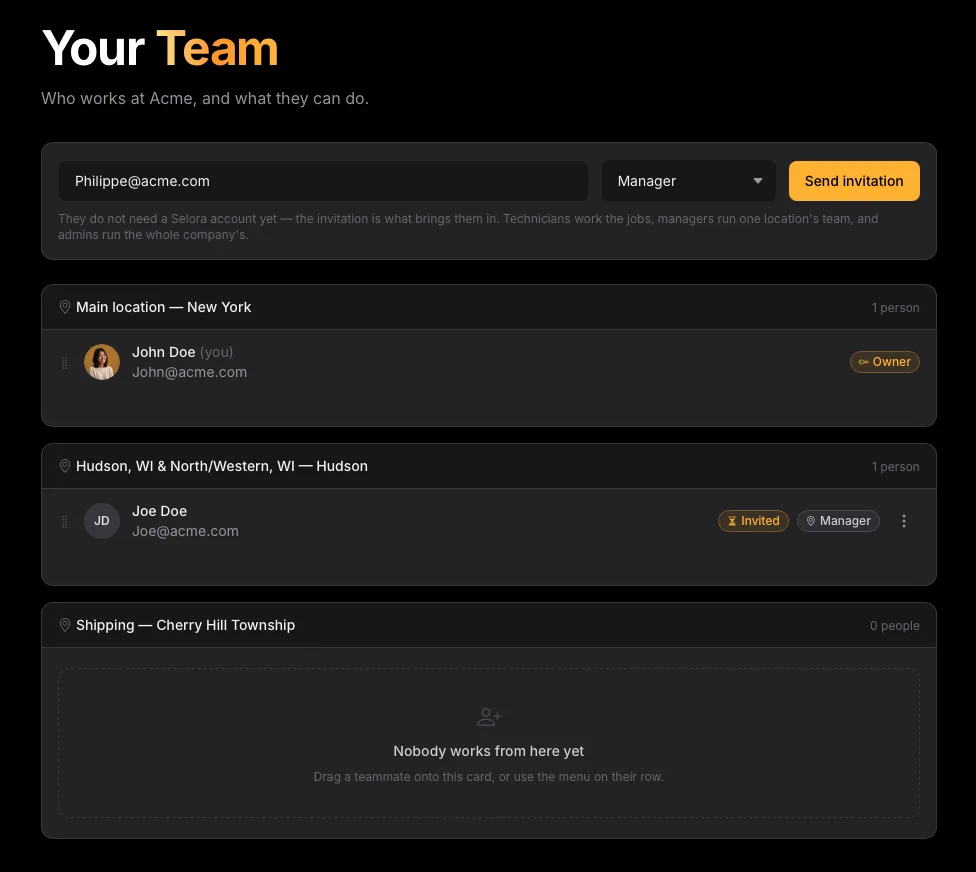
Until this week, an installer company in Selora Connect was effectively one login. Whoever registered the company held the account, and everybody else worked through it: the same password in the van, in the office, and on the laptop that went home at night. It worked while the company was one person. It stopped working the moment it was not.
Team Management is now live in Selora Connect. Your colleagues join your company with their own Selora Homes login, you decide what each of them can change, and every action on a project or a hub is attributed to the person who took it.
The company owns the work, not the login
The first thing this changes is who the fleet belongs to. Customers, projects and hubs belong to the company, not to whoever happened to claim the first hub. A technician can pick up a job, open the hub and answer the customer without borrowing anybody’s credentials, and without waiting for the one person who has them to pick up the phone.
What differs between people is not what they can see. It is what they can change: who else is on the team, what the company says about itself, where it operates, and what it spends money on.
Four roles
- Owner is whoever created the company. There is exactly one, and the role cannot be handed over or removed.
- Admin runs the company alongside the owner: the team, the company profile, the locations.
- Manager runs one location. Their authority covers the people filed at that branch and that branch’s own details.
- Technician does the work. They see the whole roster, the whole fleet and every customer and project, and they do not change who has access or what the company advertises.
Two rules hold for everybody: you cannot grant a role above your own, and you cannot remove yourself. The full table of what each role can do is in Roles and Permissions .
Invitations, by email
Invite somebody from the Team page with their email address and the role you want them to have. They appear on the roster straight away with an Invited badge, and an email arrives inviting them to join your company.
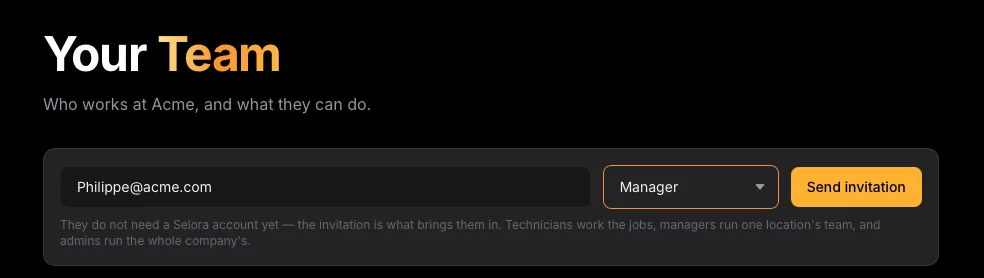
They do not need a Selora Homes account first. If the address has no account yet, the accept page offers to create one. The invitation is bound to the address you typed, so a forwarded link does not let a colleague join in someone else’s place, and an invitation only consumes a seat once it is accepted. Withdrawing one that was never answered costs you nothing.
Changing somebody’s role, cancelling an invitation and removing a member who has left all live in the same menu on their row. See Invite a Team Member .
A roster that reads like your org chart
If your company works out of more than one place, a showroom and a warehouse, or branches in two cities, you can file each person at the branch they work from. The roster is then grouped by location, with anybody not yet filed anywhere sitting at the top where the outstanding decisions are visible rather than buried.
A home location is a default, not a boundary. It decides which branch’s work somebody’s dashboard opens on, and it is where a manager’s authority comes from, but it restricts nothing: membership stays company-wide, and anyone can switch to All locations and work a job at another branch. Assign Team Members to Locations covers the details, including why filing somebody is an owner’s or admin’s call rather than a manager’s.
Companies working out of a single location can ignore all of this. Nothing on that page changes what anybody can reach.
This is a first iteration
We shipped the parts we were confident about: a role model simple enough to explain in four lines, invitations that do not involve sharing a password, and a roster that matches how a company with branches is actually organised. We deliberately stopped there.
What we have not built yet, and what we are least sure about:
- Finer permissions. Right now a role is a bundle. Should billing, customer data or hub ordering be grantable on their own, to the office manager who does not otherwise touch the fleet?
- An audit log. Actions are attributed, but there is no single page that answers “who changed this, and when”.
- Subcontractors. A role that covers somebody working a handful of jobs for you without being on the team is not in this iteration.
- The role names themselves. Manager and technician came from how the installers we spoke to describe their own teams. If they do not match how yours is structured, that is worth knowing early, while the model is still cheap to change.
Open Selora Connect, invite your team, and tell us where it fights you. Your partner contact at Selora will get your feedback to the team, or write to support@selorahomes.com . The next iteration of Team Management will be built out of what installers tell us over the coming weeks, so the earlier we hear it, the more of it lands.