
TCL Roku TV Integration Setup
Connect a TCL Roku TV to Home Assistant with the local Roku integration: turn on control by mobile apps, pick the right access level, and add the TV by IP address.

TCL Roku TVs are controlled locally by the built-in Roku integration. It talks to the TV over the home network, with no Roku account and no cloud service involved. Out of the box the TV ignores those commands, so the setup is one setting on the TV and one step in Home Assistant.
This guide was tested on a TCL 43S425-CA (4-Series) running Roku OS 15.3.4. The menus are the same on current TCL Roku TVs such as the S4R.
Before You Start
- The TV is connected to the same network as Home Assistant, over Wi-Fi or Ethernet.
- The TV has a static IP address or a DHCP reservation, so Home Assistant always finds it at the same address. You can read the current address on the TV under Settings > Network > About.
Allow Control From the Network
On the TV, open Settings > System > Advanced system settings > Control by mobile apps. Apart from Off, there are three access levels:
| Setting | What the TV accepts | Use it for Home Assistant? |
|---|---|---|
| Limited | Text input, app launches, and activity inside the app itself, from devices on the same Wi-Fi network only. | No: power and key presses fail. |
| Enabled | Every command, at any time, but only from devices on the same local network. | Yes, recommended. |
| Permissive | Every command, from any device inside or outside the network. | No: exposes the TV for no gain. |
Select Enabled. It gives Home Assistant full control while keeping the TV closed to anything outside the home network.
Add the TV to Home Assistant
- Make sure the TV is on.
- In Home Assistant, go to Settings > Devices & Services.
- If the TV shows up under Discovered, select it. Otherwise select Add Integration, search for Roku, and enter the TV’s IP address.
- Confirm, then assign the TV to its area.
There is no pairing code: once Control by mobile apps is set to Enabled, the TV accepts the connection straight away.
What You Get
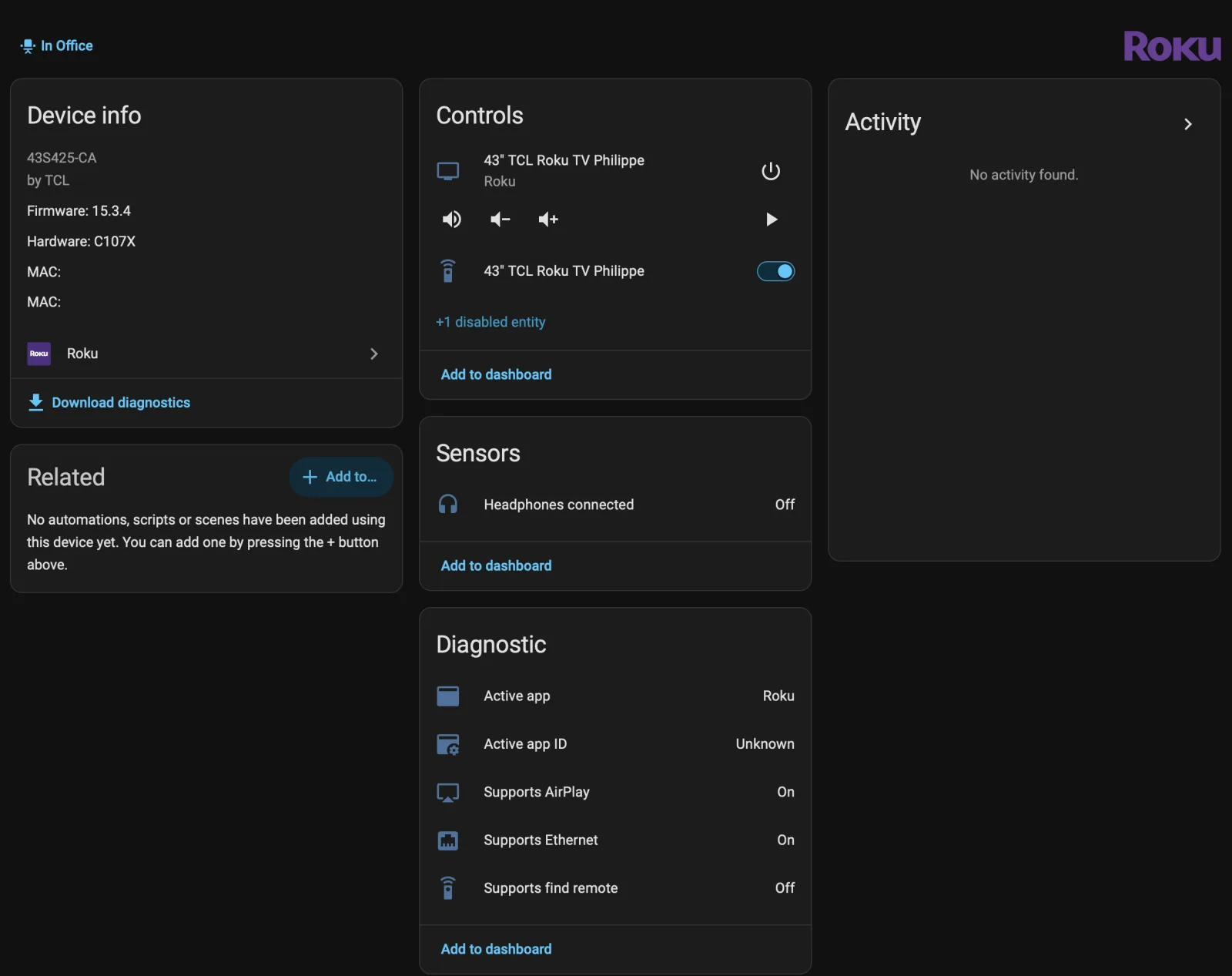
The integration creates one device with:
- A media player with power, volume, mute, playback controls, and source selection. HDMI inputs are listed as sources next to the streaming apps, so an automation can switch the TV to the game console or the cable box.
- A remote for individual key presses, such as Home, Back or the arrow keys, used in scripts.
- A Headphones connected sensor, which turns on while headphones are in use for private listening.
- Diagnostic entities for the active app and what the TV supports (AirPlay, Ethernet, find remote). One more entity is disabled by default and can be enabled from the device page.
Troubleshooting
- The TV is unavailable after it was turned off. Enable Fast TV start as described above.
- Power or volume commands do nothing, but app launches work. The access level is set to Limited. Change it to Enabled.
- A TV that worked stops responding after an update. Roku has changed or reset local control settings in past Roku OS releases. Check Control by mobile apps again.
Last modified October 1, 2026: feat(docs): TCL Roku TV guide, guide links on devices, integrations and the API (726e68a)