
Remote Access and Geofencing That Actually Works
Get reliable remote access and presence detection working. Learn when to use reverse proxy/VPN setups, and fix common geofencing issues.
Search results
Struggling with geofencing that only works when you open the app? Or finding that local access is slower than cloud? You’re not alone. Remote access and presence detection are two of the most frustrating aspects of Home Assistant setup. This guide will help you get both working reliably.
Understanding the Problem
Home Assistant’s mobile app needs to communicate with your instance to:
- Send location updates for geofencing
- Sync notifications and sensors
- Provide remote access when you’re away
Without external access, geofencing fails because the app can’t “phone home” with your location.
Solution Options
Option 1: Selora Homes Secure Remote Access
Best for: Selora Homes customers who want a managed, secure remote access solution
Pros
- Managed by Selora Homes – no setup required
- Password protection enabled by default (recommended)
- Automatic traffic routing to your Home Assistant instance
- No need to configure reverse proxy or VPN
Cons
- Only available to Selora Homes customers
- Requires using Selora Homes’ infrastructure
How to enable: Selora Homes customers can enable Secure Remote Access in their installations page :
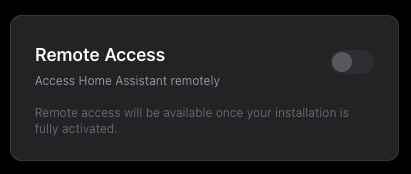
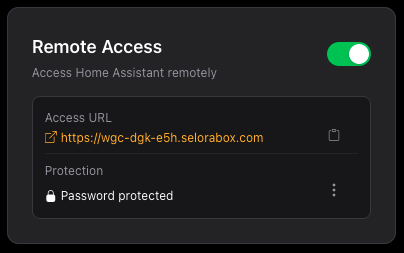
Once enabled, configure your Home Assistant Companion app to use the provided URL as the external URL ( Home Assistant documentation ).
Option 2: Reverse Proxy
Best for: Advanced users wanting full control
Pros
- Complete control over your setup
- No ongoing costs (after initial setup)
- Can host other services
Cons
- Requires technical knowledge
- Security responsibility is on you
- Need to maintain SSL certificates
Option 3: VPN
Best for: Privacy-focused users
Pros
- Most secure option
- Phone always appears “home” to HA
- Encrypts all traffic
Cons
- Requires VPN client on all devices
- Can drain battery faster
- More complex setup
Network Design Considerations
VLANs: Do You Need Them
For small home setups (under 20 devices), VLANs are usually overkill. Most users run perfectly fine with a flat network.
Consider VLANs if:
- You have many IoT devices (50+)
- You need to isolate critical systems
- You have specific security requirements
- You enjoy network engineering
Skip VLANs if:
- You have a typical smart home setup
- You prefer simplicity
- Your router supports basic firewall rules
Router Recommendations
If you do want advanced networking:
- Opnsense or pfSense: Best for control and features
- Unifi: Good balance of features and ease of use
- OpenWrt: For tinkerers who want full control
Fixing Geofencing Issues
Step 1: Ensure External Access
Choose one of the solutions above. Without external access, geofencing won’t work reliably.
Step 2: Configure Companion App
iOS Settings
- Open Home Assistant Companion app
- Go to Settings -> Connection
- Set “External URL” to your reverse proxy address
- Set “Internal URL” to your local HA address
- Enable “Always Allow Location Access”
- Ensure “Location Updates” is enabled
Android Settings
- Open Home Assistant Companion app
- Go to Settings -> Connection
- Configure URLs similarly to iOS
- Grant location permissions
- Enable background location if prompted
Step 3: Test Presence Detection
- Leave home with WiFi enabled
- Check if HA detects you as “away”
- Return home
- Verify detection as “home”
If it’s not working:
- Check app notifications for errors
- Verify location services are always on
- Try toggling WiFi/cellular data
Fixing Slow Local Access
Problem: Local Slower Than Cloud
This happens when:
- Your mesh network is misconfigured
- DNS resolution is slow locally
- The app can’t properly detect it’s on WiFi
Solutions
1. Check Companion App Settings
- Ensure local URL is correct
- Verify the app can detect your home WiFi SSID
2. Network Troubleshooting
- Turn off non-primary APs to isolate issues
- Reboot router, HA, and phone
- Try with only one WiFi radio running
3. DNS Configuration
- Use local DNS for HA hostname
- Consider setting HA IP in hosts file
Alternative Presence Detection
If built-in geofencing continues to be problematic:
Life360 Integration
- Free service with reliable location tracking
- Works well with Home Assistant
- Less battery drain than constant GPS
Apple HomeKit
- Native presence detection for iOS users
- Integrates with Home Assistant
- Very reliable for Apple ecosystem
Router-Based Detection
- Detect when devices connect to WiFi
- Works for any device on your network
- No app required
Security Best Practices
For Reverse Proxy Setups
1. Use Strong Authentication
- Enable 2FA on all accounts
- Use strong, unique passwords
2. Keep Software Updated
- Regular updates for HA and reverse proxy
- Monitor security advisories
3. Network Isolation
- Consider separate VLAN for IoT
- Block unnecessary inbound ports
4. Monitor Logs
- Set up alerts for suspicious activity
- Regular security audits
Final Recommendations
- Use a reverse proxy if you need custom features or want to avoid subscription fees
- Consider VPN only if privacy is your top priority
- Don’t overcomplicate with VLANs unless you have specific needs
- Test thoroughly after any configuration changes
- Monitor performance and adjust as needed
References
Last modified February 24, 2026: Add SeloraBox setup steps to engineer onboarding (fb45893)