
Create a Detection Zone and Automate On It
Draw a detection zone on a camera in Selora Vision, such as the driveway, then ask Selora AI for an automation that notifies you and announces on your speakers when a person or a dog is in it.
A camera often sees more than you care about: the street, the neighbor’s yard, a tree moving in the wind. A zone is the part of the picture that matters, such as the driveway. Selora Vision then tells Home Assistant when a person, a car, or an animal is in that zone, and you can build automations on it.
This guide draws a Driveway zone, then asks Selora AI for an automation: “Notify me when someone or a dog is in the driveway.”
What you need
- Selora Vision turned on, with the camera already added.
- The objects you want to detect, tracked on that camera. Selora tracks people unless you ask for more, so for a dog, ask Selora AI to also detect dogs on the camera first, for example “Also detect dogs on the driveway camera.” A zone can only report what the camera tracks.
Draw the zone
In Home Assistant, select Frigate in the sidebar.
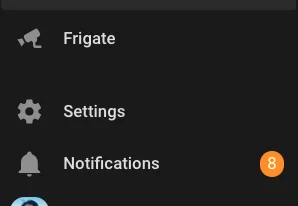
Frigate in the Home Assistant sidebar.
In Frigate, select the gear icon at the bottom left to open Settings.
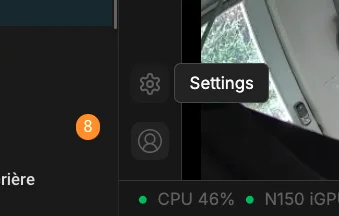
The gear icon opens Frigate’s settings.
Under Camera configuration, select Masks / Zones.
Pick the camera in the camera list at the top right.
In the Zones section, add a zone. Click on the camera picture to place a pin at each corner of the area, until the shape covers it.
Name the zone, for example Driveway. The name is what you’ll see in Home Assistant and say to Selora AI.
Choose which objects the zone detects: all the objects the camera tracks, or only some of them, such as person and dog.
Save.
Frigate’s guide covers the finer settings, such as how long an object must stay before it counts: Zones.
Check the new entities in Home Assistant
Once the zone is saved, Home Assistant gets a new Driveway device from the Frigate integration. To see it, go to Settings > Devices & services > Entities and search for the zone name.
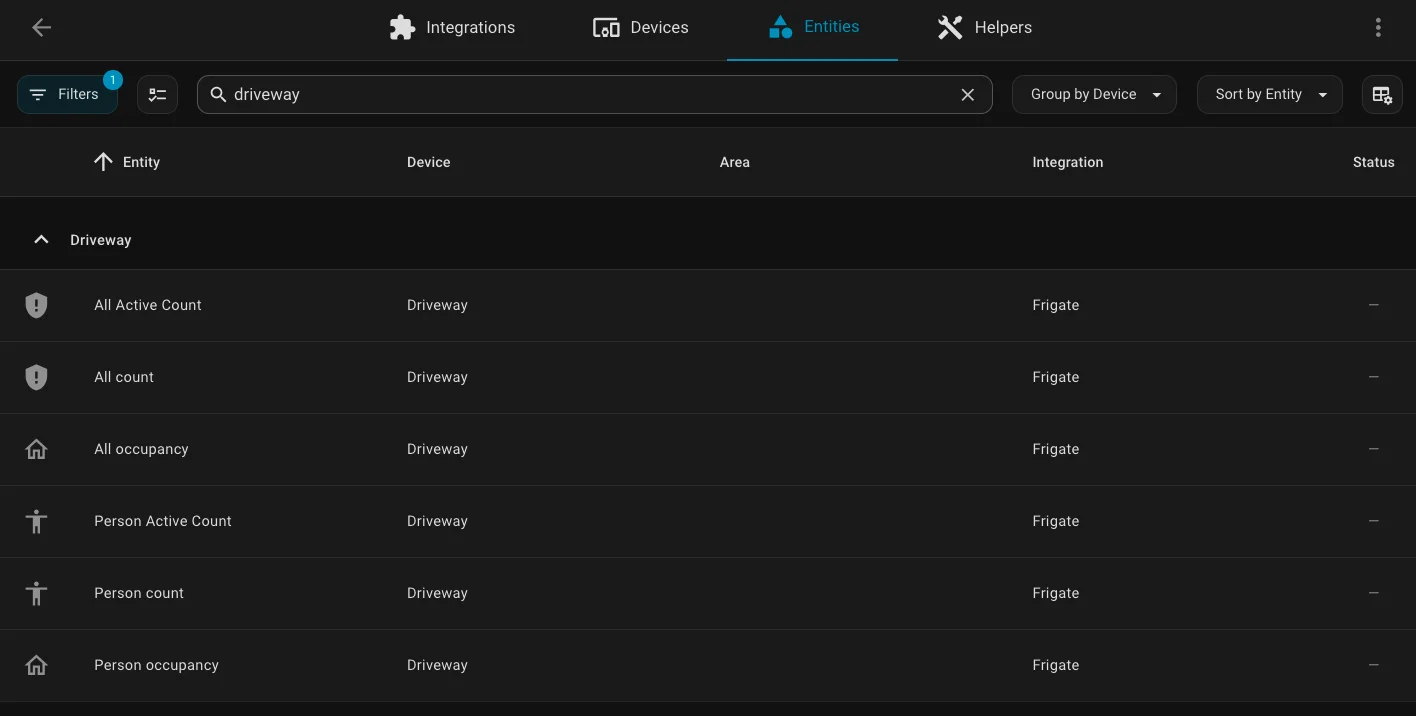
The Driveway zone in Home Assistant, with its counts and occupancy for all objects and for people.
For each object the zone detects, and for All objects together, there are:
- Occupancy: Detected while at least one is in the zone, Clear otherwise. This is the one automations use.
- Count: how many are in the zone.
- Active count: how many are in the zone and moving.
Open Person occupancy to see when someone was in the driveway. It’s a quick way to check the zone covers the right area before you automate on it: walk into the driveway and watch it switch to Detected.
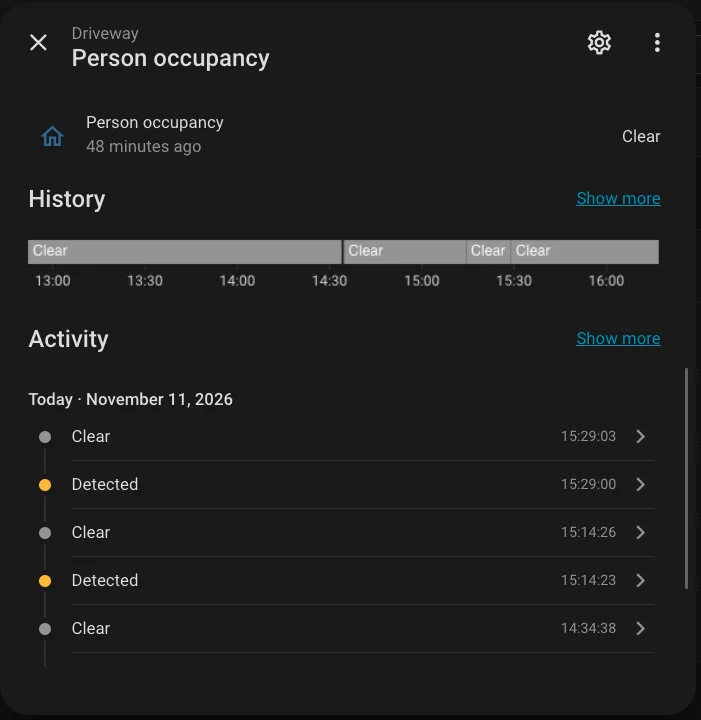
Person occupancy for the Driveway zone, with each detection in its activity.
Ask Selora AI for the automation
Open Selora AI in the Home Assistant sidebar and describe what you want, naming the zone, for example:
Notify me when someone or a dog is in the driveway. Also announce it on the Family Room speaker and the Kitchen HomePod.
Selora AI finds the Driveway occupancy entities and your speakers, and shows the automation on a card. Read it, then accept it. Nothing changes until you do. For more on how Selora AI builds automations, see Creating automations.
To test it, walk into the driveway. The notification and the announcements should follow within a few seconds.
Last modified November 11, 2026: docs(how-to): create a Selora Vision detection zone and automate on it (7263a0c)