
Send Questions to the Homeowner
Write a questionnaire in Selora Connect, send it to the homeowner, and read their answers in the project, with no third-party form tool.
Before you plan an install, you need to know the house: the rooms, the alarm panel, who lives there, what bothers them today. Instead of sending the homeowner to a form tool, ask them from the project in Selora Connect . They answer one question at a time on a full-screen page, and their answers stay in the project, next to your messages and files.
Before you start
- The project exists and the homeowner has been invited. See Create a Project for a Customer .
- You are on the project team. Everyone on the team, and the Selora Homes team, can open, edit, and send the project’s questionnaires.
Write a questionnaire
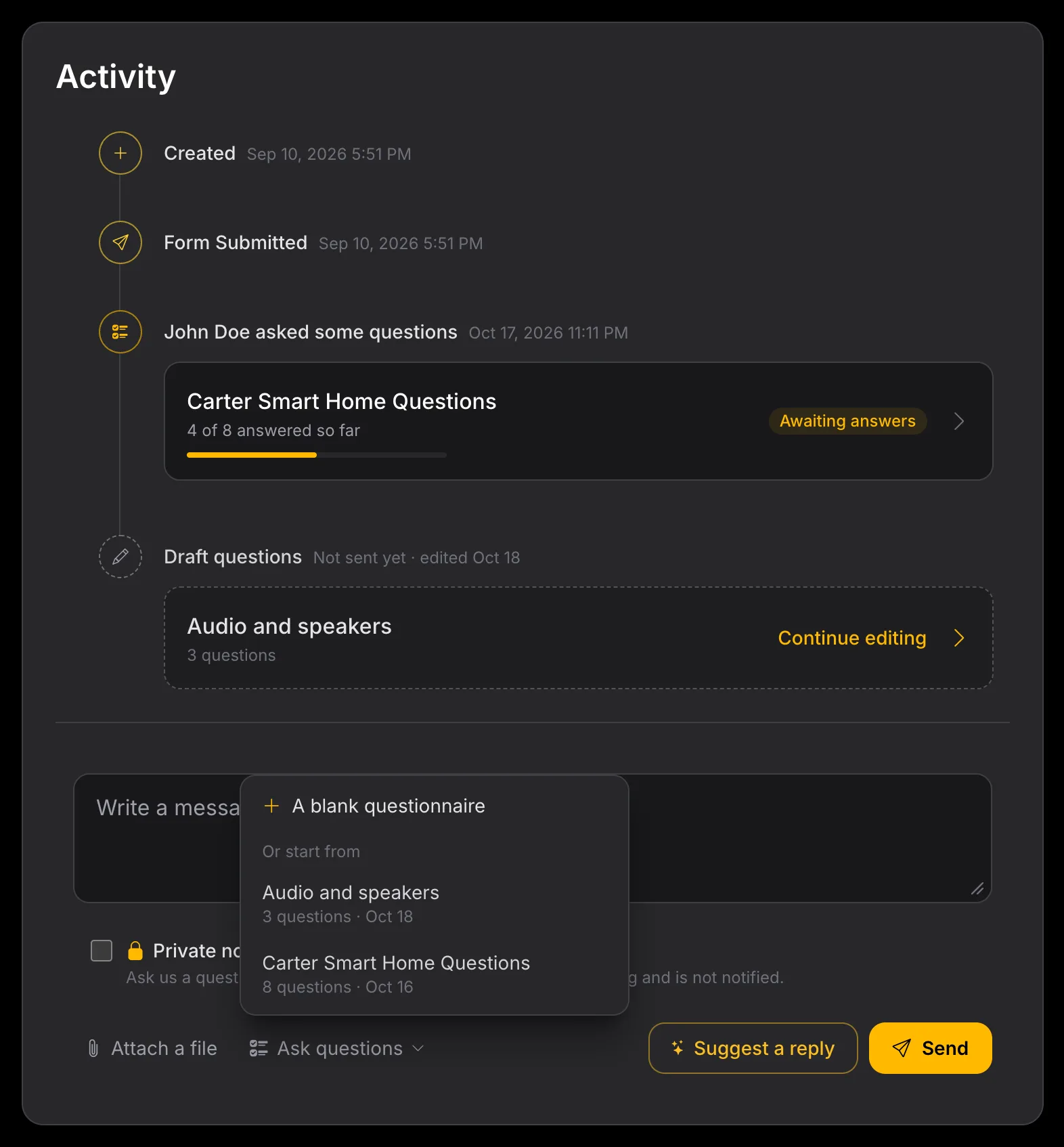
Open the project and go to its Activity.
In the message composer, click Ask questions, next to Attach a file.
Choose A blank questionnaire, or pick an earlier questionnaire under Or start from to copy its questions. You can copy from any project your company works on.
Give it a Title and, if you like, an Introduction: why you are asking and what happens with the answers. The homeowner sees both on the first screen.
Add questions with the buttons under Add a question:
Button The homeowner answers with Short text One line, such as a name or a model number Long text A few sentences One choice One option from a list Several choices As many options from a list as they like For each question, write the question itself and, optionally, help text: an example, or why it matters. For the choice questions, enter the options, one per line.
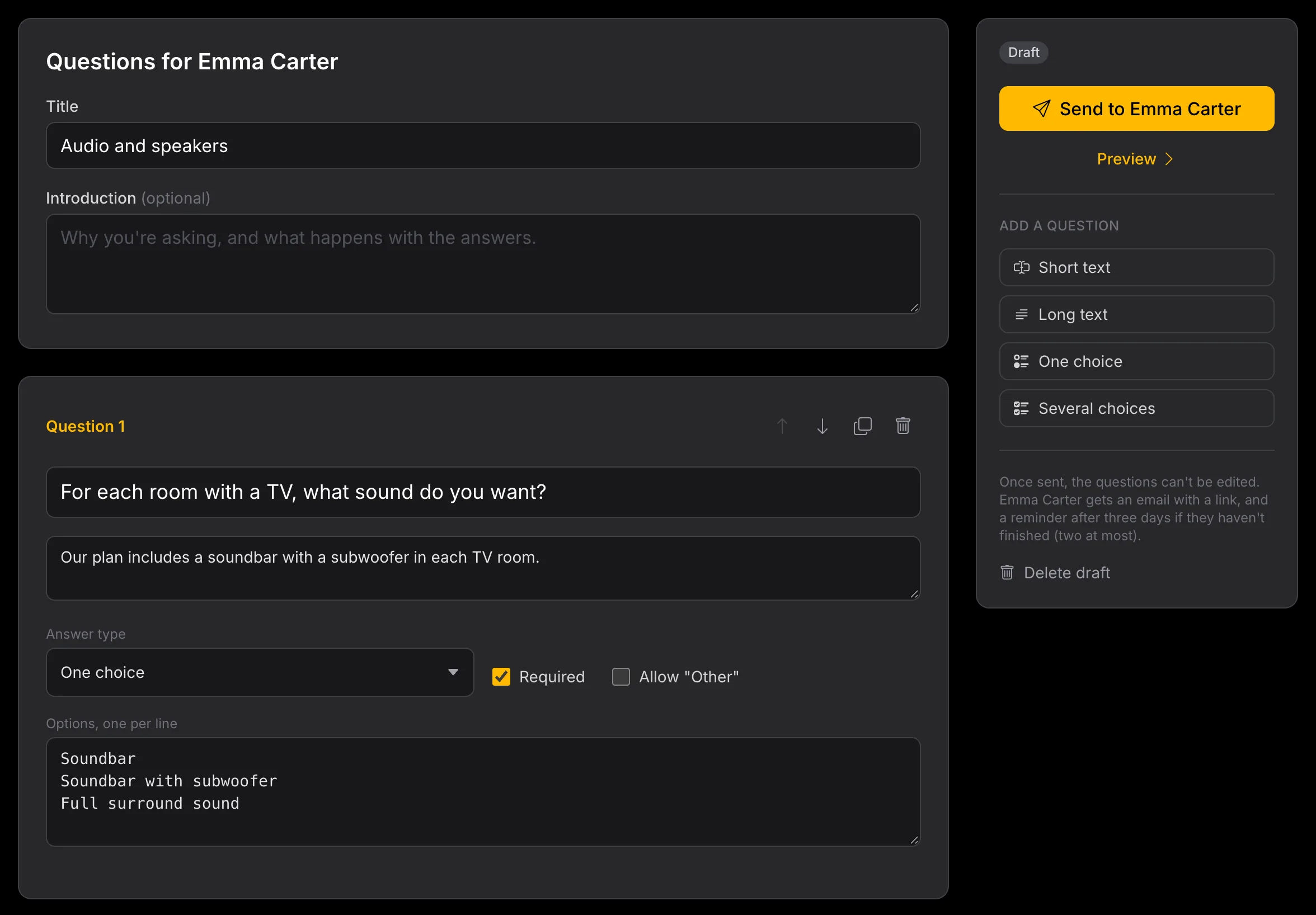
Each question also has:
- Required: the homeowner cannot skip it. Questions that are not required get a Skip button.
- Allow “Other” (choice questions): adds an Other option with a text box, for the answer you did not list.
- Only ask if: show the question only when an earlier choice question got a given answer. For example, ask Which alarm company monitors it? only if Do you have an alarm system? was answered Yes. A question that depends on a hidden question is hidden too.
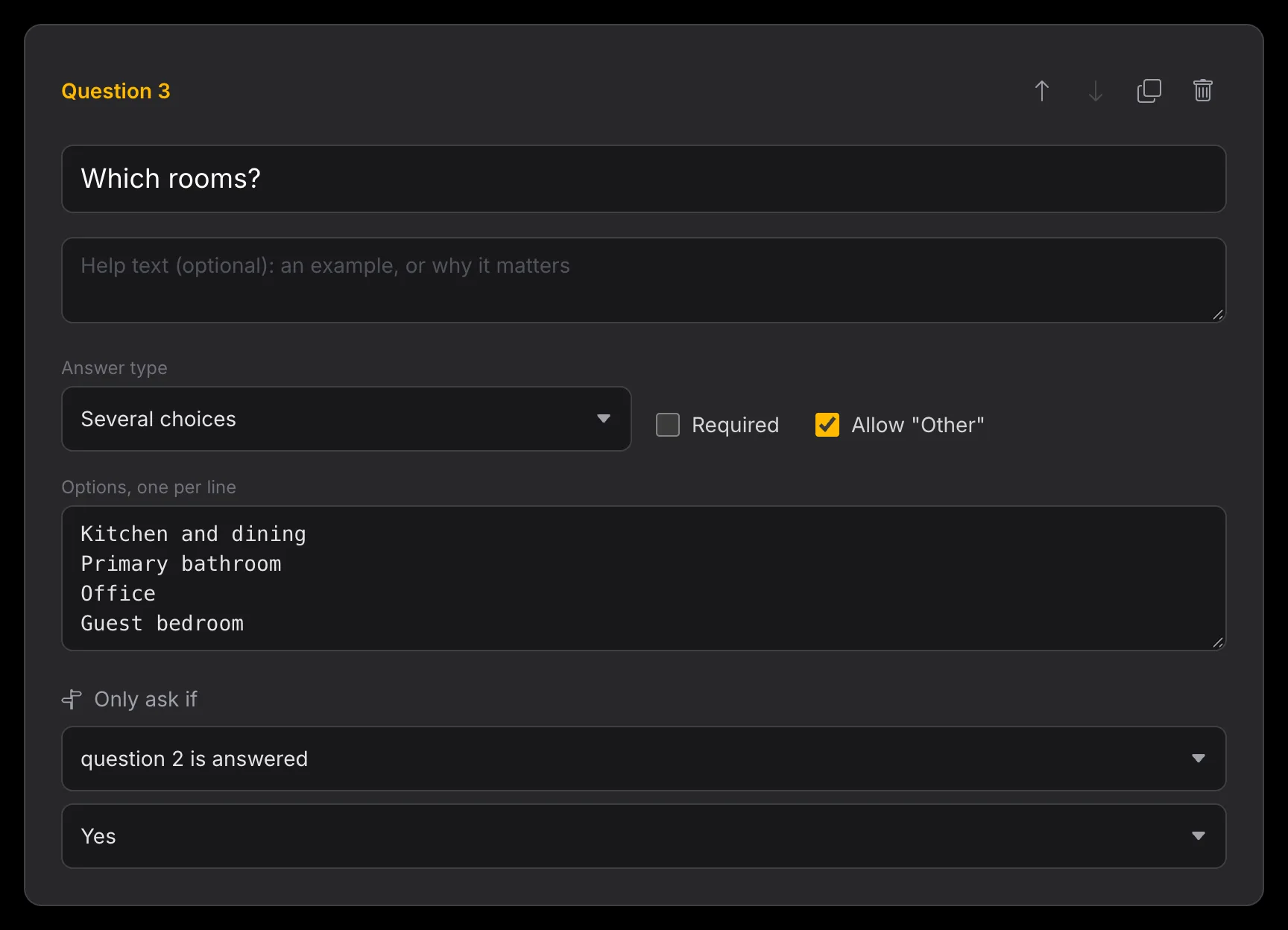
Use the arrows to reorder questions, and the copy and bin icons to duplicate or delete one. A questionnaire holds up to 60 questions.
The draft saves itself as you go: Draft saved shows in the panel beside the questions. If something stops it from saving, such as a choice question with no options, the reason shows there instead.
Preview it
Click Preview in the panel to walk through the questionnaire exactly as the homeowner will, with the Only ask if conditions applied as you answer. Nothing is stored and nothing is sent. The walk-through ends with Back to the editor.
Send it
Click Send to homeowner and confirm. The homeowner gets an email with a link to the questions.
Once sent, the questions cannot be edited, so every answer refers to the question the homeowner actually saw. To change something, withdraw the questionnaire and send a new one, starting from a copy.
If the homeowner has not accepted the project invitation yet, the questionnaire shows Waiting for invitation and the email goes out as soon as they accept.
If the homeowner has not finished after three days, Selora Connect emails them a reminder, and a second one three days later. No more reminders are sent after that.
What the homeowner sees
The email link opens the questionnaire. A homeowner who is signed out signs in with a code sent to their email and lands straight on the questions. The questionnaire also shows at the top of their project page while it is waiting on them.
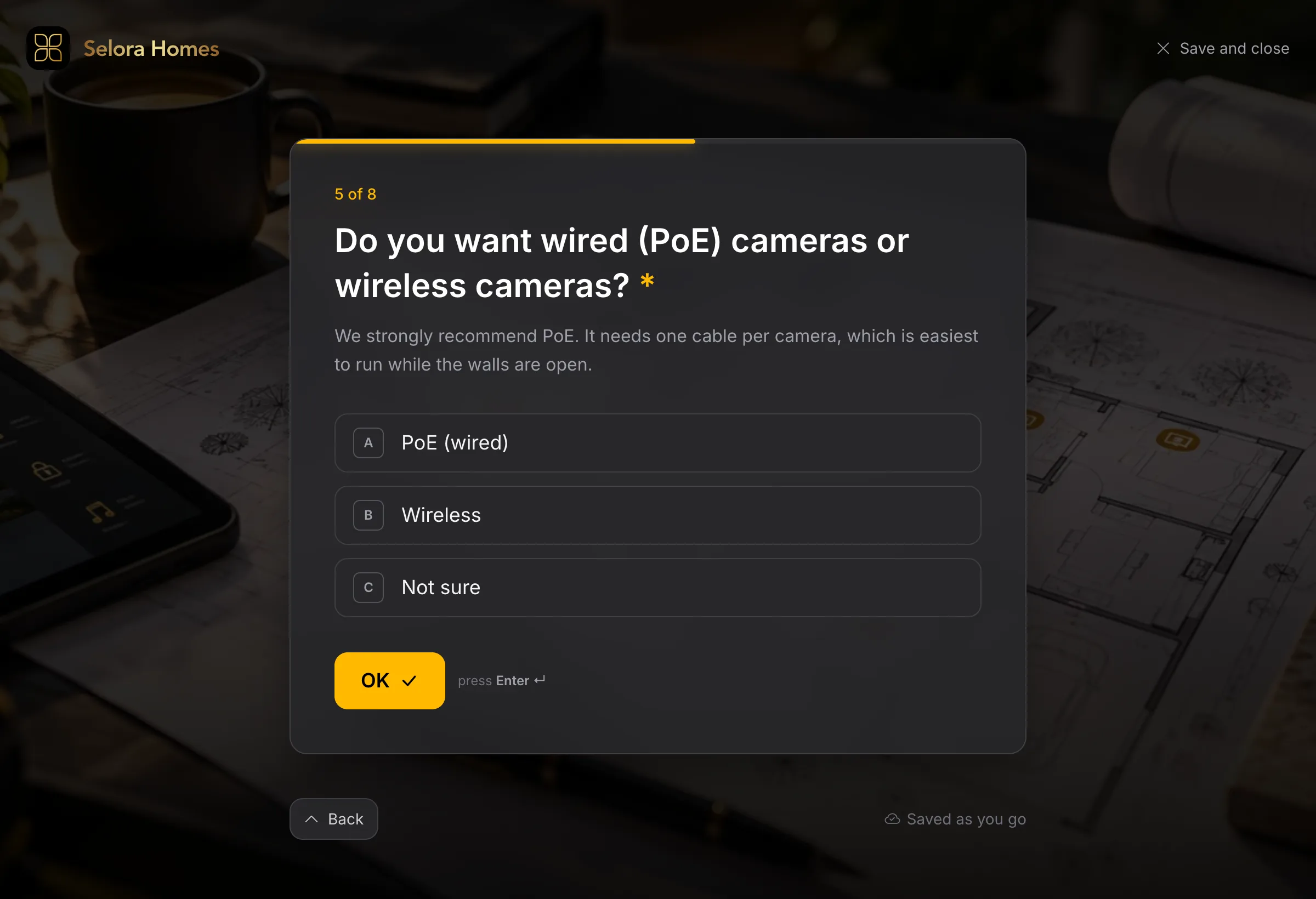
They answer one question per screen, and each answer is saved as they go: they can stop and come back later, and the page picks up at the first unanswered question. Back returns to the previous question, and Save and close leaves for now. Choices can be picked with the keyboard (A, B, C…) and confirmed with Enter.
Before submitting, a Check your answers screen lets them change anything. Each answer is saved, and visible to the project team, as soon as they give it; pressing Submit answers tells you they are done.
Read the answers
Each sent questionnaire appears in the project’s Activity with its progress: Not started yet, 3 of 8 answered so far, or All answered. Open it to see each question with the answer given so far.
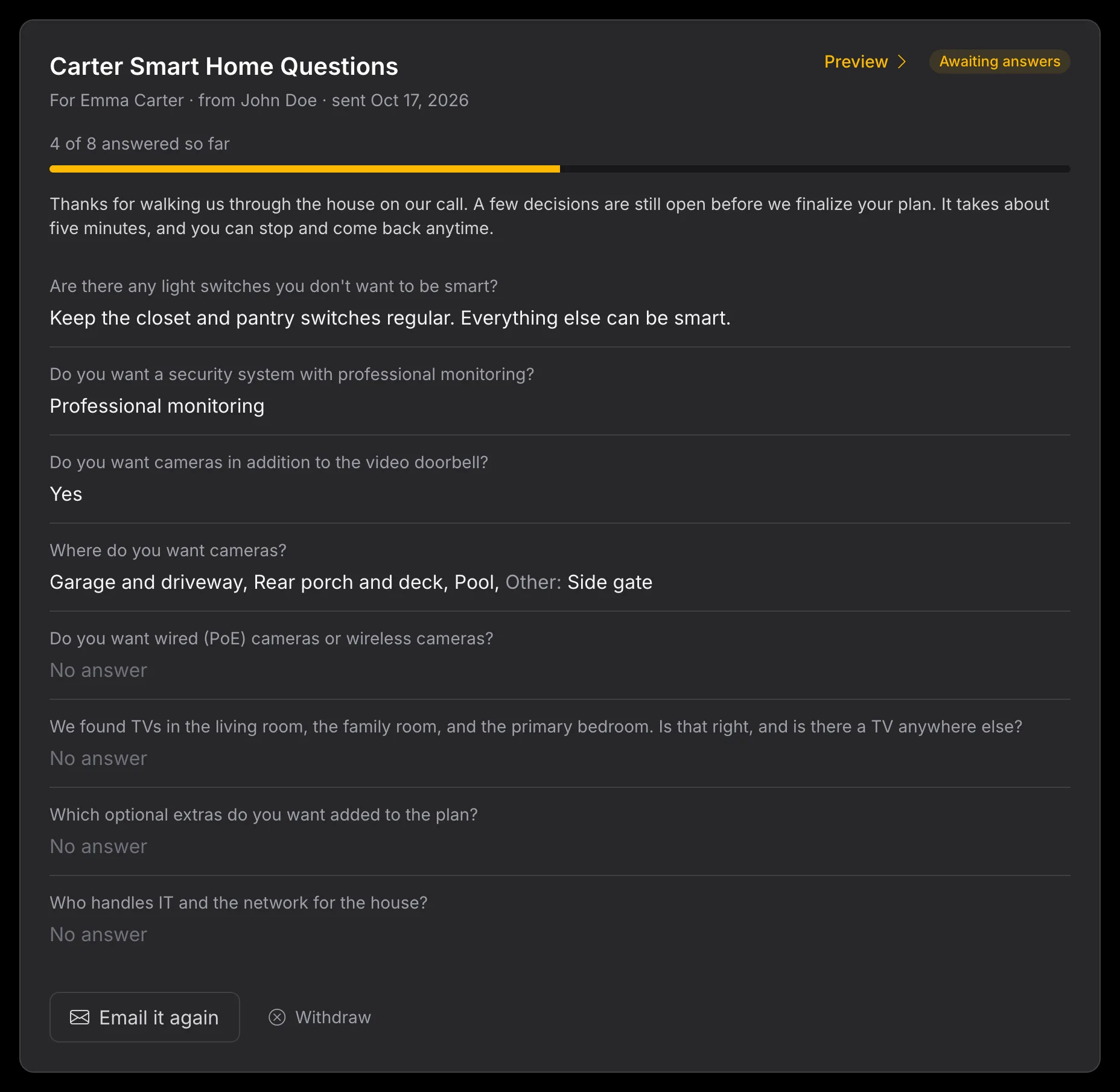
When the homeowner submits, everyone on the project team gets an email, and a Questions answered entry appears in the Activity with a View answers link.
| Status | Meaning |
|---|---|
| Draft | Not sent. Only the project team can see it. |
| Waiting for invitation | Sent, emailed once the homeowner accepts the invitation. |
| Awaiting answers | Sent and emailed. The homeowner has not submitted yet. |
| Answered | Submitted. |
| Withdrawn | Withdrawn before the homeowner submitted. |
While a questionnaire is awaiting answers, you can:
- Email it again, if the homeowner lost the first email.
- Withdraw it. The homeowner can no longer answer, and the answers they already gave are kept.
Privacy
The homeowner’s questionnaire page loads no analytics, advertising, or chat scripts, and the answers are not recorded by session replay on the installer pages. What the homeowner tells you about their house stays in Selora Connect.
Last modified October 18, 2026: docs(installer): send questions to the homeowner from a project (9b3cb2e)