
Build the Manifest with Selora Assistant
Describe the home to Selora Assistant, or paste the transcript of a call with the homeowner, and review the floors, areas, devices, and integrations it proposes for the installation manifest.
Selora Assistant fills in the installation manifest from plain language. Tell it about the home the way you would tell a colleague, or paste the notes or transcript from your call with the homeowner, and it proposes the floors, areas, devices, integrations, scenes, and automations to add. Nothing reaches the manifest until you apply it.
Selora Assistant is in beta.
Start a conversation
Open the manifest from the project page and click Build with Selora (or Continue with Selora if you have already started). The assistant panel opens next to the manifest with the same steps as the checklist:
- Physical install: Map the floors and areas, List the devices, Cover every integration.
- Programming (optional): Set up the scenes, Plan a few automations, Sketch the dashboard.
The assistant asks one question per step, starting with the floors. Answer it, or click Skip this to move on. You can also type into any tab of the manifest yourself at any point: the assistant works from what is already there.
Describe the home
Answer in your own words. You do not need to follow a format:
There’s a 1st floor with a kitchen, a living room, a bathroom, and a bedroom. 2nd floor has a family area, and 3 bedrooms (master bedroom + kids rooms). Basement has a gaming area + another bedroom.
As you type, the composer suggests the names of areas and devices already in the manifest, and devices from the catalog, so they are spelled the way the manifest expects.
Paste a call transcript
Most of this information comes up in the first call with the homeowner. Instead of retyping it, paste the transcript or your notes into the composer and ask the assistant to build the manifest from it. A single message can hold about 24,000 characters, which covers a long call. For example:
Installer: Let’s start with the layout. How many floors?
Homeowner: Two, plus a finished basement. Downstairs is the kitchen, living room, and an office.
Installer: What bothers you most today?
Homeowner: The front door. I want to see who’s there from my phone, and I never know if I locked it.
Installer: A video doorbell and a smart lock, then. Anything for the lights?
Homeowner: The living room and kitchen lights on dimmers, and everything off when we go to bed.
From a call like this, the assistant can propose the floors and areas, a video doorbell and a smart lock at the entrance, dimmers in the living room and kitchen, and a bedtime automation. It asks about anything it cannot decide on its own, such as which lock model to use.
Review and apply the proposed changes
Every answer ends with a Proposed changes card listing what would be added (+), removed (−), or changed (~), grouped by floors, areas, devices, integrations, scenes, automations, and dashboard.
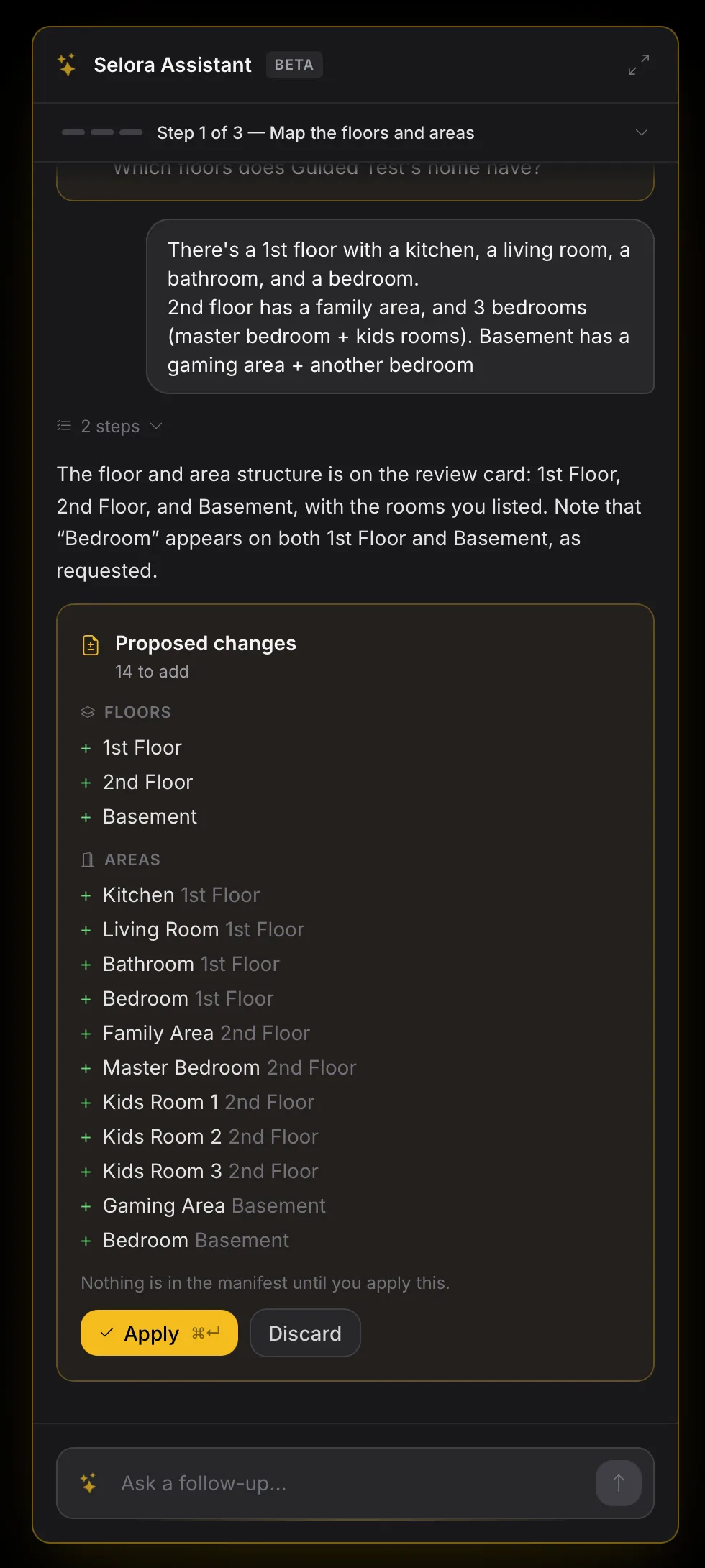
- Click Apply (or press ⌘ Enter, Ctrl Enter on Windows and Linux) to add everything on the card to the manifest.
- Click Discard to drop it.
- If you keep talking before applying, the next card carries over what the previous one had, marked Kept for the change set below. Apply the newest card.
Devices come from the catalog
When you name a device, the assistant looks for it in the Selora device catalog . If several products fit, it shows them as choices, with a link to each device page, and you pick the one you want. If none fit, choose None of these and describe the device: it goes in as a device outside the catalog.
The assistant also checks that the plan can work. When a device needs hardware that is not in the manifest, it says so and proposes it. For example, an IKEA smart plug pairs over Thread, so the home also needs a Thread border router. The assistant explains why and asks which coordinator to use:
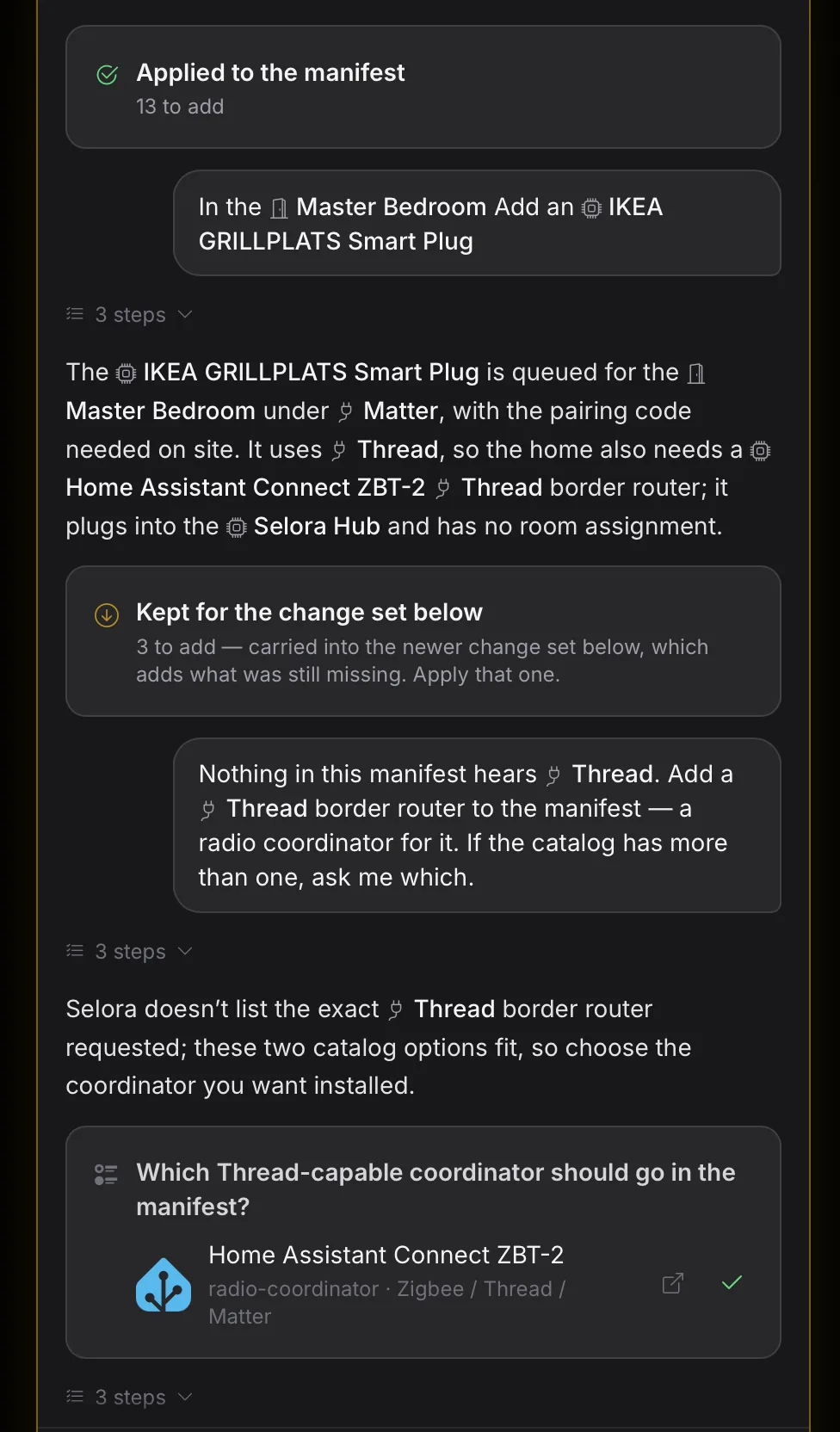
The same checks cover Zigbee and Z-Wave coordinators and manufacturer bridges, so a manifest built with the assistant stays technically consistent: every device has something to pair with and an integration to reach Home Assistant.
Programming suggestions
Once devices are listed, the assistant can suggest scenes, automations, and dashboard cards that make sense for them. Tick the ones you want and click Add the ticked ones.
Last modified September 29, 2026: feat(blog): announce Installation Manifests for installers (a1af1bf)