
Set Up Cameras with Frigate
Plan the cameras, turn Frigate on for a customer, add the cameras, check that detection works, hand face recognition and camera descriptions over to the homeowner, and find Frigate's advanced features.
Frigate records a customer’s cameras and detects people, vehicles, and animals on the Selora Hub itself, so video stays in the home. Selora installs Frigate on the Hub, keeps it up to date, and connects it to Home Assistant. You plan the cameras, turn Frigate on, add the cameras, and check the result.
This page covers the parts you own. For the homeowner’s own instructions, see Cameras and Object Detection with Frigate.
What You Can and Cannot Do
Turning Frigate on and adding cameras is yours. Any installer at the company that holds the Hub can switch Frigate on or off from Selora Connect, the same as the homeowner.
Some choices belong to the homeowner. Walk them through these, but let them decide:
- Face recognition needs photos of the people in the household. The homeowner chooses who is recognized and adds the photos.
- Camera descriptions send pictures from the cameras to Selora AI Cloud and use the home’s Selora AI credits. Whether a camera is described is a privacy and budget decision.
- Use top-up credits, the switch that lets descriptions run on top-up credits, is the homeowner’s alone: top-ups are their money, so only the homeowner can turn it on.
Plan the Cameras
Most Frigate problems start with the cameras or the network, and they are cheaper to get right before you mount anything. Start from the recommended cameras.
- Wire the cameras with PoE. Frigate’s own hardware guide warns that Wi-Fi cameras “are not recommended as their streams are less reliable and cause connection loss”, especially several at once. A PoE camera takes its video and its power over one cable, from a PoE switch or injector. See Frigate’s hardware recommendations.
- Pick cameras with an RTSP stream and a second, smaller stream. Selora AI records the main stream and runs detection on the smaller one, which keeps the Hub’s load down. Turn the second stream on in the camera’s settings if it ships off.
- Prefer H.264 video. Frigate’s hardware guide calls it the most compatible. H.265 saves space, but some browsers cannot play it back.
- Reserve an IP address for every camera on the router before you add it. Frigate connects to each camera at its address and loses it when the address changes. See Reserve IP addresses.
- Make sure the Hub can reach the cameras. If you put the cameras on their own network or VLAN, allow the Hub to connect to them.
- Turn off or plan to mask the time overlay. The clock most cameras print on the picture changes every second, and Frigate counts it as motion.
Storage
Recordings are kept on the Hub’s own disk, which it shares with Home Assistant. When Selora AI adds the cameras, it records the alerts and detections, not the whole day, and the homeowner can choose how many days to keep. When the disk runs low, Frigate deletes the oldest recordings first, whatever the retention setting. See Frigate’s recording docs.
Check the Prerequisites
| Requirement | Where to check | If it is wrong |
|---|---|---|
| Plan is Essentials or higher | Installation page, Plan | Turning Frigate on stops at “Frigate is included with every paid plan. Choose a plan for this home to turn it on.” |
| Hub has the memory for Frigate | Installation page, Services, Frigate row | A standard Hub runs Frigate or Selora AI Local, not both. Turn off Selora AI Local first. Hubs with 32 GB of RAM run both. |
| Hub runs a Selora OS version with Frigate | Installation page, Services, Frigate row | The switch is grayed out with “Available after a Selora OS update”. The Hub installs updates on its own. |
| Cameras have reserved IP addresses | The router | A camera drops out of Frigate when the router gives it a new address. |
Turn On Frigate
- Open the installation in Selora Connect.
- On the Overview, find Frigate in the Services card.
- Turn on the switch, then confirm in the Enable Frigate? window.
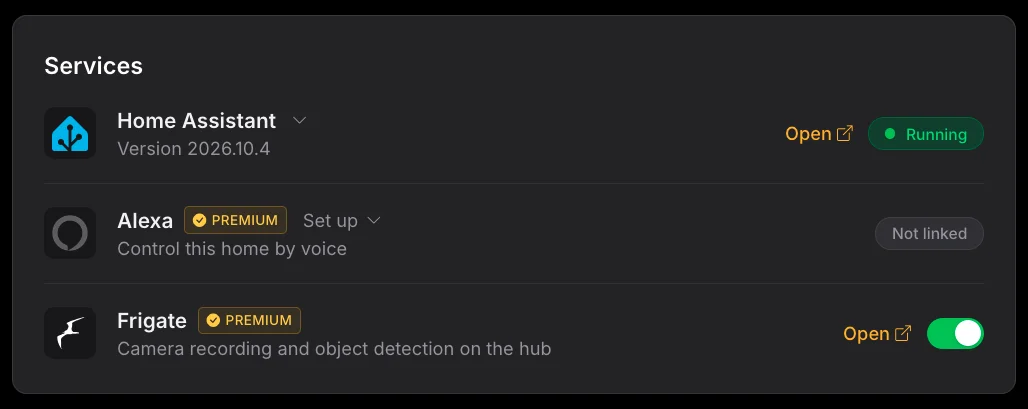
Frigate in the Services card, switched on, with its Open link.
The row shows Starting, then Running. Along the way, the Hub connects Frigate to Home Assistant’s MQTT broker (installing one if the home has none), adds the Frigate integration and restarts Home Assistant once, puts Frigate in the Home Assistant sidebar, and updates Selora AI to the version Frigate needs.
If the Hub is offline when you turn the switch on, the change is saved and reaches the Hub when it reconnects.
Add the Cameras
You work in Home Assistant to add cameras: on site, or remotely through a remote support session the homeowner approves. Frigate opens from the Home Assistant sidebar, with no separate Frigate login.
There are two ways to add cameras:
- Ask Selora AI in chat to add the cameras to Frigate. It lists the cameras already in Home Assistant and the ones it finds on the network, and adds them from a card. For a camera that is not in Home Assistant yet, you type its username and password on the card: they go straight to Frigate, never to the AI. It tracks people unless you ask for more, such as cars or animals. A camera it skips is shown with the reason, such as having no stream Frigate can read.
- Use Frigate’s camera wizard: in Frigate, go to Settings, then Global configuration, then Camera management, and select Add Camera. See Frigate’s Add Camera Wizard guide.
Then, for each camera, draw a motion mask over the time overlay if you left it on. Mask only what moves for no reason: masking too much makes people and cars harder to follow.
Confirm It Worked
- The Frigate row in Selora Connect says Running.
- Every camera shows live video in Frigate.
- Walk in front of each camera, then check that the detection shows up in Frigate’s Review page.
Hand Over to the Homeowner
With the cameras working, go through the next steps with the homeowner. Selora AI suggests each one on its home screen, and nothing changes until the homeowner says yes.
- Face recognition runs on the Hub, and no face leaves the house. The homeowner adds each person with 5 to 10 clear, front-facing photos to begin with. It works best on a camera close to where people walk in, like the front door.
- Camera descriptions let them search what the cameras saw in plain words. Explain that pictures leave the house to be described, and that descriptions belong on outdoor cameras, never indoor ones. They use up to 60% of the home’s Selora AI credits, so the assistant always has the rest.
- Automation ideas for each camera, such as a notification when someone is detected while nobody is home.
The homeowner guide explains each of these in detail: Face recognition and Camera descriptions.
Go Further with Frigate
Frigate does much more than this guide covers. These are the features installers ask about most. Each one is set up in Frigate itself, and Frigate’s documentation is the reference for the details.
- Zones. Draw an area on a camera’s picture, such as the driveway or the front path, and have Frigate raise an alert only when a person or a car enters it, instead of anywhere in the frame. Zones are drawn in Frigate’s settings. See Zones.
- License plate recognition. Frigate reads the plates of the vehicles it detects, and you can name the household’s own plates so their cars show up by name. It is turned on in Settings, Enrichments, License plate recognition. A camera close to where cars slow down reads plates best. See License plate recognition.
- Audio detection. Frigate can listen for sounds such as barking, a smoke alarm, speech, or yelling, and create an event for each. The camera needs a microphone and a stream that carries its audio. See Audio detectors.
- Audio transcription. Frigate can turn speech from a camera into text, live or for a recorded speech event, on request. Use the small model: without an Nvidia graphics card, which the Hub does not have, the larger one is too slow. See Audio transcription.
Each feature adds to the Hub’s load. Turn them on for the cameras that need them, and check the Hub’s memory and processor in Frigate’s System page afterward.
Troubleshooting
“Frigate is not available for your account.” Frigate is not yet turned on for your Selora account. Contact Selora support.
“Frigate is included with every paid plan.” The home is on Free. Move it to a paid plan first.
“This hub doesn’t have the memory to run Frigate alongside Selora AI Local.” Turn off Selora AI Local on the Selora AI card, then turn Frigate on. To run both, the home needs a Hub with 32 GB of RAM.
“This hub can’t run Frigate yet, so it was left off.” The Hub needs a newer Selora OS. It installs updates on its own; try again later.
The row says “Not running”. Frigate is switched on but is not running on the Hub. Check that the Hub is online, then contact Selora support if it stays that way.
A camera keeps dropping out. Check that it still has the same IP address, and that it is wired rather than on Wi-Fi.
Recordings play in one browser but not another. The camera sends H.265. Switch its encoding to H.264 in its video or stream settings.
Last modified November 4, 2026: docs: Managed Frigate on the Selora Hub (9d7274f)