
Request Remote Support Access
How installers and the Selora Homes support team can request temporary remote access to customer Home Assistant installations, and connect an AI agent to them, for support and maintenance.
Remote access provides a secure, on-demand way for professional installers and the Selora Homes support team to access customer Home Assistant installations remotely. Unlike permanent homeowner remote access, this access is temporary, request-based, and fully controlled by the homeowner.
How It Works
Remote access follows a request-and-approve workflow:
- Installer or support team member requests access through the Selora Connect portal.
- Homeowner receives notification and reviews the request.
- Homeowner approves or denies the access request.
- Installer starts the session when ready: the approved time starts counting down then, not at approval.
- Temporary access granted with a unique URL and password, and optionally an MCP server for the installer’s AI agent.
- Session expires automatically when the approved duration ends.
Requesting Access
As an installer or support team member, you can request remote access to any customer installation you manage:
- Log in to your account
- Navigate to the customer’s installation.
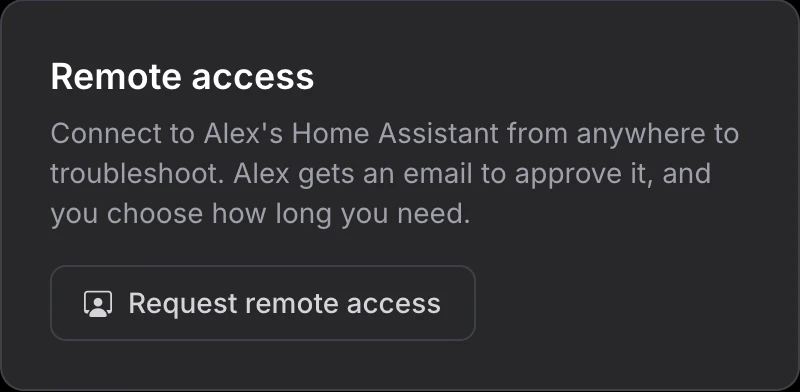
- Click Request remote access in the Remote access card, on the right of the installation’s Overview.
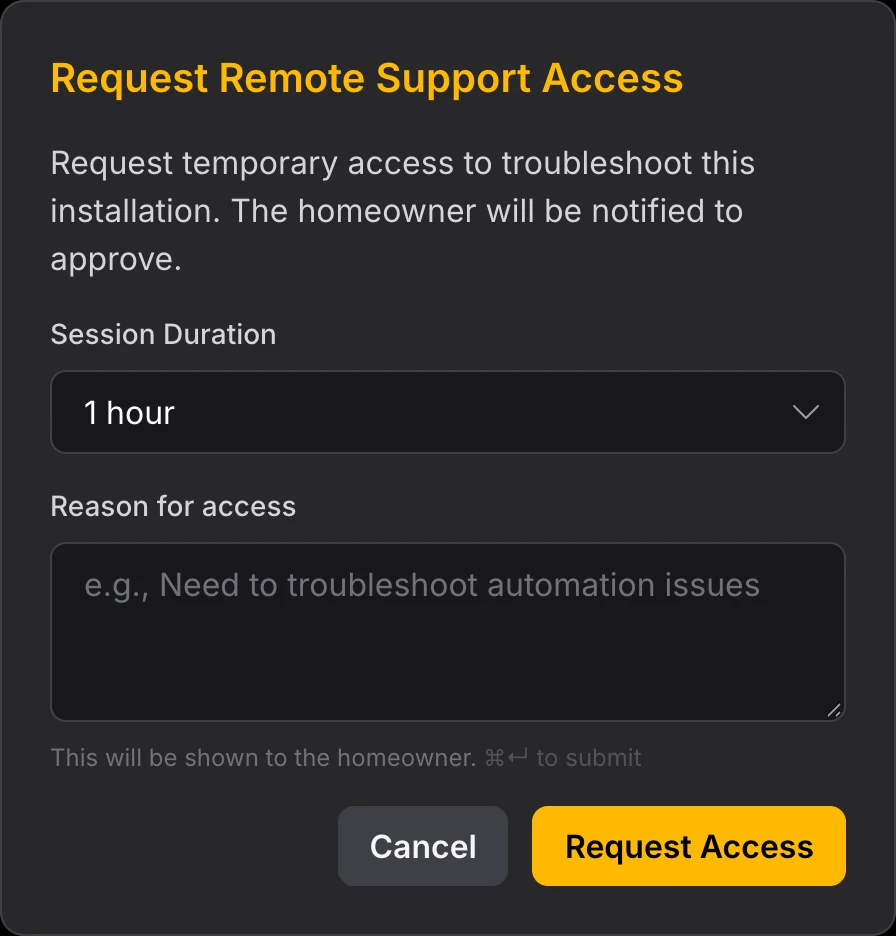
- Specify the session duration from the dropdown.
- Enter the reason for access explaining why you need to connect.
- Click Request Access to submit.
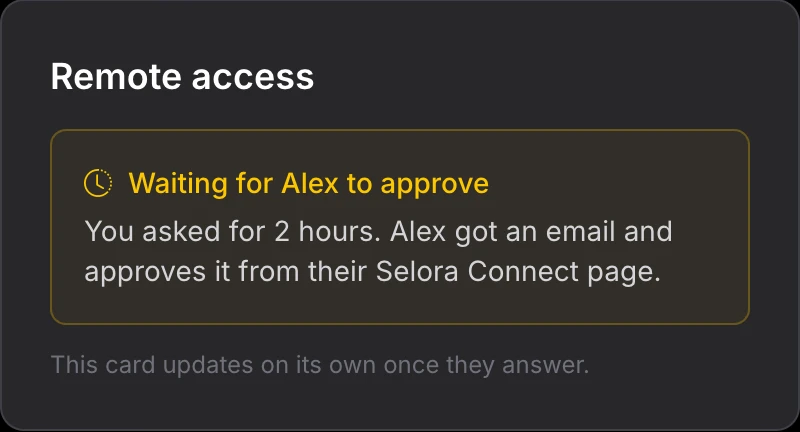
After submitting, the card shows Waiting for the homeowner to approve, with the duration you asked for. It updates on its own once they answer.
Homeowner Approval
When you request access, the homeowner receives an email notification with the details of your request.
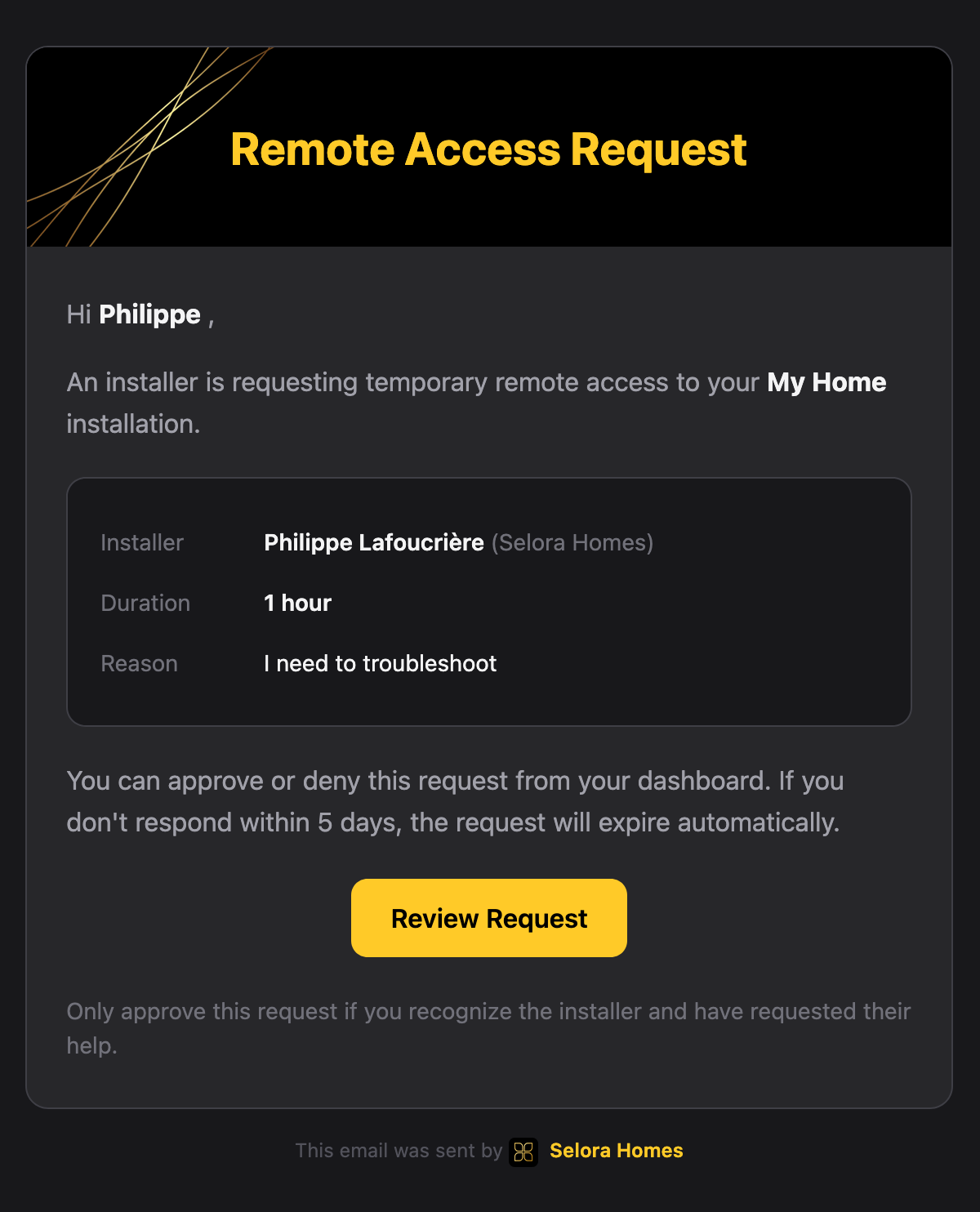
The homeowner can also approve or deny the request directly from their Selora Connect dashboard.

Starting Your Session
Once the homeowner approves your request, the card shows the approved duration and a Start session button.
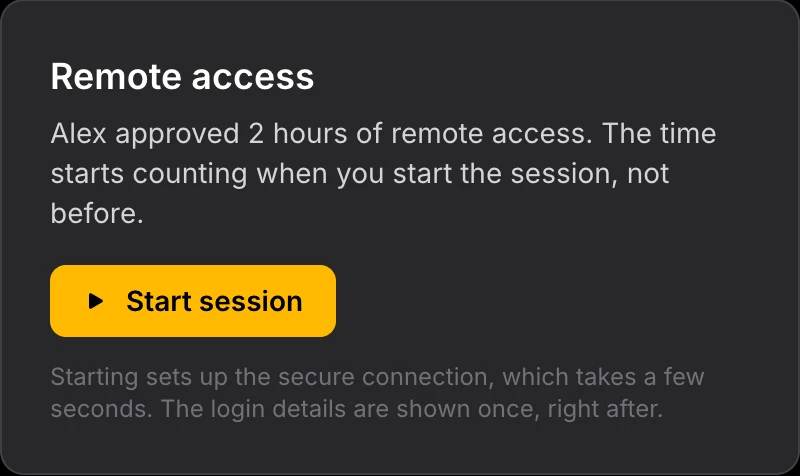
Click Start session when you are ready to work. The approved time starts counting down when you press it, not when the homeowner approves. A temporary user account is created for you, valid for the duration of the session.
Setting up the secure connection takes a few seconds. Once it is ready, click Connect to see how to reach the installation. The card counts down the time left, and the session ends on its own when it runs out.
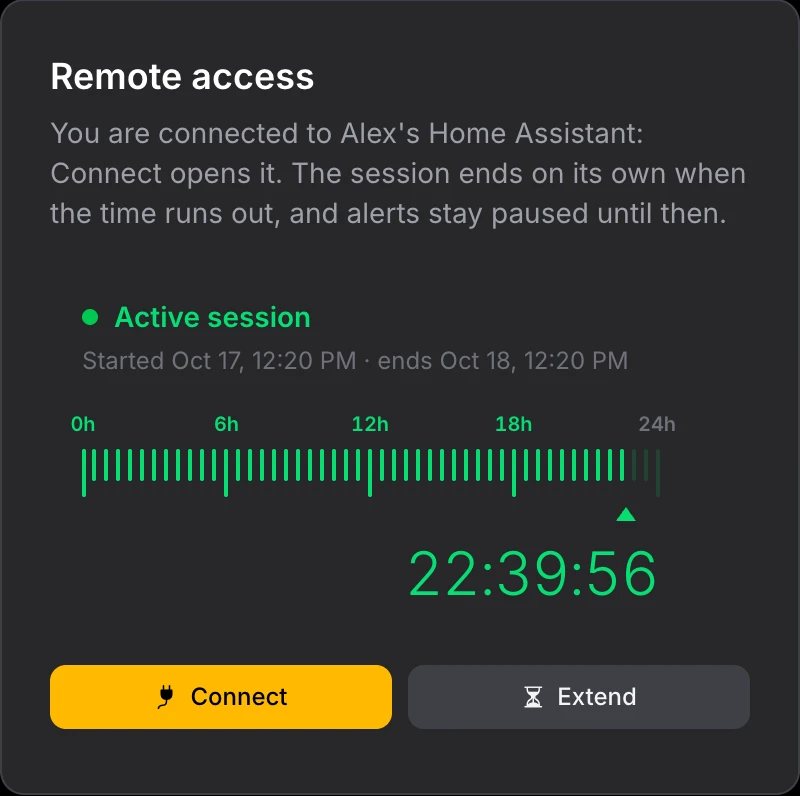
The Connection Details window has two tabs:
- Web access: the URL and credentials to open Home Assistant in your browser, described below.
- AI agent: the MCP server your AI agent can use during the session. See Connect Your AI Agent (MCP) .
Connecting to Home Assistant
A double authentication is required to access the installation:
Step 1: Authenticate the Remote Connection
Open the URL shown in the connection details and enter the password. This first authentication secures the access to the installation and avoids exposing Home Assistant to the internet.
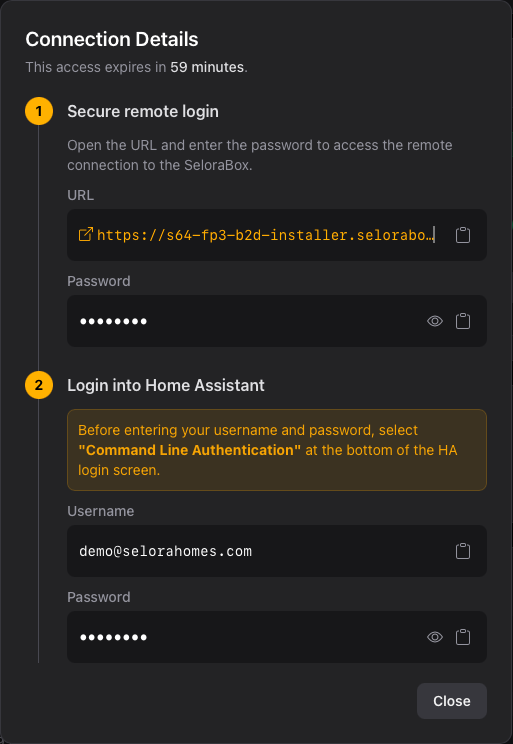
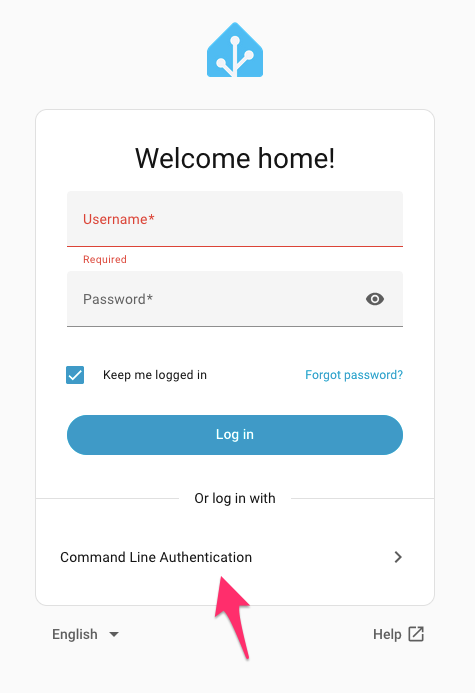
Step 2: Log in to Home Assistant
Once connected, you reach the Home Assistant login screen. The credentials for Home Assistant are different from your Selora Connect account — use the username and password shown in the connection details.
Connect Your AI Agent (MCP)
During a session you can connect your own AI agent, such as Claude, Cursor or any MCP-compatible client, to the Selora AI MCP server on the customer’s hub. Your agent can then read the home’s devices and automations, and help you troubleshoot, from your own tools.
In Connection Details, open the AI agent tab.
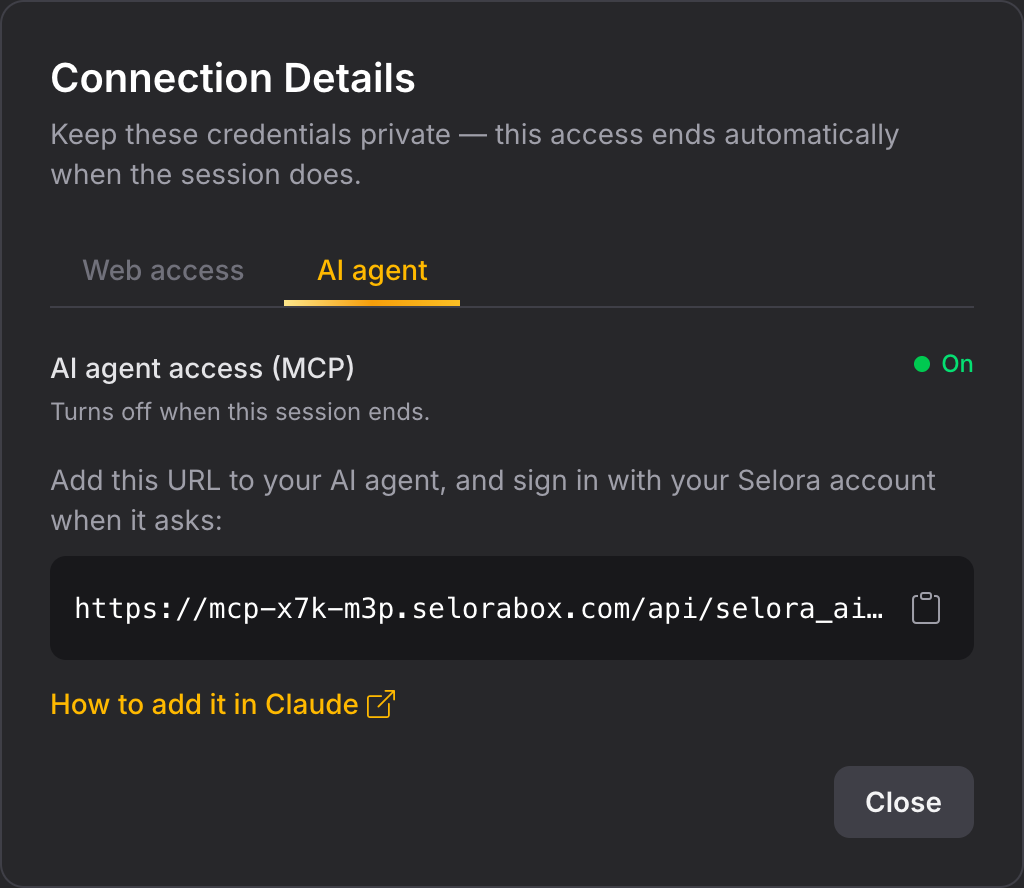
If AI agent access is off on the hub, turn on the AI agent access (MCP) switch. It stays on for your session and turns off when the session ends.
Copy the MCP server URL shown in the tab and add it to your AI agent: see Add the Connector in Claude below, or MCP & Agent Skills for other clients.
When your agent connects, your browser opens a Selora Connect Authorize Access screen. Sign in with your Selora account and approve.
The authorization screen shows when your access ends. Access is read-only by default: your agent can read the customer’s devices, states and history, and list their scenes, automations and scripts. Tick Allow control actions to let it turn devices on and off and trigger automations.
Your agent’s access is tied to the session:
- It ends with the session. When the session expires or the homeowner revokes it, your agent loses access within seconds and cannot sign in again until you start a new session.
- It needs Selora AI on the hub. The AI agent tab is only offered when Selora AI is enabled on the installation.
- It pauses during a guided installation. While a guided installation is running on the hub, Selora Connect is building the home over the same MCP server, so your agent cannot sign in.
Add the Connector in Claude
The MCP server URL is a remote server with Selora Connect sign-in built in, so Claude needs only the URL: no token and no configuration file.
Claude (web and desktop app):
Open Settings → Connectors.
Click + Add, then Add custom connector.
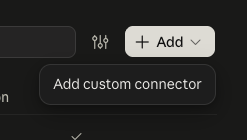
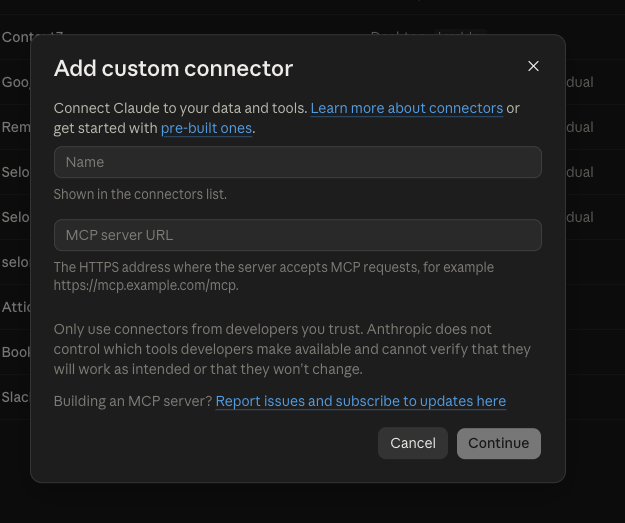
Give it a name, for example the customer’s name, and paste the MCP server URL from the AI agent tab into MCP server URL. Click Continue.
Click Connect next to the new connector. Your browser opens the Selora Connect Authorize Access screen: sign in and approve.
The connector is then available in your conversations until your session ends. After that, remove it, or keep it and reconnect during the next session: each session gives a new sign-in.
Claude Code:
claude mcp add --transport http customer-hub https://mcp-xxx-xxx.selorabox.com/api/selora_ai/mcp
Replace the URL with the one from the AI agent tab, then run /mcp in Claude Code and choose the server to sign in.
Session Duration
Session duration is specified when making the request. Available options:
| Duration | Typical Use Case |
|---|---|
| 15 or 30 minutes | Quick diagnostics or configuration checks |
| 1 hour | Standard troubleshooting or minor updates |
| 2 hours | Integration setup or moderate configuration work |
| 4 or 8 hours | Major updates, complex troubleshooting |
| 24, 48 or 72 hours | Extensive system work, migrations, monitoring |
Extending a Session
If you need more time than originally requested, click Extend while your session is active.
- Click Extend in the active session panel.
- Specify the additional time needed.
- Provide a reason for the extension.
- The homeowner receives a notification to approve the extension.
Security Features
Remote access is built with security as a priority:
- No Permanent Access: Every session requires explicit homeowner approval.
- Time-Limited Sessions: Access automatically expires at the scheduled end time.
- Temporary User Account: A dedicated account is created for each session and expires with it.
- Double Authentication: Separate credentials for the remote connection and for Home Assistant.
- Instant Revocation: Homeowners can end sessions immediately, including your AI agent’s access.
- Complete Audit Trail: All access is logged for transparency.
- Encrypted Connection: All traffic is encrypted end-to-end.
Best Practices
- Request only what you need: Choose the shortest duration that allows you to complete your work.
- Be specific in your reason: Clear explanations build trust with homeowners.
- Notify before requesting: A quick call or message to your customer improves the experience.
- Request extensions early: Don’t wait until the last minute if you need more time.
- Document your work: Keep notes on what you did during the session for future reference.
Troubleshooting
Request Not Received by Homeowner
- Verify the customer’s contact information in Selora Connect.
- Ask the customer to check their spam/junk folder.
- Ensure the customer has notifications enabled in the Selora Connect app.
Session Expired Unexpectedly
- Check if the homeowner revoked access.
- Verify the original session duration in your request.
- Submit a new access request if needed.
Connection Issues During Session
- Verify the customer’s internet connection is stable.
- Try refreshing the temporary URL.
- Contact Selora support if issues persist.
Related Documentation
Last modified October 17, 2026: docs(connect): new remote access and backups screenshots (ea7eb6e)