
Invite a Team Member
Invite colleagues to your Selora Connect company, change somebody's role, and remove a member who has left.
Your colleagues join your company with their own Selora Homes login. Nobody has to share a password, and every action on a project or a hub is attributed to the person who took it.
Invitations are sent from Team in the Selora Connect sidebar. Owners and admins can invite anybody; a manager can invite people to the location they run. See Roles and Permissions for the full picture.
Send an invitation
- Sign in to Selora Connect and open the Team page — it is Team in the sidebar, under your company’s name. Signing in drops you on your installations, not here.
- Enter the person’s email address.
- Pick their role: Technician, Manager, or Admin.
- Click Send invitation.
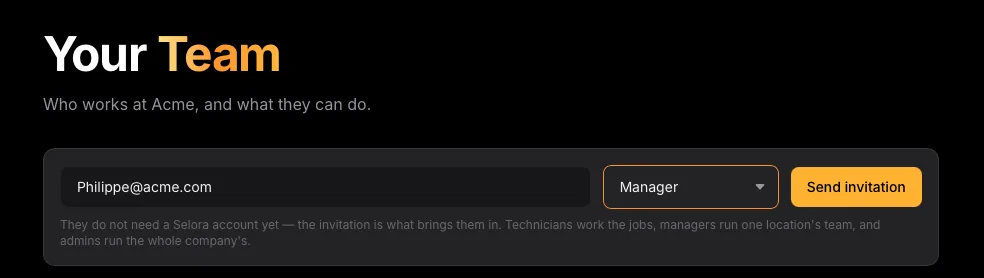
They appear on the roster straight away with an Invited badge, and an email arrives at that address with the subject Join <your company> on Selora Homes.
Two things to know before you type an address:
- The address is what the invitation is bound to. Accepting is only possible while signed in as that address, so a forwarded link does not let a colleague join in someone else’s place. Double-check the spelling before you send.
- Invite an installer, not a homeowner. A Selora Homes customer account cannot join an installer company; the invitation is refused at the point it is accepted.
What the invitee does
The link in the email opens a page naming your company and the role they have been offered. They sign in (or create an installer account with the invited address) and click Accept invitation, or Decline.
They do not have to keep the email. Signing in to Selora Connect before accepting shows them the invitation on the page they land on, with the company that sent it and the role it offers:
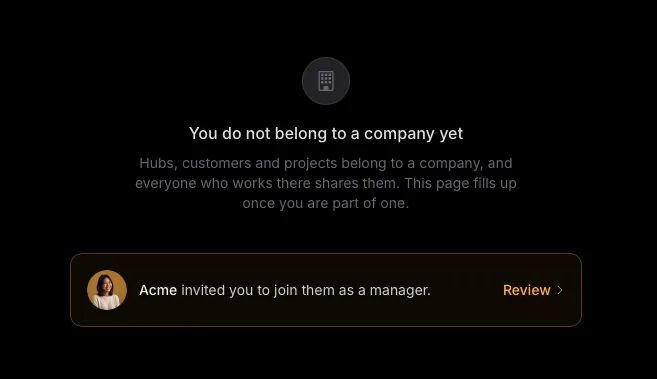
Once accepted, they land in your company with your fleet, customers and projects.
An account that already belongs to another company cannot accept. The exception is the empty company created automatically when somebody registers as an installer: if they signed up in order to accept your invitation and have done nothing else, that empty shell is discarded when they join you.
Seats
An invitation does not consume a seat until it is accepted, so withdrawing one that was never answered costs you nothing.
If your plan includes a single seat, the invite form is replaced by a note saying so, and no invitation can be sent until there is room for another member. The check runs again at acceptance, so an invitation sent while there was room is refused if the room is gone by the time it is answered.
Change somebody’s role
- On the Team page, click the ⋮ menu at the end of their row.
- Under Role, pick the role you want them to have.
The menu only offers the roles you are allowed to grant, and there is no menu on the owner’s row or on your own.
Remove somebody
The same ⋮ menu ends with Remove from team, or Cancel invitation for somebody who has not answered yet. Both are the same act from the company’s side: the person loses access to the company’s fleet, customers and projects immediately.
Removing somebody does not delete their Selora Homes account — it ends their membership of your company. A removed member’s old invitation link cannot be replayed to get back in; send a fresh invitation if they return.
Last modified October 31, 2026: feat(installers): link installer login to installers.selorahomes.com (e8c1560)