
Installation
Install Selora AI via Selora Hub one-click toggle, HACS, or manually into your Home Assistant instance.
Via Selora Hub (one-click)
If you have a Selora Hub , Selora AI can be enabled with a single toggle — no manual installation required.
- Log in to your Selora Homes account.
- Navigate to the settings for your installation.
- Toggle Selora AI to on.
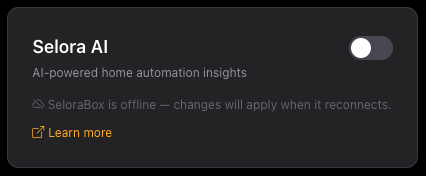
Your Selora Hub will automatically install HACS and the Selora AI integration, and configure Selora AI Cloud as the LLM backend using the credits included with your subscription. No API keys, provider selection, or authentication flow are required. Once complete, Selora AI appears in the Home Assistant sidebar, ready to use.
For full details, see the Selora AI on Selora Hub guide.
Via HACS
If you are not using a Selora Hub, HACS is the easiest way to install Selora AI on any Home Assistant instance.
First, make sure HACS is installed on your Home Assistant instance, then click the button below:

After installing, restart Home Assistant.
Once restarted, navigate to Settings → Devices & Services. You should see Selora AI listed under New devices discovered or available to add via + Add integration. Once configured, the quickest confirmation that everything is working is the Selora AI panel appearing in your HA sidebar — if you can see it and open the chat, the integration is live. If it does not appear, check Settings → System → Logs for errors.
HACS only offers stable releases. If the Selora team has asked you to test a fix, or you want a technology preview, see Pre-releases .
Manual installation
If you prefer not to use HACS, you can install the integration manually.
Download the latest release ZIP from the Releases page .
Unzip and copy the
custom_components/selora_aifolder into your HA config directory. The exact path depends on how you run Home Assistant:Installation type Config directory path Home Assistant OS / Supervised /homeassistant/(via Samba share or SSH add-on)Home Assistant Container (Docker) The folder you mounted as /configHome Assistant Core ~/.homeassistant/by defaultThe final path should look like:
<config>/custom_components/selora_ai/__init__.py
<config>/custom_components/selora_ai/manifest.json
...
Restart Home Assistant.
After restarting, navigate to Settings → Devices & Services → + Add integration and search for Selora AI to confirm it is available. Once configured, the quickest confirmation that everything is working is the Selora AI panel appearing in your HA sidebar — if you can see it and open the chat, the integration is live. If it does not appear, verify the folder path above and check Settings → System → Logs for errors.
Last modified September 16, 2026: Merge branch 'feature/hub-power-on-lead-time' into 'main' (f836d5a)