
Alexa Voice Control
Enable the Selora Homes skill in the Alexa app, choose which devices Alexa can control, and unlink whenever you want it to stop.
Alexa voice control lets you operate the devices in your Home Assistant installation by voice: “Alexa, turn off the kitchen lights.” You can speak to anything with Alexa built in: an Echo, the Alexa app, a Fire TV, or a speaker such as the Sonos Era 100.
You enable the Selora Homes skill once from the Alexa app. After that, Alexa reaches your home through Selora Connect, so nothing needs to be opened on your router and no address of your home is shared with Amazon.
Before You Start
- You are on a paid plan. Voice control is included in Essentials, Premium, and Estate. It is not included in Free.
- Your Selora Hub is installed and online. You can check this on your installation page in Selora Connect.
- You own the home in Selora Connect. Only the homeowner can link Alexa to it.
- You have an Amazon account and the Alexa app. The skill is currently published in English (United States) only, so it may not be available if your Alexa language is set to anything else, including English (Canada).
Enable the Skill
- Open the Selora Homes skill page on your phone, or open the Alexa app, go to More → Skills & Games, and search for Selora Homes.
- Tap Enable To Use.
- Sign in to Selora Connect the way you normally do: email and login code, Google, Apple, or a passkey.
- Review what you are allowing, then tap Allow Alexa.
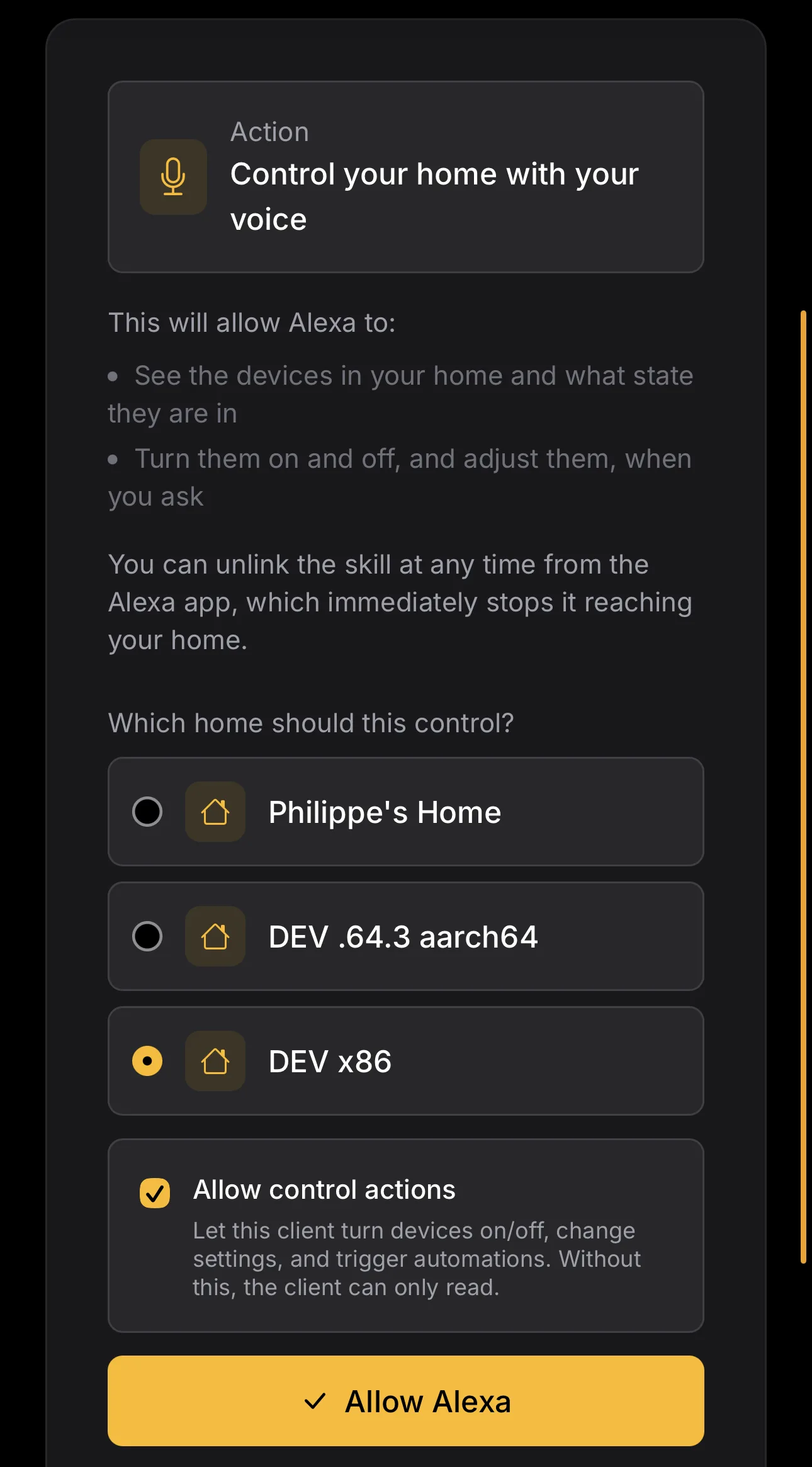
If your Selora account has more than one home, the linking screen asks which home Alexa should control. Choose the home, then tap Allow Alexa. Only homes on a paid plan are listed.
Voice control is ready a few minutes after you tap Allow Alexa, while your hub receives its Alexa key. Wait until the Alexa tile in Selora Connect says Ready before you discover devices.
Find Your Devices
Once the Alexa tile says Ready, say:
Alexa, discover devices
You can also do this in the Alexa app under Devices → + → Add Device → Discover Devices.
Run discovery again whenever you add devices in Home Assistant. Alexa does not pick up changes on its own.
Which Devices Alexa Can See
Alexa picks up devices of these types automatically:
- Lights, switches, thermostats, fans, blinds and shades, humidifiers, and water heaters
- Scenes, media players, and vacuums
- Door, window, garage door, motion, and presence sensors
- Temperature, humidity, and air quality sensors
Locks are not included, so you cannot lock or unlock a door with Alexa yet. Devices your installer has hidden in Home Assistant, and settings or diagnostic entities, are left out too.
There is no screen yet where you choose devices one by one. If Alexa shows a device you would rather keep off it, ask your installer or Selora support to remove it.
Alexa accepts up to 300 devices per Amazon account.
What You Can Say
Once devices are discovered, the usual Alexa phrasing works:
| Example | What it does |
|---|---|
| “Alexa, turn on the living room lamp” | Switches a light or switch on or off |
| “Alexa, set the kitchen lights to 40 percent” | Sets brightness |
| “Alexa, set the thermostat to 70 degrees” | Sets a target temperature |
| “Alexa, is the garage door open?” | Reads a sensor or cover state |
| “Alexa, turn on movie night” | Runs a scene |
Alexa uses the name each device has in Home Assistant. If a command is not recognized, rename the device in Home Assistant to something you would naturally say, then run discovery again.
Check It from Selora Connect
Open your installation in Selora Connect and look at the Services section. The Alexa tile shows one of these states:
| Tile says | Meaning |
|---|---|
| Ready | Your hub has confirmed voice control is working. |
| Finishing setup | You linked recently and your hub is still receiving its Alexa key. Wait a few minutes. |
| Linked | An Amazon account is linked, but your hub has not confirmed it is ready yet. |
| Switched off | An Amazon account is linked, but voice control is off on your hub. Contact your installer or support. |
| Hub offline | An Amazon account is linked, but your hub is offline, so Alexa cannot reach your home. |
| Not linked | Your plan includes voice control, but nobody has linked an Amazon account yet. |
| Not included | Your plan does not include voice control. |
When an account is linked, the tile shows who linked it and when.
If you move your home to the Free plan, voice commands stop immediately.
Stop Alexa Reaching Your Home
You have two ways to turn voice control off:
- From the Alexa app, disable the skill: More → Skills & Games → Your Skills → Selora Homes → Disable Skill. Amazon stops sending anything to your home straight away. If two Amazon accounts are linked to the same home, one of them disabling the skill does not affect the other.
- From Selora Connect, press Disconnect Alexa on the Alexa tile. This unlinks every Amazon account from your home at once.
Troubleshooting
The linking screen says “This account has no Selora home”. The account you signed in with does not own a home in Selora Connect. Check you signed in as the homeowner, or tap Sign in with a different account. If your hub is still being installed, the home appears once your installer finishes.
The linking screen says “Voice control needs a paid plan”. Your home is on the Free plan. Change your plan in Billing, then enable the skill again.
The linking screen says “Alexa is not switched on for this account”. Voice control has not been turned on for your account yet. Contact support.
Discovery finds no devices. Check that the Alexa tile says Ready, then run discovery again. If it still finds nothing, contact your installer or Selora support.
Alexa says a device is not responding. This usually means the hub is offline or is not answering in time. Check the installation page in Selora Connect. If the hub shows as online, try the command again.
Alexa asks you to link the skill again. Sign in again through the Alexa app. Re-linking restores voice control without changing anything else, and does not affect anyone else who has linked the same home.
A device is missing after you added it in Home Assistant. Run discovery again. If it is still missing, check it is one of the types Alexa can see. Locks are not.
Last modified November 4, 2026: docs: Managed Frigate on the Selora Hub (9d7274f)