
Selora Vision
Turn on Selora Vision, powered by Frigate, on your Selora Hub to record your cameras and detect people, vehicles, and animals locally, add your cameras, recognize faces, search what they saw with camera descriptions, and back up recordings to a NAS or to Selora's cloud.
Selora Vision records your security cameras and recognizes people, vehicles, and animals in what they see. It is powered by Frigate, which runs on the Hub itself, next to Home Assistant, so video and detection stay in the home. Selora installs Frigate, keeps it up to date, and connects it to Home Assistant for you. In your Selora Homes account and in Home Assistant, Selora Vision shows up as Frigate.
This page covers turning Selora Vision on, adding cameras, and what to do next: face recognition, which runs on the Hub, camera descriptions, which use Selora AI Cloud, and backing up your recordings off the Hub. Installers planning a job can also read Selora Vision (installer guide).
What you need
- A paid plan. Selora Vision is included with every paid plan, from Essentials up. It is not part of the Free plan. You can check your plan on the Billing page of your Selora Homes account.
- Enough memory on the Hub. A standard Selora Hub runs either Selora Vision or Selora AI Local, not both. If Selora AI Local is on, turn it off before you turn Selora Vision on; Selora AI keeps working through Selora AI Cloud. Hubs with 32 GB of RAM, which come with larger plans, run both.
- IP cameras on the home network. We recommend Reolink or UniFi Protect cameras, but any camera that offers an RTSP stream should work. See the recommended cameras.
- A fixed IP address for each camera. Frigate connects to each camera at its address. If the router hands a camera a new address, Frigate loses it until the address is updated in Frigate. Reserve an address for every camera on the router before you add it: see Reserve IP addresses.
Turn on Selora Vision
The homeowner, or an installer who manages the Hub, can turn Frigate on from the Selora Homes account.
- Log in to your Selora Homes account and open the installation.
- On the Overview, find the Selora Vision card.
- Turn on the switch, then confirm in the Enable Selora Vision? window.

Selora Vision on the Overview, switched on, with its Open link.
The first time, the Hub downloads Frigate, which can take several minutes. The row shows Starting, then Running.
While Frigate starts, the Hub also sets up Home Assistant for it:
- It connects Frigate to Home Assistant’s MQTT broker. If the home does not have one yet, it installs one.
- It adds the Frigate integration, which brings Frigate’s cameras and detections into Home Assistant. Home Assistant restarts once to load it.
- It adds Frigate to the Home Assistant sidebar.
Add your cameras
Frigate starts with no cameras. There are two ways to add them.
Ask Selora AI
With Selora AI 1.2.0 or later, ask it in chat to add your cameras to Frigate. It finds the cameras already in Home Assistant and the ones it can see on the home network, and shows them on a card. For a camera that is not in Home Assistant yet, type its username and password on the card: they go straight to Frigate and never to the AI.
Selora AI records each camera’s main stream and runs detection on its smaller stream. It tracks people unless you ask for more, such as cars or animals, and you can tell it how many days of recordings to keep.
Use Frigate’s camera wizard
You can also add a camera yourself in Frigate:
- Open Frigate (see below).
- Go to Settings, then Global configuration, then Camera management, and select Add Camera.
- Enter the camera’s name, IP address, username, and password, and follow the wizard.
Frigate’s guide walks through each step of the wizard: Adding a camera with the Add Camera Wizard.
Camera tips
A few things make Frigate more reliable and lighter on the Hub.
- Choose PoE cameras over Wi-Fi. A Wi-Fi camera’s stream drops more often, and Frigate loses the camera each time, more so with several of them. A PoE (Power over Ethernet) camera gets its video and its power through one network cable, from a PoE switch or injector, so it stays connected.
- Give every camera a fixed IP address. See What you need: a camera that changes address drops out of Frigate.
- Mask the time overlay. The date and time most cameras print on the picture changes every second, and Frigate sees that as motion. It then spends the Hub’s processing on frames where nothing happens. Turn the overlay off in the camera’s settings if you do not need it, or draw a motion mask over it in Frigate. Mask only what moves for no reason, like the timestamp or the sky: masking too much makes people and cars harder to follow.
- UniFi: G5 cameras and newer need a UniFi Protect console to share their video with Frigate.
Frigate’s camera setup guide and notes per camera brand go further.
Already have a recorder? Use Selora Vision without recording
If your cameras already record to a dedicated recorder, such as UniFi Protect or another NVR, Selora Vision can watch them without recording. It keeps no video: your recorder keeps all the footage, and Selora Vision adds detection and Selora AI on top.
What still works:
- Detection of people, vehicles, animals, and packages, with a snapshot of each. Selora tracks people unless you ask for more, so name the others when you add the cameras.
- Notifications and automations on those detections.
- Camera descriptions of each person and vehicle, on the cameras you say yes to.
- Searching past detections in plain words, for example “a white van in the driveway yesterday”.
- Face recognition and licence plate recognition, where they are turned on.
What doesn’t: there are no video clips or timeline playback in Selora. An event opens its snapshot. Watch the footage in your recorder’s own app.
Set it up with UniFi Protect
- In UniFi Protect, turn on RTSPS for each camera’s High channel and its Low (or Medium) channel.
- In Home Assistant, turn on the camera’s Low or Medium stream: open the camera under Settings > Devices and turn on its disabled stream entity. The UniFi Protect integration turns these off by default. Without one, Selora Vision has to analyze the full-resolution stream, which uses much more of the Hub’s processing.
- In the Selora chat, ask to add the cameras and say not to record them, for example “Add my Protect cameras to Selora Vision, don’t record, and detect people, cars and packages.” Selora uses only the low-resolution stream, with one connection per stream, so the recorder isn’t loaded down.
- Say yes to descriptions for the cameras where you want them.
Open Frigate
Once Frigate is running, there are two ways in, and neither asks for a separate Frigate login:
- From your Selora Homes account: select Open on the Selora Vision card. With remote access turned on, it opens from anywhere. Without it, the link reads Open at home and works only from a device on the home network.
- From Home Assistant: select Frigate in the sidebar. Your Home Assistant login is enough.
What to do next
Once Frigate is on, Selora AI (1.2.0 or later) suggests the next steps on its home screen, one at a time. You can also ask for any of them in chat. Nothing changes until you say yes, and you can dismiss any suggestion you don’t want.
- Add your cameras. Selora AI lists the cameras Frigate could watch and adds them on a card. See Add your cameras.
- Turn on camera descriptions. Selora AI describes the people and vehicles your cameras see, so you can search them in plain words. See Camera descriptions.
- Turn on face recognition. Frigate learns the faces of the people you know. See Face recognition.
- Try automation ideas. For a camera that detects people, animals, or cars, Selora AI suggests automations built from what the home already has, such as a notification when someone is detected while nobody is home, or a light that turns on in the camera’s area. Each one opens on the usual automation card for you to accept.
You can also ask Selora AI what the cameras saw, for example “Did anyone come to the front door this afternoon?” The answer shows each event with the picture Frigate saved. See Selora Vision with Selora AI.
Face recognition
Frigate tells you a person is at the door. With face recognition, it tells you who. Ask “Was Alice home at noon?”, or be told only when someone you don’t know comes by.
Face recognition runs on the Hub, on its graphics processor: no face leaves the house. Frigate downloads the recognition model once, the first time.
Turn it on
Accept the suggestion on Selora AI’s home screen, or ask Selora AI to turn on face recognition. It explains what it does and asks before turning it on. Frigate then restarts, which takes about a minute.
Add the people to recognize
Frigate recognizes nobody until you show it who to look for. Once face recognition is on, Selora AI shows a card where you add each person: a name, then real photos of their face.
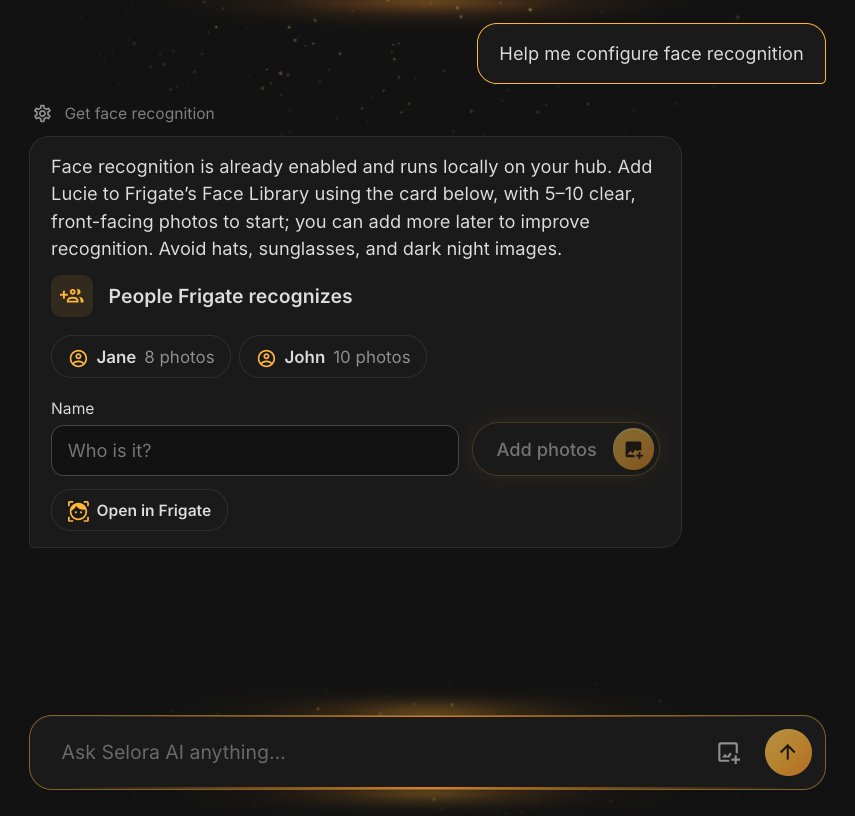
The card lists the people Frigate already knows. Type a name, then add photos.
- 5 to 10 photos per person to begin with, 20 to 30 for good results.
- Well lit, front-facing, without a hat or sunglasses. Avoid black-and-white night shots.
- Varied photos matter more than many.
The photos go straight from the card to Frigate on the Hub. They never pass through the AI or the conversation, and Selora AI never asks for them in chat.
Make it better over time
Frigate’s Face Library lists, under Recent Recognitions, the faces it saw. Assigning each one to the right person trains it further. Open the Face Library from Frigate (see Open Frigate).
Which cameras it works on
Frigate looks for a face only on a person it detects, so the camera has to track people, and be close enough to see a face. A camera at the front door works well; one facing the street usually does not.
Camera descriptions
Frigate tells you a car went by. With descriptions, Selora AI tells you which one, in words you can search:
Frigate sees: Car
Selora AI describes: A white FedEx cargo van parked on the driveway.
Then ask “Any FedEx truck today?” and the chat shows it.
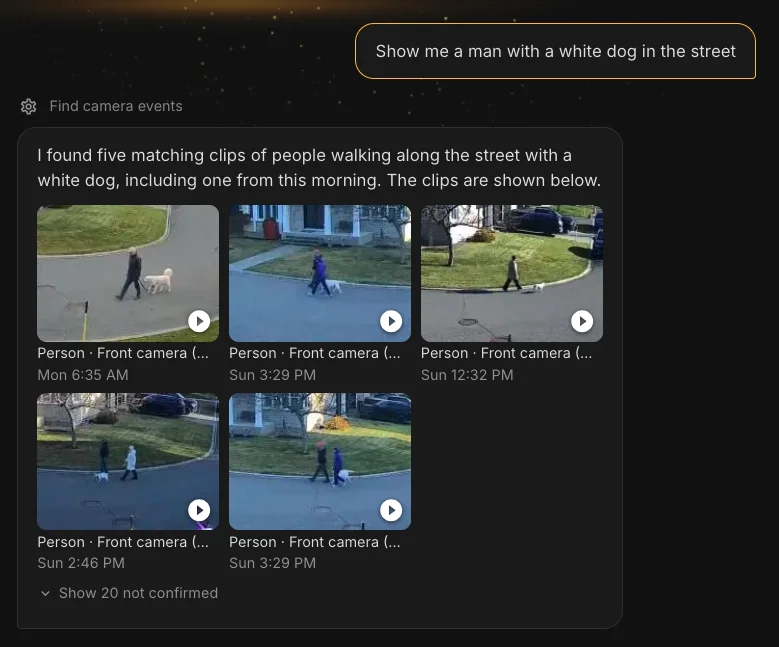
Searching in plain words: each match opens the clip Frigate recorded.
How it works, and what it means for privacy
Unlike detection and face recognition, descriptions do not run on the Hub. When Frigate tracks a person or a vehicle on a camera with descriptions on, it sends pictures of it to Selora AI Cloud, where an AI model writes the description.
- Use it on outdoor cameras, such as one facing the driveway or the street. That is where descriptions help most.
- Do not use it on indoor cameras. Their pictures are of the people who live in the home, and those pictures would leave the house.
Turn them on, one camera at a time
Every camera starts with descriptions off. Accept the suggestion on Selora AI’s home screen, or ask Selora AI, for example “Describe what the driveway camera sees.” It asks about each camera in turn, and only your yes turns one on. When a camera has zones in Frigate, you can choose to describe only what enters one of them, such as the driveway.
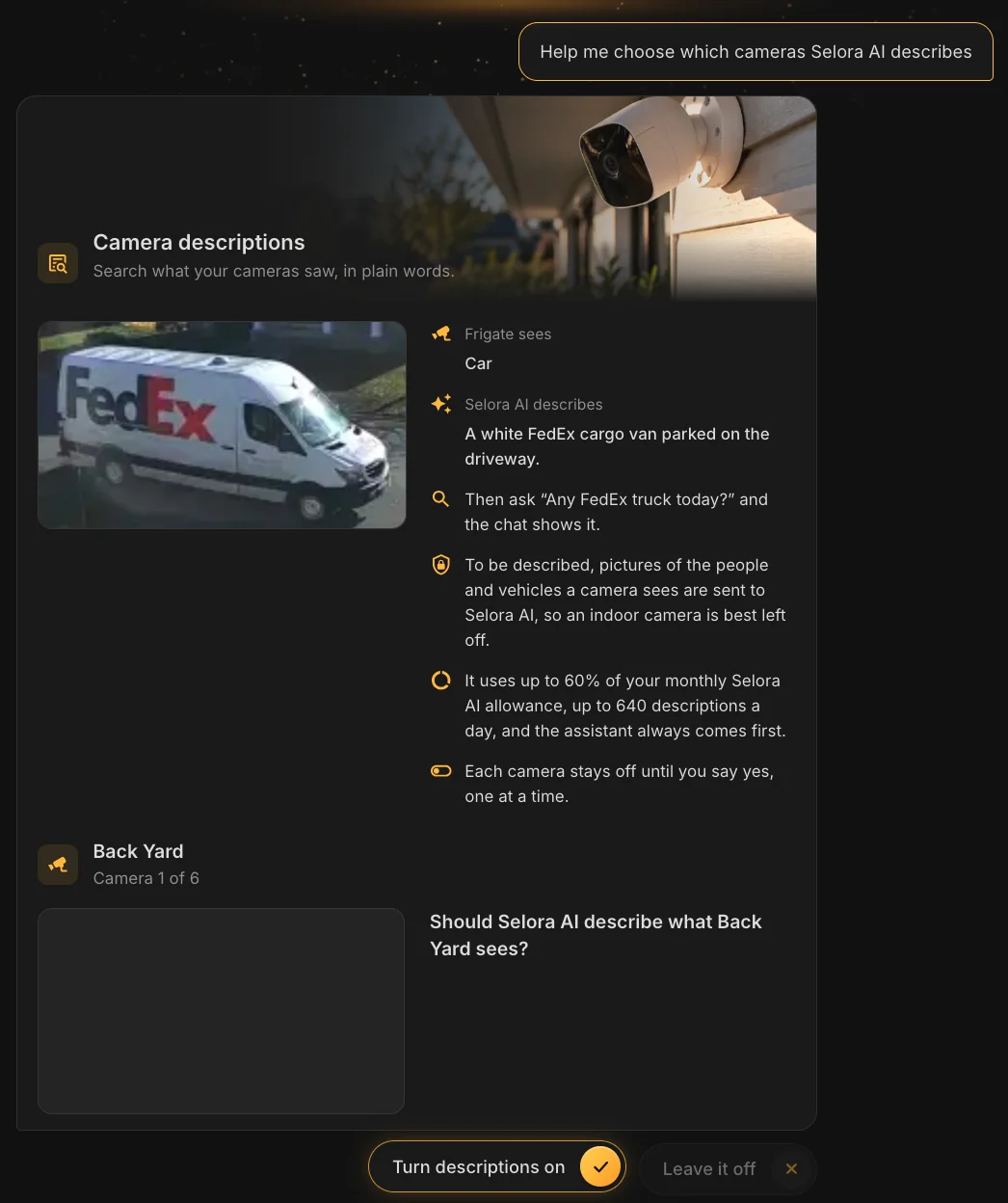
Selora AI explains descriptions, then asks about each camera: Turn descriptions on, or Leave it off.
Credits
Descriptions use Selora AI credits, the same ones as the assistant, and the assistant always comes first:
- They stop at 60%. Descriptions pause once this period’s use, chat included, reaches 60% of your credits for the period. The rest stays for the assistant. Buying top-up credits raises that line and resumes them.
- Or let them use your top-ups. The homeowner can turn on Use top-up credits on the installation’s Selora AI page in the Selora Homes account. Descriptions can then use 60% of your plan’s credits plus all your top-up credits, and 40% of the plan’s credits stay for the assistant.
- A daily limit keeps one busy day from using up the period. Once it runs out, descriptions resume at midnight UTC. Top-ups do not raise the daily limit.
The same Selora AI page shows how many credits went to descriptions this period and today. To make them last, describe fewer cameras, or only what enters a zone.
Back up your recordings
Recordings live on the Hub’s own disk. When the disk runs low, Frigate deletes the oldest ones first, and if the Hub is stolen or damaged, its footage goes with it. Selora Vision can keep copies elsewhere:
- Settings to Selora’s cloud. Always on, with nothing to set up.
- Recordings to a NAS on your home network, to keep them longer than the Hub can.
- Alert clips to Selora’s cloud, so the footage of each alert survives the Hub.
- The face library to Selora’s cloud, with the settings, only if you agree.
All four are on the Selora Vision card on the installation’s Overview: open Backups to see each one, on or off. The Cloud Backups tab of the installation has a Selora Vision tab with the details: the stored settings and clips, restoring clips, and the history of your consents.
Only the homeowner can turn these backups on or off. Your installer sees them but cannot change them.
Settings
Selora Vision’s settings, with its cameras, zones, and detection settings, are backed up to Selora’s cloud on their own. The Hub checks for changes every hour and uploads a new copy when something changed. The newest 5 copies are kept.
If the Hub is ever replaced, the new one picks up the newest copy and starts where the old one left off. The homeowner can also download any copy from the Selora Vision tab, as a .zip file.
Back up to a NAS
A NAS (network attached storage) on your home network can keep far more video than the Hub. The Hub copies its recordings to it, and keeps them there after it deletes its own.
- On the Selora Vision card, open Backups and turn on Back up to a NAS.
- Choose the protocol: SMB for Windows and most NAS, or NFS for Linux and Unix.
- Enter the NAS’s Server, as a name such as
nas.localor an IP address. Reserve an address for the NAS on the router, the same as for the cameras. - Enter the Share name, or for NFS the Export path, such as
/volume1/recordings. - Optionally, enter a Folder inside the share. Each Hub claims the folder it writes to, so two Hubs need two folders.
- For SMB, enter the Username and Password of an account that can write to the share, and the Domain if the NAS uses one. Without a username, the Hub connects as a guest.
- Leave Also back up Selora Vision’s settings ticked to keep a copy of the settings on the NAS too.
- Select Check and save.
The Hub connects to the NAS and writes to it before anything is saved. If it can’t, the window says why, such as a wrong password or a share that doesn’t exist. Select Change settings to fix it and try again.
The password goes to the Hub alone. Selora Homes does not keep it, so after a Hub is replaced or reinstalled, the card asks for it again: select Enter the password. Nothing is copied until you do.
How the copy works:
- New footage reaches the NAS within a minute or two. Older recordings and exports follow every hour, newest days first, so the first copy can take several hours.
- Nothing on the NAS is deleted because the Hub deleted it.
- When the NAS would drop below 5% free space (or 2 GiB, whichever is larger), the Hub deletes the oldest days in its own folder. It never deletes today’s recordings, or anything else on the NAS.
Under Details, the card shows the share, when the last copy finished, the space left on the NAS, and how far back its footage goes.
Turning the NAS backup off stops the copies, and the Hub forgets the share and its password. The recordings already on the NAS stay there.
Back up alert clips to Selora’s cloud
With alert clips on, the Hub uploads the recording of each alert to Selora’s cloud while the alert happens. If the Hub is stolen or damaged, the footage of what happened is already out of the house.
- Only alerts are uploaded, never the continuous recording.
- The Hub encrypts each clip before it leaves the home.
- Each clip is kept 30 days, then deleted.
- It is included with every paid plan.
To turn it on, switch on Back up alert clips under Backups on the Selora Vision card. Read what you agree to, tick the box, and choose:
- Which cameras: Every camera, or Only some.
- Longest clip: a longer alert is cut at this length.
- Storage for clips: how much of your plan’s backup storage to set aside for clips. Home Assistant backups and Selora Vision’s settings use the rest. When the clips’ share is full, the oldest clips are deleted to make room.
Clips don’t play from the cloud. To watch one, restore it to the Hub: on the Selora Vision tab of Cloud Backups, tick the clips and select Restore to the hub. The Hub needs to be online. Restored clips appear in Frigate’s Exports page, in a case named Restored from Selora cloud, not on the timeline.
When you turn alert clips off, the Hub stops uploading, and you choose what happens to the clips already stored: delete them after 24 hours, or keep them until each one is 30 days old. Turning clips back on within those 24 hours keeps them.
If the Hub can’t upload a clip, for example one that doesn’t fit in the storage set aside even after the oldest clips are deleted, you get a notification by email and in your Selora Homes account.
Back up the face library
The photos of the people Frigate recognizes (see Face recognition) are biometric data, so they are left out of the settings backup unless you agree. With Back up the face library on, they are backed up with the settings, and a replacement Hub still knows who is who.
To turn it on, switch on Back up the face library under Backups, then read and tick the consent.
Turning it off withdraws your consent: the Hub leaves faces out of its next settings backup, and every stored copy that holds them is deleted within 25 hours. The first 24 hours let you change your mind. The face library on the Hub itself is not touched.
Turn off Selora Vision
Turn off the switch on the Selora Vision card and confirm. Frigate stops, but its recordings, clips, and cameras are kept, so turning it back on finds them where they were.
If the home moves to the Free plan, Selora Vision turns off and its card says it stays off until the home is on a paid plan again.
Troubleshooting
“This hub doesn’t have enough memory to run Frigate alongside Selora AI Local.” A standard Hub runs one or the other. Turn off Selora AI Local on the Selora AI card, then turn Frigate on. To run both, the home needs a Hub with 32 GB of RAM.
“This hub will run Frigate with little memory to spare.” Frigate will run, but the Hub may slow down when it is busy.
“Not finished yet.” The Hub could not finish every step yet, often because Home Assistant was waiting to restart. It tries again on its own; check back in a few minutes.
A camera stops showing video. Check that the camera still has the same IP address. If the router gave it a new one, reserve an address for it, then update the camera in Frigate or ask Selora AI to add it again.
Recordings play in one browser but not another. The camera probably sends H.265 video, which saves space but not every browser can play. In the camera’s video or stream settings, switch the encoding to H.264, which plays in the most browsers and in the Home Assistant app.
“The hub needs your NAS password again.” The Hub was replaced or reinstalled, and the password stayed on the old one. Select Enter the password under Back up to a NAS.
“The NAS didn’t answer.” Check that the NAS is on and on the same network as the Hub, and that its address hasn’t changed.
“The folder already holds another hub’s backup.” Each Hub needs its own folder on the NAS. Select Change NAS settings and enter another Folder inside the share.
“The NAS is full, even after removing all but today’s recordings.” Free up space on the NAS, or point the backup to a larger share.
Last modified November 10, 2026: docs(selora-vision): document NAS and cloud backups, move docs to /vision/ (3fe29bc)