
Request Remote Access
How installers and the Selora Homes support team can request temporary remote access to customer Home Assistant installations for support and maintenance.
Search results
Remote access provides a secure, on-demand way for professional installers and the Selora Homes support team to access customer Home Assistant installations remotely. Unlike permanent homeowner remote access, this access is temporary, request-based, and fully controlled by the homeowner.
How It Works
Remote access follows a request-and-approve workflow:
- Installer or support team member requests access through the Selora Connect portal
- Homeowner receives notification and reviews the request
- Homeowner approves or denies the access request
- Temporary access granted with a unique URL and password
- Session expires automatically when the approved duration ends
Requesting Access
As an installer or support team member, you can request remote access to any customer installation you manage:
- Log in to your account
- Navigate to the customer’s installation
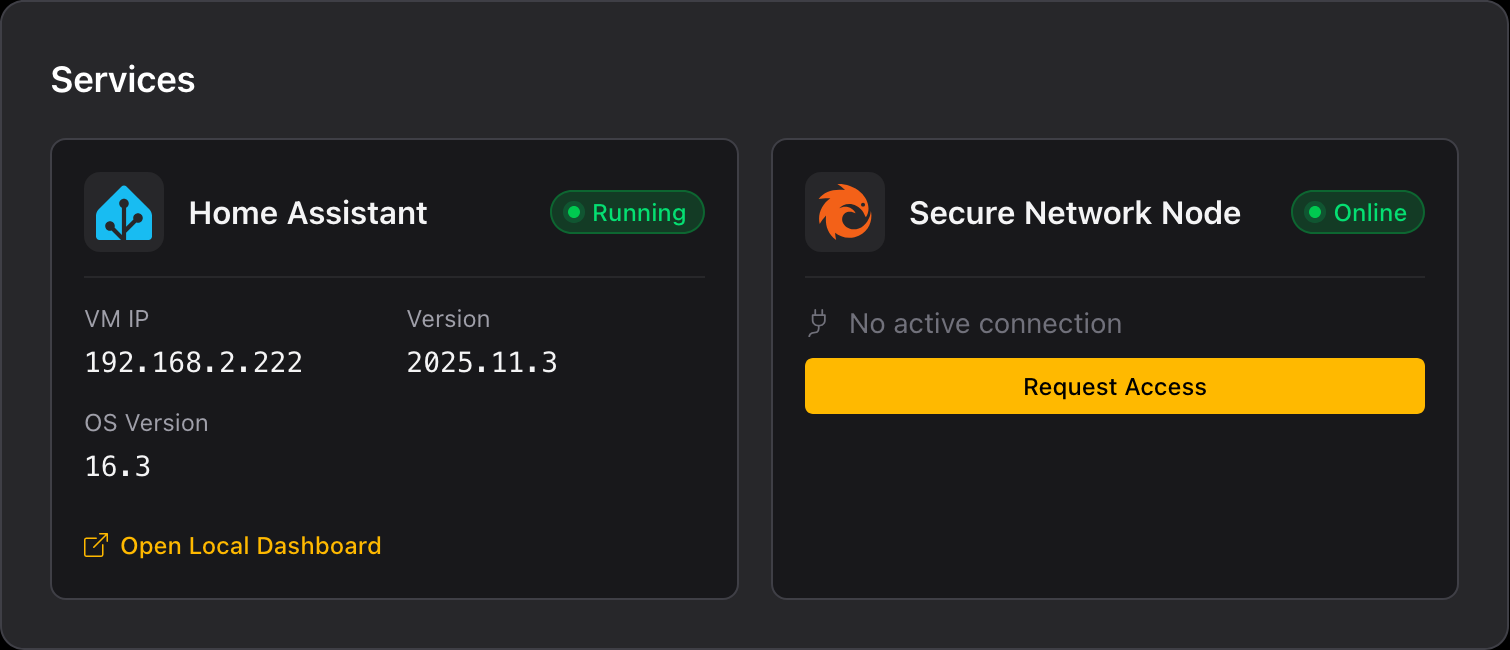
- Click Request Access in the Secure Network Node section
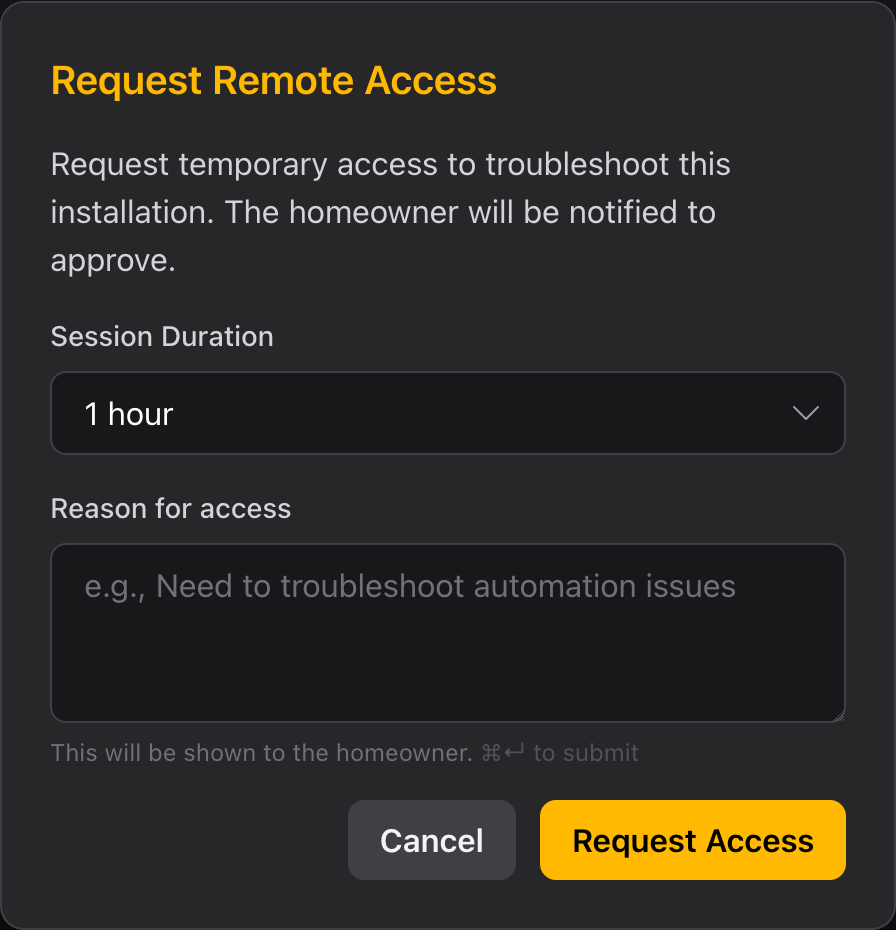
- Specify the session duration from the dropdown
- Enter the reason for access explaining why you need to connect
- Click Request Access to submit
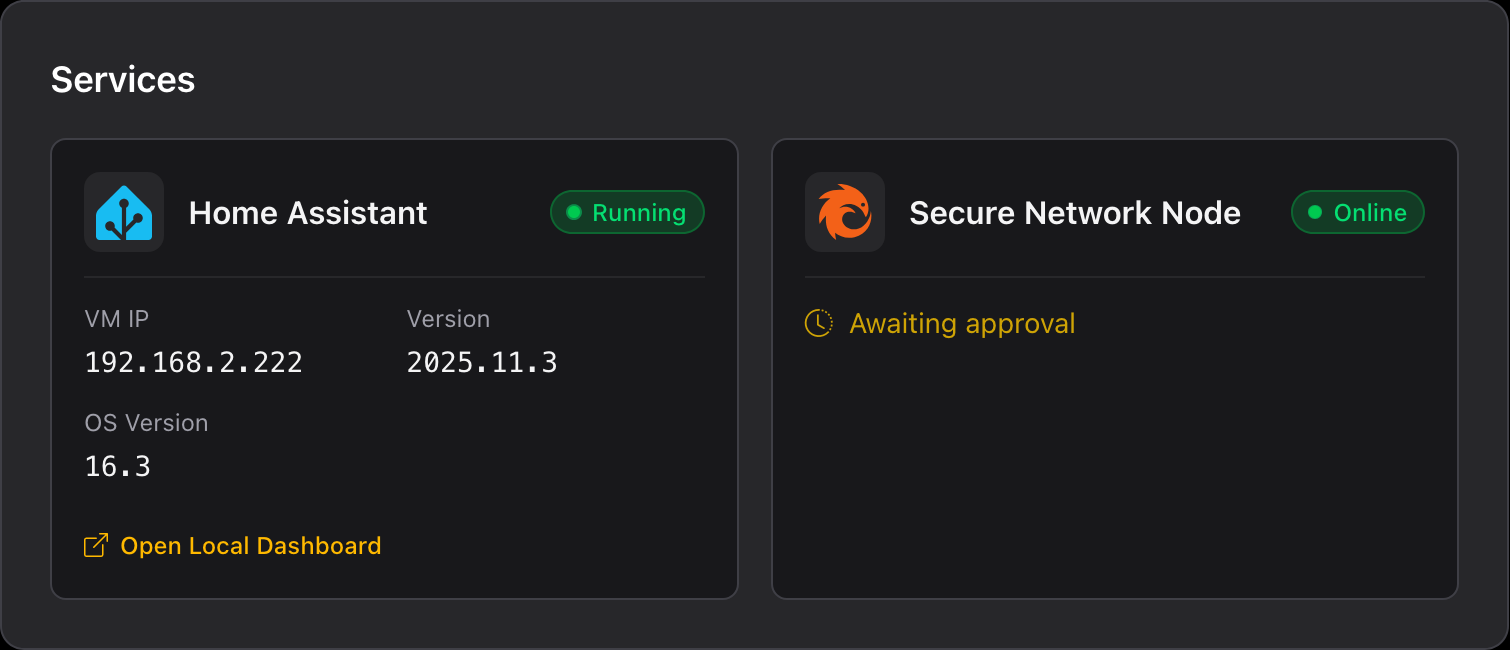
After submitting, the status changes to “Awaiting approval” while waiting for the homeowner to respond.
Homeowner Approval
When you request access, the homeowner receives an email notification with the details of your request.
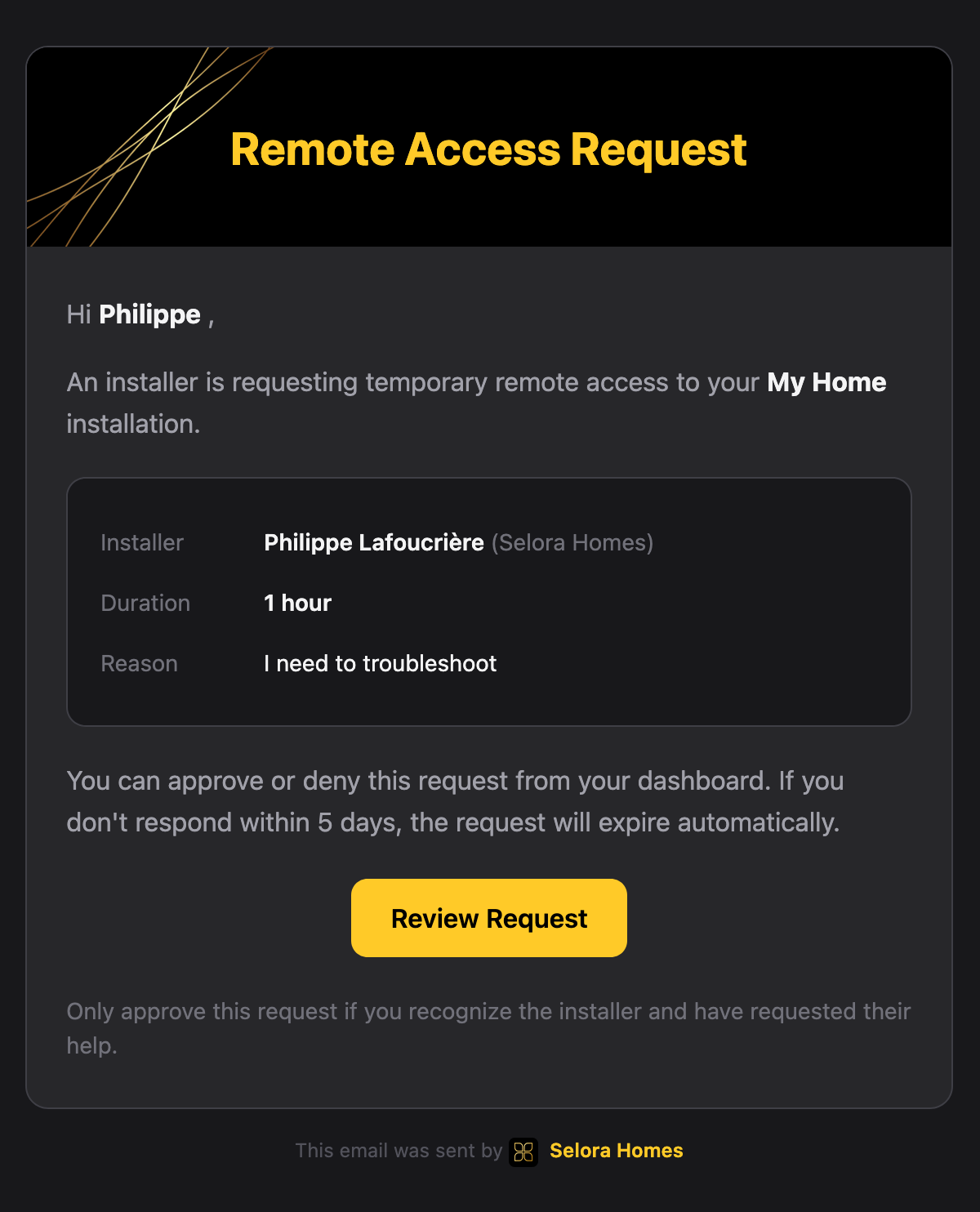
The homeowner can also approve or deny the request directly from their Selora Connect dashboard.
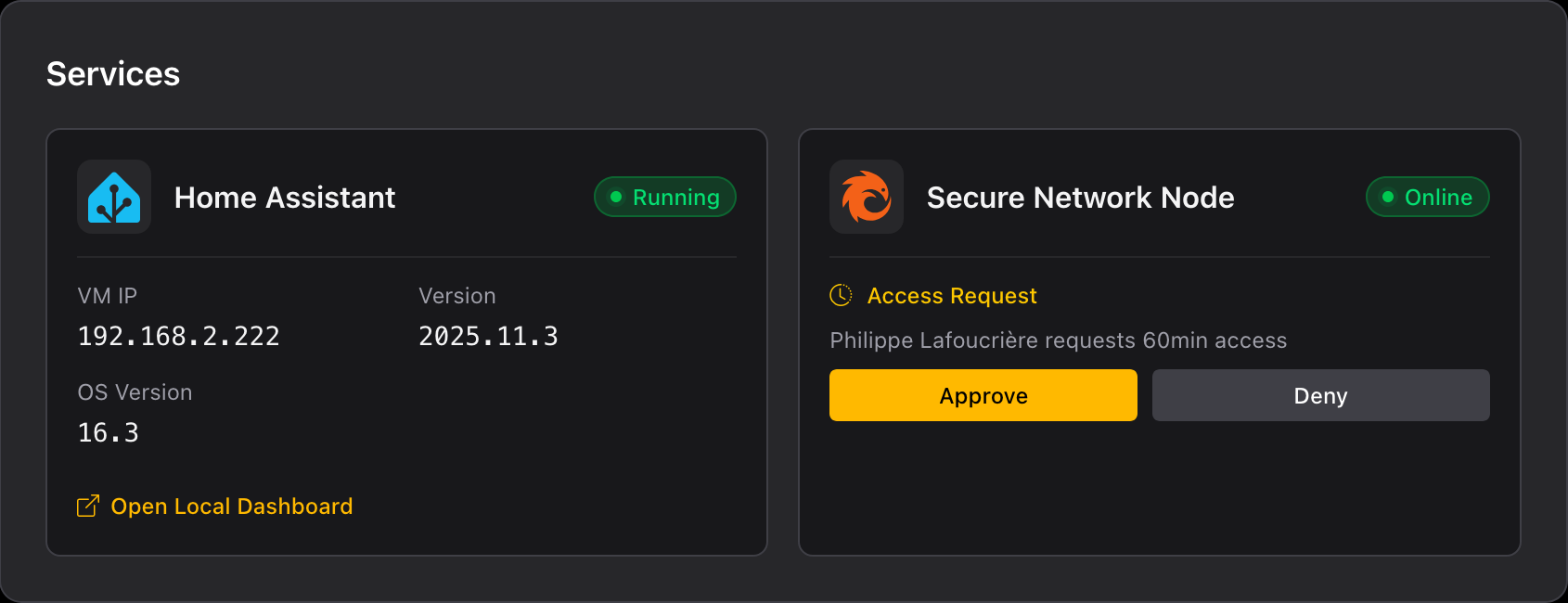
Starting Your Session
Once the homeowner approves your request, the status changes to “Approved” and you can start your session.
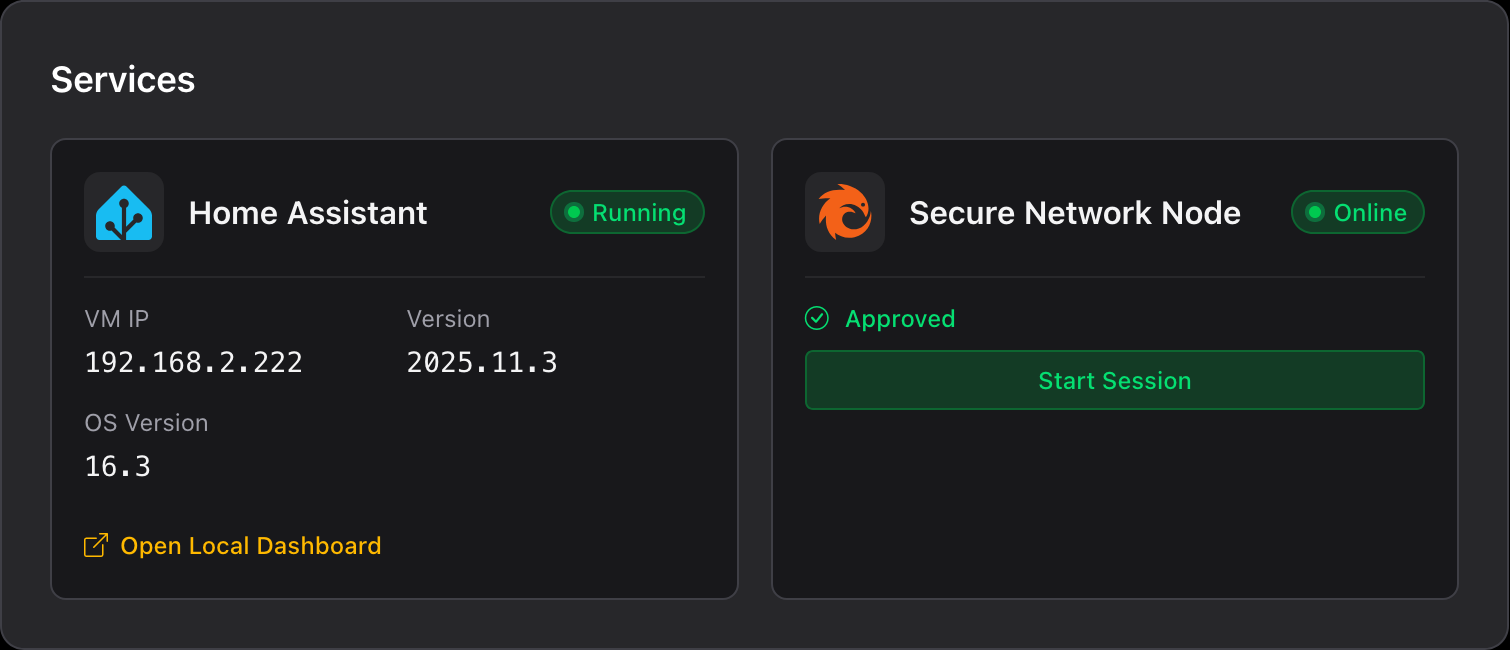
Click Start Session to activate your remote access. You will receive:
- Temporary URL: A unique, time-limited URL for accessing Home Assistant
- Session Password: A one-time password specific to this session
- Time Remaining: A countdown showing how much time is left in your session
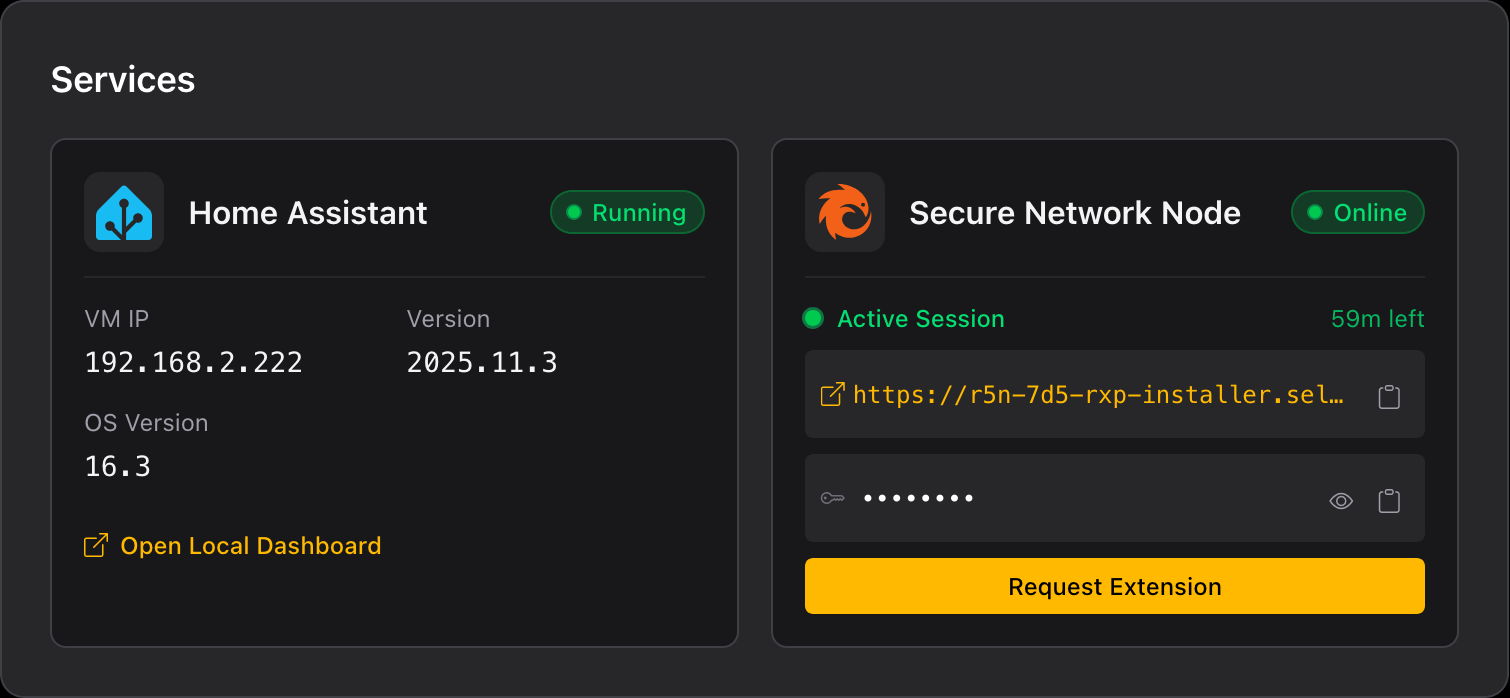
Click the URL to open Home Assistant in your browser, then enter the session password when prompted.
Session Duration
Session duration is specified when making the request. Available options:
| Duration | Typical Use Case |
|---|---|
| 30 minutes | Quick diagnostics or configuration checks |
| 1 hour | Standard troubleshooting or minor updates |
| 2 hours | Integration setup or moderate configuration work |
| 4 hours | Major updates or complex troubleshooting |
| 8 hours | Extensive system work or migrations |
Extending a Session
If you need more time than originally requested, click Request Extension while your session is active.
- Click Request Extension in the active session panel
- Specify the additional time needed
- Provide a reason for the extension
- The homeowner receives a notification to approve the extension
Homeowner Controls
Homeowners maintain full control over remote access to their Home Assistant.
Revoking Access
Homeowners can revoke an active session at any time by clicking Revoke Access from their dashboard.
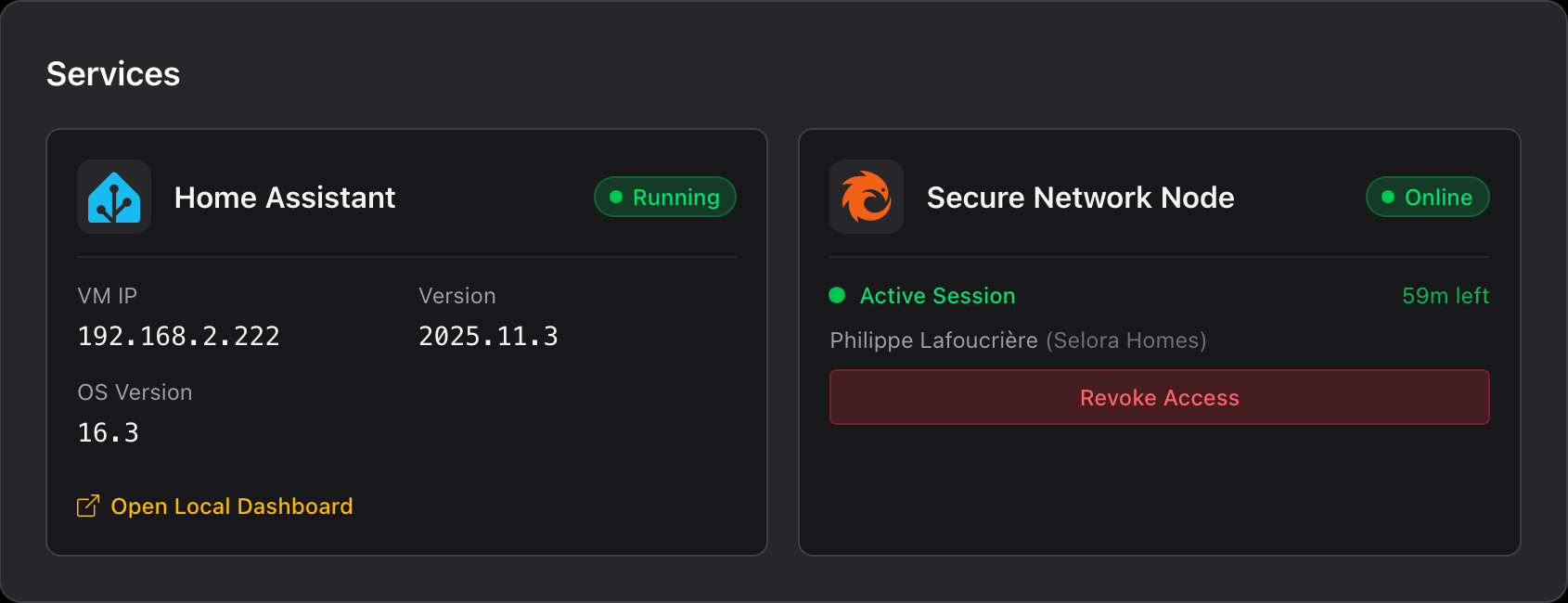
The active connection is terminated immediately upon revocation.
Access History
All access requests and sessions are logged, including:
- Request timestamp
- Approval/denial status
- Session start and end times
- Any extensions requested and granted
- Revocation events
Security Features
Remote access is built with security as a priority:
- No Permanent Access: Every session requires explicit homeowner approval
- Time-Limited Sessions: Access automatically expires at the scheduled end time
- Unique Credentials: Each session uses a unique URL and password
- Instant Revocation: Homeowners can end sessions immediately
- Complete Audit Trail: All access is logged for transparency
- Encrypted Connection: All traffic is encrypted end-to-end
Best Practices
- Request only what you need: Choose the shortest duration that allows you to complete your work
- Be specific in your reason: Clear explanations build trust with homeowners
- Notify before requesting: A quick call or message to your customer improves the experience
- Request extensions early: Don’t wait until the last minute if you need more time
- Document your work: Keep notes on what you did during the session for future reference
Troubleshooting
Request Not Received by Homeowner
- Verify the customer’s contact information in Selora Connect
- Ask the customer to check their spam/junk folder
- Ensure the customer has notifications enabled in the Selora Connect app
Session Expired Unexpectedly
- Check if the homeowner revoked access
- Verify the original session duration in your request
- Submit a new access request if needed
Connection Issues During Session
- Verify the customer’s internet connection is stable
- Try refreshing the temporary URL
- Contact Selora support if issues persist
Related Documentation
Last modified March 5, 2026: Rename Smart Butler to Selora AI and create dedicated product page (afd2ec3)