
Device Pairing Codes
How to store and manage device pairing codes in Selora Connect for easy retrieval during maintenance.
Search results
Smart home devices often come with pairing codes printed on a label or included in the packaging. Once a device is installed — especially behind a wall switch or in a ceiling recess — retrieving that code can mean dismounting the device entirely. Selora Connect lets you store pairing codes digitally so they are always available when you need them.
Prerequisites
Before storing pairing codes, ensure:
- You have a Selora Connect account
- At least one home is configured in your account
Selecting a Home
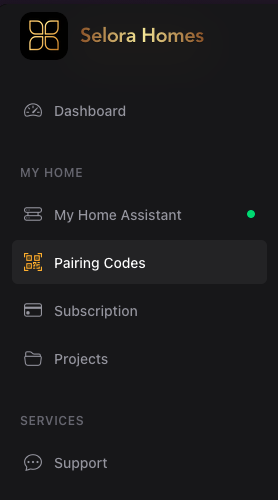
Pairing codes are organized per home. Before adding or viewing codes, select the home you want to work with from the home selector in Selora Connect, then open the Pairing Codes section from the sidebar.
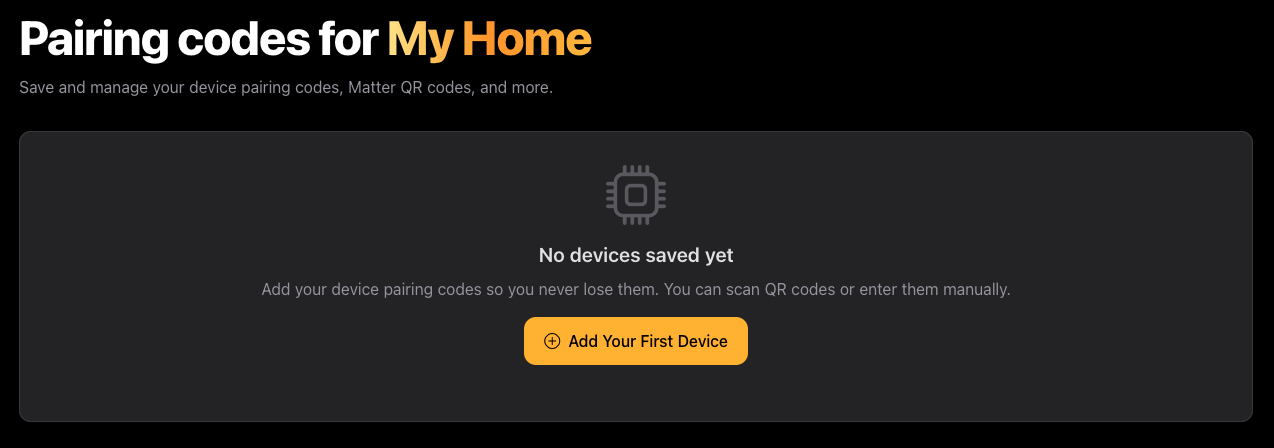
When no devices have been saved yet, you will see an empty state with an Add Your First Device button.
Adding a Device
Click Add Your First Device or Add Device to open the device form. Fill in the device name, pairing code, device type, area, and an optional description.
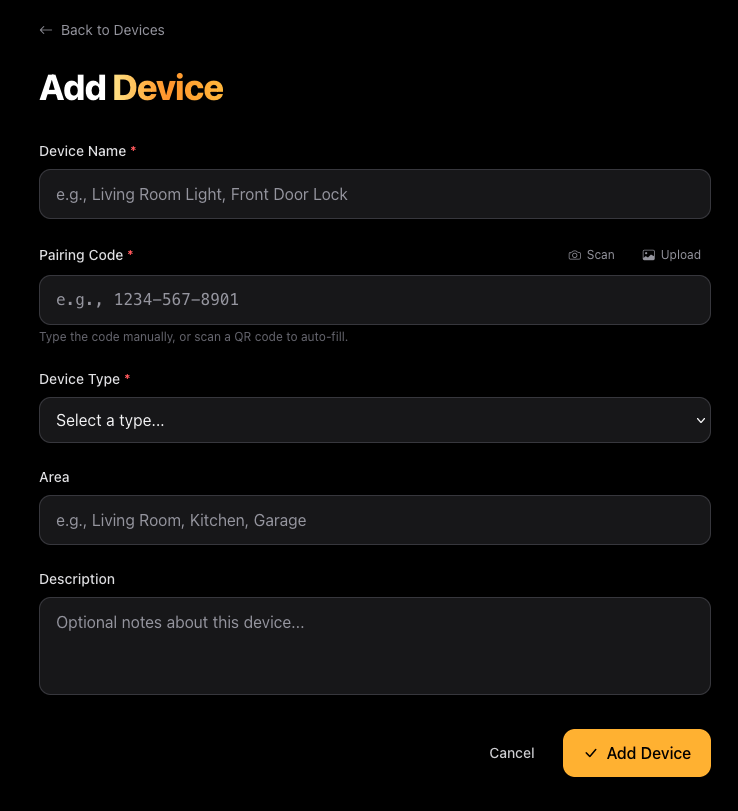
The pairing code can be entered in three ways:
Manual Entry
Type the pairing code directly into the Pairing Code field. This is useful when you have the code written down or displayed on a device label in front of you.
QR Code Scan
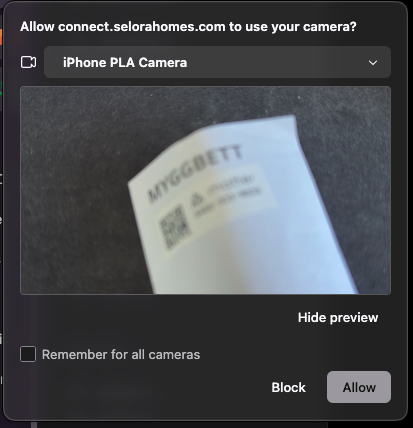
If the pairing code is presented as a QR code on the device, click Scan next to the Pairing Code field and point your camera at the QR code. The code value is extracted automatically and filled into the form.
You can scan from your phone by opening connect.selorahomes.com in your phone browser. On macOS, you can also scan directly from your desktop browser using your iPhone camera via Continuity Camera.
Upload a Picture
If you have a photo of the QR code or label:
- Click Upload next to the Pairing Code field
- Choose an image from your device
- The system reads the code from the image
Managing Pairing Codes
Once stored, devices appear as cards showing the QR code, device name, type, pairing code, and area. Use the filter buttons to narrow the list by device type or area.
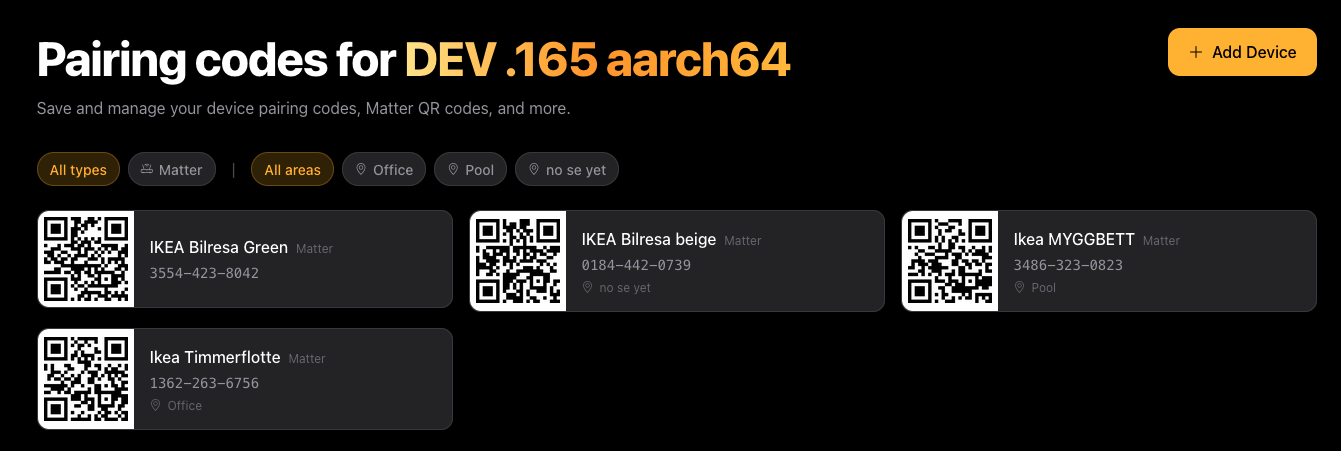
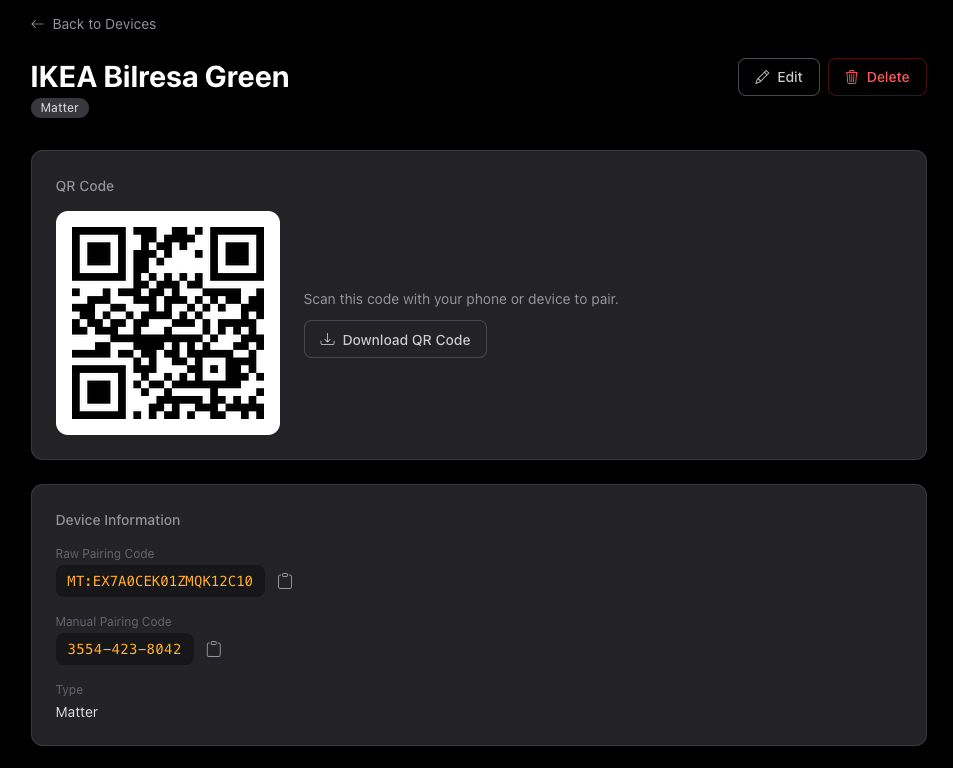
Click on a device card to view its full details, including the QR code (available for download), the raw pairing code, and the manual pairing code. From this view you can Edit or Delete the device.
Privacy and Security
- Images are not stored: Any image you upload for QR scanning is processed in real time and discarded immediately. Only the extracted code value is saved.
- Device data is private: Pairing codes and device information are visible only to you and are not shared with anyone.
- Selora Homes does not access your devices: Stored pairing codes are for your convenience only. Selora Homes never uses them to connect to or control your devices.
Last modified March 23, 2026: fix responsive (87f8fb9)