
Communication Tools
How we use Slack, Email, Zoom, Google Calendar, and Selora Book at Selora Homes.
Slack
Slack is our primary communication tool for real-time and async conversations.
Channel Structure
#general: Company-wide announcements and discussions
#random: Non-work chat, memes, and fun
Department Channels:
- #engineering
- #sales
- #marketing
- #customer-success
- #product
Project Channels: Temporary channels for specific initiatives (prefix with proj-)
Customer Channels: One channel per customer for internal coordination (prefix with customer-)
Slack Best Practices
Use Threads: Keep discussions organized by using threads
Use Channels Over DMs: Default to public channels for work discussions so others can learn and contribute (see Communication Guidelines )
@mentions:
@here: People currently online (use sparingly)@channel: Everyone in the channel (use very sparingly)@person: Direct notification to one person
Status Updates: Set your status when OOO, in a meeting, or in focus mode
Emoji Reactions: Use reactions for quick acknowledgment instead of “+1” messages
Do Not Disturb: Use DND to protect focus time
Slack Channels to Join
Everyone Should Join:
- #general
- #random
- Your department channel
Based on Interest:
- #home-assistant (for HA enthusiasts)
- #dev (engineering discussions)
- #customer-feedback (product insights)
Email is for external communication and formal internal matters.
When to Use Email
- External communication (customers, partners, vendors)
- Formal documentation (offer letters, contracts)
- Communication requiring a paper trail
- Reaching people outside Slack
When NOT to Use Email
- Internal team communication (use Slack)
- Quick questions (use Slack)
- Project discussions (use GitLab or Slack)
Email Best Practices
Clear Subject Lines: Specific subject lines make emails easier to find
One Topic Per Email: Makes it easier to track and respond
BCC for Mass Emails: Use BCC when emailing multiple external recipients
Professional Tone: Email tone should be professional but friendly
Zoom
Zoom is our video conferencing tool.
Meeting Best Practices
Video On: Default to video on for better connection
Mute When Not Speaking: Reduce background noise
Use Good Audio: Invest in a decent microphone
Good Lighting: Face a window or lamp for better video quality
Test Before Important Meetings: Check audio/video before customer calls
Virtual Meeting Etiquette
Be On Time: Join a minute or two early
Minimize Distractions: Close other apps, silence notifications
Use Gallery View: See everyone in the meeting
Use Chat: Share links or side comments in chat
Recording: Ask before recording and announce when recording starts (see Meeting Guidelines )
Zoom Rooms
All-Hands: Monthly company meetings
Department Standups: Weekly team check-ins
1-on-1s: Personal Zoom rooms for manager 1-on-1s
Customer Calls: Use @selorahomes.com Zoom links for external calls
Google Calendar
Google Calendar is our scheduling tool. Since we can’t enforce calendar settings at the Google Workspace level, please configure your calendar preferences manually as described below.
Recommended Settings
Go to Google Calendar → Settings → Event settings and apply the following configuration:
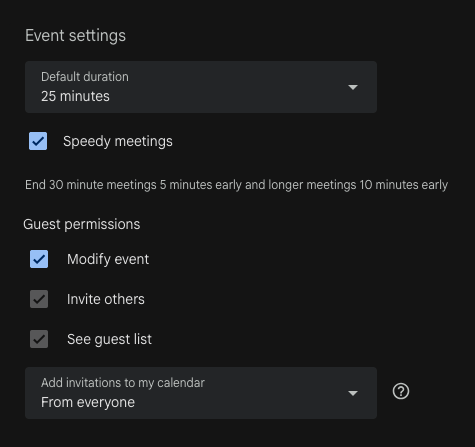
Event settings:
- Default duration: 25 minutes
- Speedy meetings: Enabled — this ends 30-minute meetings 5 minutes early and longer meetings 10 minutes early, giving everyone a buffer between back-to-back calls
Guest permissions (all enabled):
- Modify event
- Invite others
- See guest list
Add invitations to my calendar: From everyone
Selora Book
Selora Book is our internal scheduling tool. It powers the booking pages on the website, such as the free consultation , and the booking links you share with customers and partners.
Getting Started
- Go to book.selorahomes.com and choose Continue with Google with your @selorahomes.com account
- Open Connections and link your Google Calendar. This is required: Selora Book reads your busy events to compute your availability, and adds bookings to your calendar
- If you have a Zoom account, link Zoom too. Without it, your meetings use Google Meet, and you can’t host event types that offer Zoom
- Set your working hours in your availability schedule, so you’re only booked when you’re available
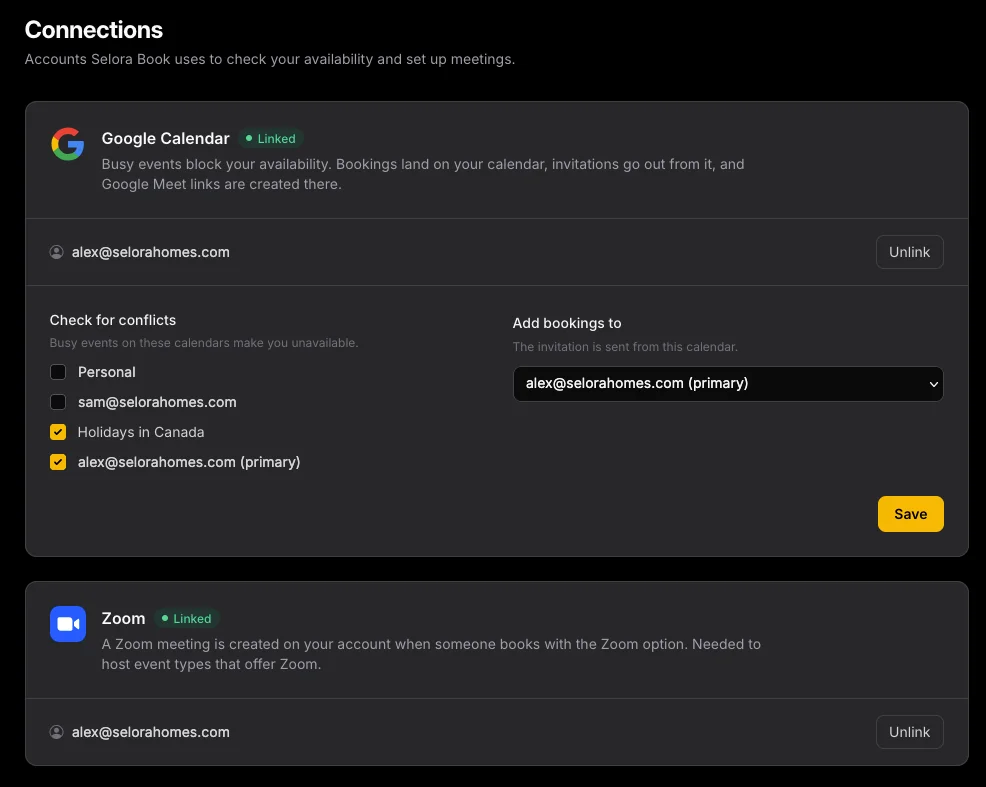
Calendar Settings
Check for conflicts: Tick every calendar whose busy events should block your availability, such as your work calendar and a personal calendar you’ve shared with your work account
Add bookings to: The calendar that receives new bookings. Invitations are sent from it, so keep your @selorahomes.com primary calendar here
Other Tools
GitLab: Code, documentation, issues, merge requests
Google Workspace: Email, docs, sheets, calendar
Last modified October 16, 2026: Merge branch 'docs/lutron-caseta-pairing-order' into 'main' (1bb2deb)